All posts by Vikas Shitole

About Vikas Shitole

Vikas Shitole is a Senior Tech Lead at VMware by Broadcom, VCF division, India, where he leads system test efforts—including scale, stress, and resiliency testing—and drives product quality across VMware Cloud Foundation (VCF), Broadcom’s flagship private cloud platform. He is an AI and Kubernetes enthusiast, and is passionate about VMware customers and automation around vSphere and VCF. Vikas has been honoured as a vExpert for 13 consecutive years (2014–2026) for his sustained technical contributions and community leadership. He is the author of two VMware Flings, holds multiple industry certifications including VCF admin 9.0, and is one of the top contributors to the VMware API Sample Exchange, where his automation scripts have been downloaded over 50,000 times. Vikas has shared his expertise as a speaker at international conferences such as VMworld Europe and VMworld USA, and was selected as an official VMworld 2018 blogger. He also served as lead technical reviewer for the Packt-published books vSphere Design and VMware Virtual SAN Essentials. Beyond tech, Vikas is a dedicated cricketer, cycling enthusiast, and a lifelong learner in fitness and nutrition, with the personal goal of completing an Ironman 70.3

Editing Storage DRS VM overrides : Java vSphere SDK and PowerCLI script

Recently I had an opportunity to work on one of customers requirement with respect to Storage DRS. Their requirement was to edit/remove Storage DRS “VM overrides” settings using vSphere API. As part of this exercise, I had written scripts both in PowerCLI as well as using vSphere Java SDK. I thought it is good to share with you as well. Before discussing about these scripts, let us first understand what exactly is Storage DRS VM overrides?

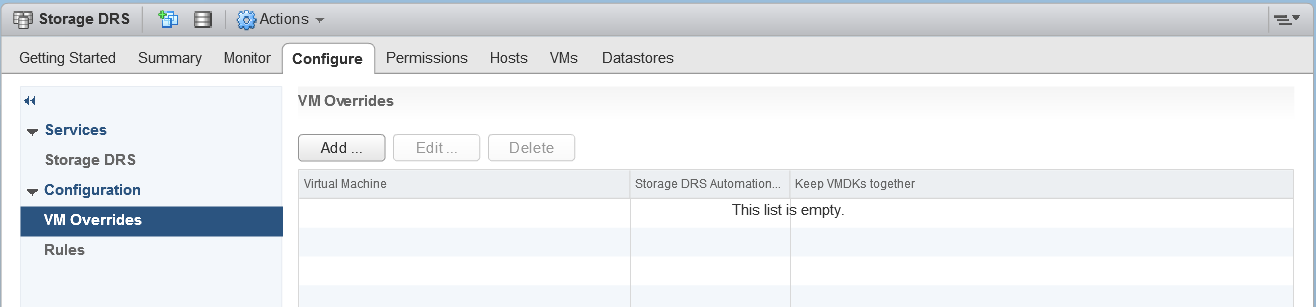
When user selects Storage DRS cluster (SDRS POD) as a storage for a VM, Storage DRS takes care of placing that VM on right datastore among all the datastores inside Storage DRS cluster. Once SDRS places that VM, all the default SDRS cluster level configuration gets applied on that VM such as ‘Storage DRS automation level’, ‘Keeps VMDK together’ etc. “VM overrides” settings comes to into picture if user wants to override some of Storage DRS cluster level settings. Ex. SDRS cluster level settings for “Automation level” is “Manual” and now for particular VM, user wants to have it as “Fully Automated” or user wants to disable SDRS on particular VM or user just wants to disable default affinity rule “Keeps VMDK together” for specific VM. This can be achieved using SDRS VM overrides settings. Let us look at some of vSphere web client screenshot on how to do it.

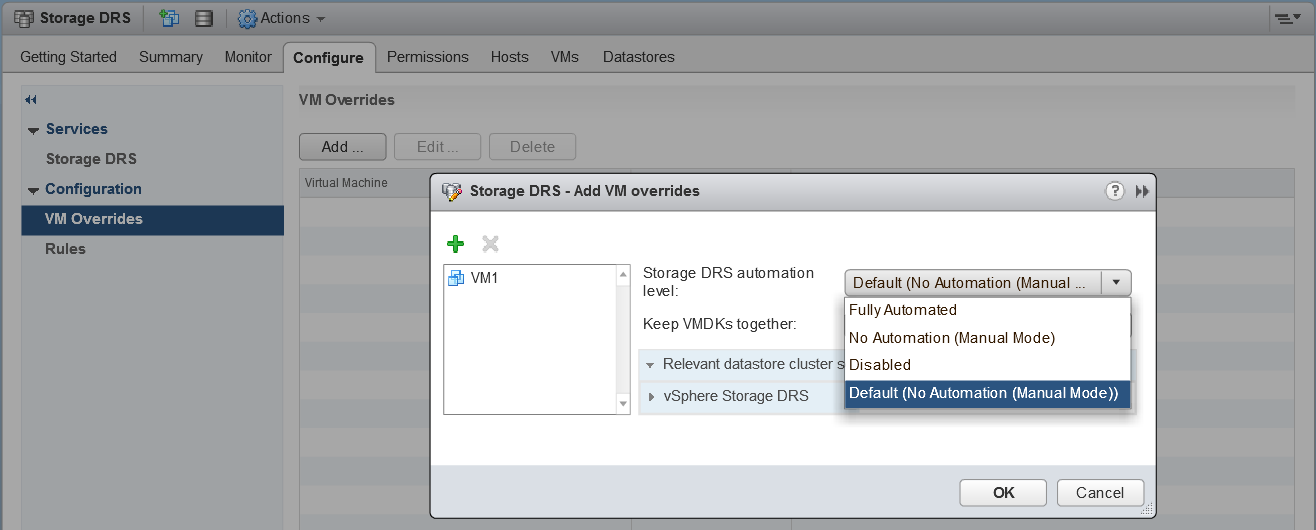
Above screenshot shows how to traverse to the “VM overrides” workflow using web client. You could see, currently there is NO VM for which SDRS settings are overridden. You can click on add button in order to override SDRS settings for specific VM as shown below.

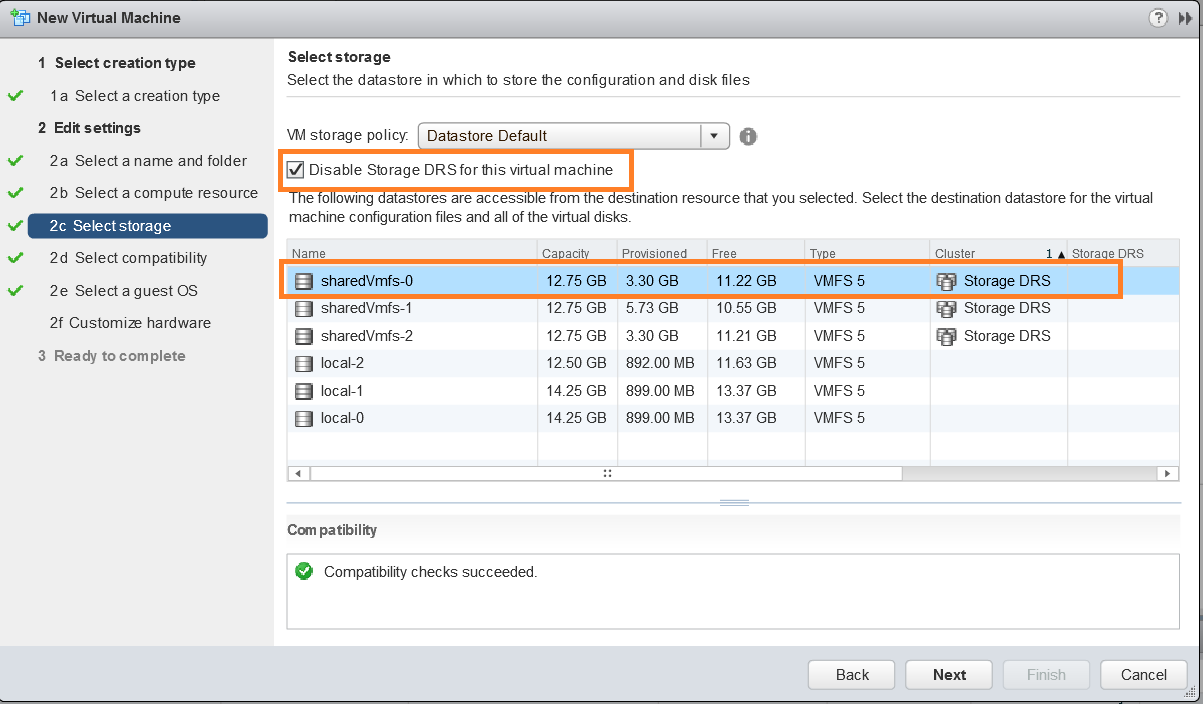
Apart from this, there is another reason VM can get listed under “VM orderride” section i.e. When user is creating a VM and user wants to place that VM on a particular datastore among datastores in SDRS cluster instead of relaying on SDRS itself for initial placement, it does mean that user would like to take control of this VM , hence SDRS gets disabled on such VM and gets listed under “VM override” section. Take a look at below screenshot to understand the same.

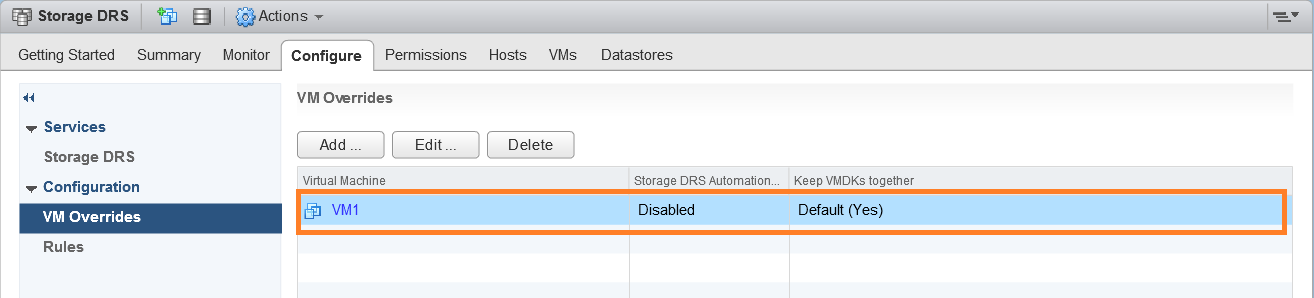
You could see in above screenshot that if user wants to place the VM on a particular datastore from SDRS cluster instead of relaying on SDRS, we can select specific datastore only when we select checkbox for disabling SDRS. Once VM creation is completed, you could see that VM gets listed under “VM overrides” section as shown below.

Now that we understood, what is VM overrides? and how to configure it? Please take a look at scripts for editing/removing these Storage DRS VM overrides. Below are script locations.

1. Java SDK script on my github repo and on VMware Sample Exchange

2. PowerCLI equivalent on my github repo and on VMware Sample Exchange

If you have still not setup your YAVI JAVA Eclipse environment:Getting started tutorial

Important tutorials to start with: Part I & Part II

If you want to understand Storage DRS, take a look at this whitepaper

Let me know if you have any comments.

My first ever VMworld 2017 experience.

This year, it was the very first time I got an opportunity to be part of VMworld Europe, Barcelona & I thought it would be good to share my experience with you. I am sure you will enjoy reading it.

1] My experience as Tech-talk Speaker

I had couple of tech-talks as part of VMworld vBrownBag. This was the very first time I got an opportunity to deliver tech-talks outside India & that too at biggest conference to unknown audience (Customers, partners etc). Personally, it was really a thrilling & exciting experience for me. More exciting was, tech-talks were arranged in open VMVillage community area (I was assuming that they would be in closed hall/room) & tech-talks were being live streamed/recorded as well. Based on the interest and feedback received, I could say both talks were really well received.

Below are the youtube links to my tech talks. Please take a look and please provide your feedback if any

i) VMware Log Tuner (aka vLog Tuner or VLT):
(Project contributors: @chiragarora, @durgakarri & @vThinkBeyondVM (myself))

Youtube link:

ii) DRS Cluster Rules Manager:
(Project contributors: @durgakarri, Gururja Hegdal & Vikas Shitole)

Youtube link :

Take a look at all vBrownBag tech-talks

2] Here are some of the VMworld highlights:

As usual, general sessions by our leaders were awesome. It was truly amazing to be part of such huge community & buzz. Apart from general sessions, as per me, below are the highlights.
i) VMware cloud on AWS (VMC or VMW on AWS): As expected, VMC had a lot of coverage across quick talks and breakout sessions. For me, the most insightful breakout session on VMC was by Solution Architect from Amazon and Technical marketing director from VMware i.e. “Business value of VMware Cloud on AWS”. In addition to these sessions, I attended some more insightful breakout sessions on VMC as well as other VMware products.

Here are some of top sessions from VMworld Europe

Here are some of top sessions from VMworld US

William Lam has compiled very nice list of all breakout sessions available on youtube

ii). Hands on Labs: After attending couple of sessions on VMC, I was very much interested in how this works for customer in action. This is where VMC on AWS HOL helped. It was truly great experience playing with very slick HTML5 based VMC interface & configuring various VMC components.

Here are more learning resources on VMware cloud on AWS

For learning VMware products, please look at Hands on lab

iii) Solution Exchange: This is the place where all of our partner ecosystem display their solutions. I visited 6-7 booths out of many others. It was heartening to see how VMware partner ecosystem has developed solutions around VMware products.

iv) Meeting with people: After communicating with many VMware & vExperts community members over email, blogs & twitter for last 3-4 years, it was exciting to meet some of VMware as well as vExperts community personally.

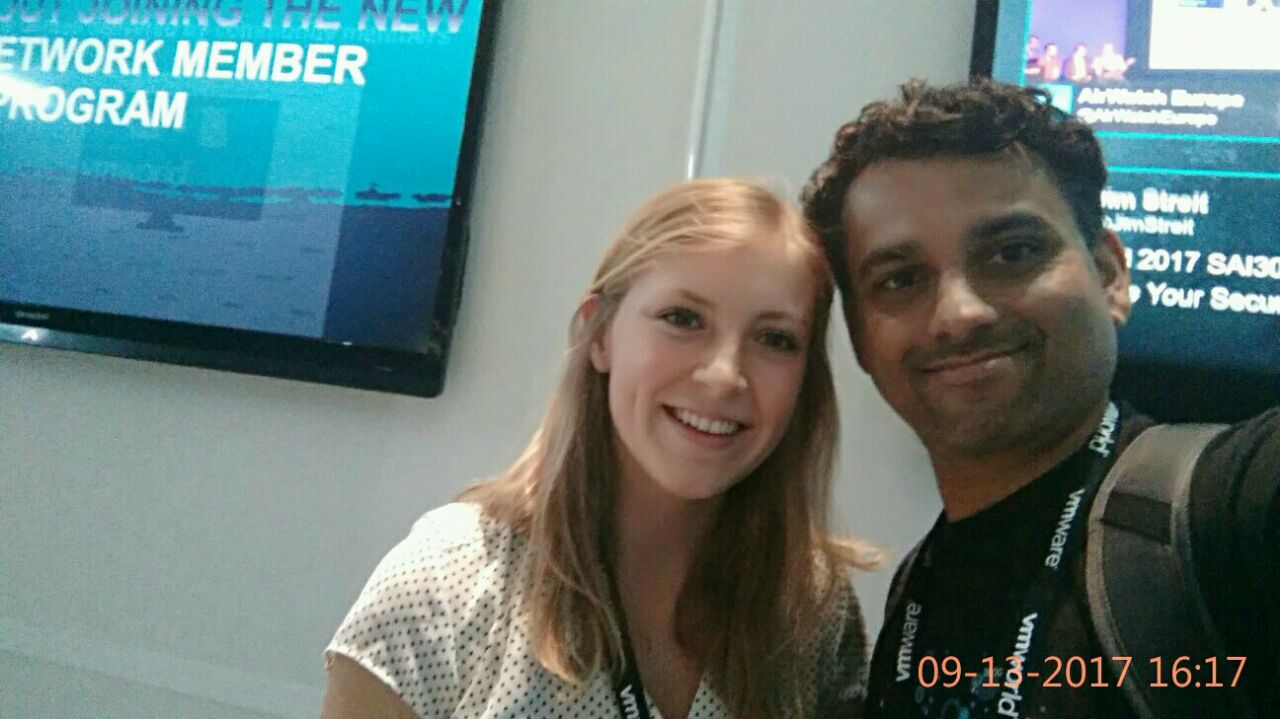
Selfie with Katie Bradely, vExpert Community manager

v) Things I missed: There are couple of things I missed as my tech-talks were scheduled on back-to-back days. However, as VMworld schedule is such huge, multiple tracks at the same time, we cannot catch everything as well. Having said that, I think, I missed to be part of VMworld Hackthon organized by our very own champs “William Lam”(@lamw) & “Alan Renouf”(@alanrenouf). I heard it was really cool (However, I did personally meet both of them on the way & visited VMware {code } booth to know all the programs they run). Another thing I missed is getting signed copy of this great & most sought book “VMware vSphere 6.5 Host Resources Deep Dive” by “Frank Denneman (@FrankDenneman) & Niels Hagoort (@NHagoort)”. Of course, I missed some of live breakout sessions but I can listen to recorded ones.

Here is blog post by William on VMworld Hackathon

Know more about VMware {code }

vi) Exploring Barcelona: Since BCN vs IST difference is just 3+ hrs, jet lag was not an issue & even temperature was similar what we have now in BLR. I explored BCN on the way back from VMworld Venue to hotel (5.5 KM) by walk, it was very pleasant experience. Yes, food was the issue but fortunately, I got “Indian Bollywood restaurant” walk-able distance from my hotel. In addition, being in Barcelona, I could feel the craze about football (During Barcelona vs Juventus match), how people worship players like Messi (Similar to Cricket in India). I would have liked visiting some places there but could not manage during my short trip.


vi) Parties/goodies & VMware store:
There was exclusive vExpert party arranged by our digital marketing team. Our own vSphere team has awarded all vExpert a Swag Bag containing “Power Bank, Book, Pen, bottle & some cool stickers”. In addition, many partners were giving away lot of goodies such as T-shirts, stickers, hat, bags etc. As I visited some of booths, I did get some of them & who does not like goodies? In addition, I enjoyed looking into VMware related books & official merchandise at VMware store. It was heartening to see the book that I reviewed as technical reviewer i.e. vSphere Design essentials.

vii) Other interesting booths: There were some more exciting booths/lounge such as “meet the experts” & “vmware educational services”.

Overall, I had a great trip, met many people, and learned a few things. Clearly, VMworld is a great platform to interact with VMware people, customers & vExperts

VMworld session voting : Great opportunity to influence VMworld 2017 agenda

VMworld 2017 session voting is started couple of weeks back and if you ask me, this is great opportunity for us to influence what we would like to see at this mega event. I thought to just have one small post asking for your votes for some sessions we have submitted.

If you do not know what is VMworld: VMworld is a global conference for virtualization and cloud computing, hosted by VMware. It is the number-one event for enabling the digital enterprise. VMworld 2017 brings you innovation to accelerate your journey to a software-defined business—from mobile devices to the data center and the cloud. Every year VMware hosts this mega event both in US as well as Europe

This year, there are record 1300+ sessions submitted by VMware fraternity (VMware customers, partners, vExperts, Employees) on multiple areas such as Cloud Computing, End User Computing (EUC), Software Defined Datacenter (SDDC) and mobility management etc.

Below are the sessions we submitted. If you like these sessions,please make sure you vote before 13th April.

1. DRS Cluster Rules Manager :New configuration management approach [2175] (Breakout session: 60 min)

2. Quick talk on VMware Log Tuner (VLT) [2203] (Quick talk: 30 min)

3. Overview on DRS Cluster Rules Manager :New configuration management approach [2752] (Quick talk : 30 min):

Session 1 & 3 are about the fling that we recently released. i.e. Cluster Rules Manager . We would like to take the configuration management approach demonstrated by this fling to the several specialized use-cases from vCenter server.

Here are some of FAQs can help you on casting your valuable vote

Q: How do I cast my vote?
A: First, head over to the voting site: https://my.vmworld.com/scripts/catalog/uscatalog.jsp

Next:
1. Click on the each above link or Search for each sessions listed above, you can either search using session name or ID
2. To vote for a session, click on the star value (1-5 stars) on the Session ID to indicate your preference. off-course, we want 5 stars.
3. You’ll be prompted to log in (if not already logged in) to your VMworld account to have your vote recorded. (If you don’t have a VMworld account, you can set one up for free: https://www.vmworld.com/myvmworld-update!input.jspa)
4. Colored stars confirms that you have successfully voted.

Note: As per me, it is great to open VMworld account using our official email id.

Q:How many sessions can I vote on?
A:You can vote on as many sessions as you’d like. However, you may not vote multiple times for the same session.

Q: How does my vote impact the VMworld 2017 agenda?
A: Your vote will be considered by the VMware Content Team as they make decisions about 2017 session content. In addition, the VMworld 2017 program reserves space on the agenda for “customer choice” sessions that receive particularly high ratings. Tell a friend to vote, and you might see your favorite session on the agenda this August or September.

Q: Who can participate in session voting?
A: Session voting is open to everyone. You will need to log in to your vmworld.com account to participate. If you do not have a vmworld.com account, you can set one up for free. : https://www.vmworld.com/myvmworld-update!input.jspa

Complete VMworld Session voting FAQs

Some of useful VMware PowerCLI scripts added into VMware Sample Exchange

Recently while working on couple of customer cases, I had to write some useful vSphere PowerCLI scripts. I had submitted these scripts on VMware Sample Exchange, I thought to share on blog as well. If you haven’t still explored VMware Sample Exchange , please have your “My VMware” account created (Mandatory to have My VMware account to contribute or request) and enjoy the single pane of glass for VMware API samples across any product, any programming language and any platform (including CLIs). You can browse already existing samples as well as request new API sample that you are looking for. This is really cool site for learning VMware APIs, it is a must book-mark if you ask me. Here is the VMTN Sample Exchange community for more details.

Here we go for the PowerCLI scripts that I am talking about.

Below are the use-cases these script will help you on.

1. Report on vSphere compute cluster usage/capacity data on CPU, Memory and Storage.
2. Report on DRS VM-VM affinity rules associated with each VMs in the cluster.
3. Solution 1 : Report on VMs with “multi-writer” flag enabled.
4. Solution 2: Report on VMs with “multi-writer” flag enabled.

1. Report on vSphere compute cluster usage/capacity data on CPU, Memory and Storage. Sample exchange script location

[powershell]

< #
.SYNOPSIS Getting Cluster usage/capacity data on CPU, Memory and Storage
.NOTES Author: Vikas Shitole
.NOTES Site: www.vThinkBeyondVM.com
.NOTES Reference: https://vthinkbeyondvm.com/category/powercli/
.NOTES Please add the vCenter server IP/credentails as per your environment
#>

Connect-VIServer -Server 10.92.166.82 -User Administrator@vsphere.local -Password xyz!23

$report = @()

Write-host "Report Generation is in Progress…"

foreach ($cluster in Get-Cluster ){

$row = ” | select ClusterName,CpuCapacity , CpuUsed, MemCapacity,MemUsed ,StorageCapacity,StorageUsed
$cluster_view = Get-View ($cluster)
$resourceSummary=$cluster_view.GetResourceUsage()
$row.ClusterName =$cluster_view.Name
$row.CpuCapacity =$resourceSummary.CpuCapacityMHz
$row.CpuUsed =$resourceSummary.CpuUsedMHz
$row.MemCapacity =$resourceSummary.MemCapacityMB
$row.MemUsed =$resourceSummary.MemUsedMB
$row.StorageCapacity =$resourceSummary.StorageCapacityMB
$row.StorageUsed =$resourceSummary.StorageUsedMB

$report += $row
}
$report | Sort ClusterName | Export-Csv -Path "D:Clusterstats.csv" #Please change the CSV file location

Write-host "Report Generation is completed, please chekc the CSV file"

[/powershell]

2. Report on DRS VM-VM affinity rules associated with each VMs in the cluster. Sample Exchange script location

[powershell]

< #
.SYNOPSIS Getting DRS VM-VM affinity rules associated with each VMs in the cluster.
.NOTES Author: Vikas Shitole
.NOTES Site: www.vThinkBeyondVM.com
.NOTES Reference: https://vthinkbeyondvm.com/category/powercli/
.NOTES Please add the vCenter server IP/credetails as per your environment

#>

Connect-VIServer -Server 10.192.x.y -User Administrator@vsphere.local -Password xyz!23

$clusterName = "BLR" #Your cluster name
$cluster = Get-Cluster -Name $clusterName
$vms = Get-View ($cluster| Get-VM)
$cluster_view = Get-View ($cluster)

$report = @()

Write-host "Report Generation is in Progress…"

foreach ($vm in $vms ){

$row = ” | select VMName, Rules
$rules=$cluster_view.FindRulesForVm($vm.MoRef)
$ruleNameArray=" "
#There can be more than one rule assciated with single VM
foreach($rule in $rules){
$ruleNameArray+=$rule.Name
$ruleNameArray+=","
}
$row.VMName =$vm.Name
$row.Rules = $ruleNameArray
$report += $row
}
$report | Sort Name | Export-Csv -Path "D:VMsRules.csv" #Please change the CSV file location

Write-host "Report Generation is completed, please chekc the CSV file"

[/powershell]

3. Solution 1 : Report on VMs with “multi-writer” flag enabled. Sample exchange script location

[powershell]
< #
.SYNOPSIS: This script first downloads all the VMX files (per host/cluster/datacenter/VC)at specified file location
.Once downloaded, it will scan each VMX file one by one to get "multi-writer" entry inside VMX
.Finally it will list all matching VMX file names into specified file location.
.As it downloads all the VMX files, it is going to take more time, that should be fine.
.It is all right to download the VMX file when VM is up and running.
.If name of the VM is changed, VMX file can be different from VM display name (visible from inventory).
.There are 2 file locations you need to specify. 1. Directory where VMX file will be downloaded 2. Output file.

.NOTES Author: Vikas Shitole
.NOTES Site: www.vThinkBeyondVM.com
.NOTES Reference: https://vthinkbeyondvm.com/category/powercli/ and https://communities.vmware.com/message/2269363#2269363
.NOTES Please add the vCenter server IP/credetails as per your environment
.NOTES Alternatively you can use this script where API properties are used. https://github.com/vThinkBeyondVM/vThinkBVM-scripts/blob/master/Powershell-PowerCLI/VMMultiWriterReport.ps1
#>

Write-host "Connecting to vCenter server.."
Set-PowerCLIConfiguration -InvalidCertificateAction Ignore -Confirm:$false -DisplayDeprecationWarnings:$false -Scope User
Connect-VIServer -Server 10.192.67.143 -User administrator@vsphere.local -Password Admin!23

$tgtFolder = "C:\Temp\VMX\" #Create this directory as per your environment
#$tgtString = ‘scsi0:0.sharing="multi-writer"’
$tgtString = ‘"multi-writer"’
foreach ($vm in Get-VM ){

Get-VM -Name $vm.get_Name() | %{
$dsName,$vmxPath = $_.ExtensionData.Config.Files.VmPathName.Split()
$dsName = $dsName.Trim(‘[]’)
$ds = Get-Datastore -Name $dsName
New-PSDrive -Location $ds -Name DS -PSProvider VimDatastore -Root "\" | Out-Null
Copy-DatastoreItem -Item "DS:$vmxPath" -Destination $tgtFolder
Remove-PSDrive -Name DS -Confirm:$false
}

}
Get-ChildItem -Path $tgtFolder -Filter "*.vmx" | Where {Get-Content -Path $_.FullName | Select-String -Pattern $tgtString} | Select Name | Out-File C:\test1.txt
Write-host "Execution is done… please check the file with all VMX file names."

# Below cmdlet can help to scan VMs per Datacenter/Datastore/Host/Cluster. Please modify the script as required.

#$myDatacenter = Get-Datacenter -Name "MyDatacenter"
#Get-VM -Location $myDatacenter

#$myDatastore = Get-Datastore -Name "MyDatastore"
#Get-VM -Datastore $myDatastore

#$myHost=Get-VMHost -Name "HostName"
#Get-VM -Location $myHost

#$myCluster=Get-Cluster -Name "ClusterName"
#Get-VM -Location $myCluster

[/powershell]

4. Solution 2 : Report on VMs with “multi-writer” flag enabled. Sample Exchange script location

[powershell]

< #
.SYNOPSIS: This script connects to the vCenter Server and prepares a report on All VMs with at-least one disk enabled with "Multi-Writer" sharing.
.Report will be generated as CSV file with "VM Name". This can be modified to add some more columns as needed
.VC IP/UserName/Password are hardcoded below, please change them as per your environment
.By default this script scans all the VMs/VMDK in the vCenter Server. It can be easily twicked to scan VM per cluster or host or datacenter

.NOTES Author: Vikas Shitole
.NOTES Site: www.vThinkBeyondVM.com
.NOTES Reference: https://vthinkbeyondvm.com/category/powercli/
.NOTES Please add the vCenter server IP/credetails as per your environment

Alternate solution by scanning VMX file is here: https://github.com/vThinkBeyondVM/vThinkBVM-scripts/blob/master/Powershell-PowerCLI/VMMultiWriterReport2.ps1

#>

Write-host "Connecting to vCenter server.."
Set-PowerCLIConfiguration -InvalidCertificateAction Ignore -Confirm:$false -DisplayDeprecationWarnings:$false -Scope User
Connect-VIServer -Server 10.192.x.y -User administrator@vsphere.local -Password xyz@123

$report = @()
Write-host "Report Generation is in Progress…"

foreach ($vm in Get-VM ){
$view = Get-View $vm
$settings=Get-AdvancedSetting -Entity $vm
if ($view.config.hardware.Device.Backing.sharing -eq "sharingMultiWriter" -or $settings.value -eq "multi-writer"){
$row = ” | select Name
$row.Name = $vm.Name
$report += $row
}

}
$report | Sort Name | Export-Csv -Path "D:MultiWriter.csv" #Please change the CSV file location

Write-host "Report is generated successfully, please check the CSV file at specified location"

#If you want to generate report per Datacenter/Datastore/Host/Cluster, modify script using below code.

#$myDatacenter = Get-Datacenter -Name "MyDatacenter"
#Get-VM -Location $myDatacenter

#$myDatastore = Get-Datastore -Name "MyDatastore"
#Get-VM -Datastore $myDatastore

#$myHost=Get-VMHost -Name "HostName"
#Get-VM -Location $myHost

#$myCluster=Get-Cluster -Name "ClusterName"
#Get-VM -Location $myCluster

[/powershell]

Great vSphere API ever: Part -I : placevm() API which places the VM on best possible host and datastore

This is the vSphere API personally I was waiting for since long days, I believe this is one of the powerful vSphere APIs ever. The API I am talking about is introduced as part of vSphere 6.0 i.e. placevm(). Here is the API reference for the same.

Why this API is so powerful?
-Basically this API helps to place the VM on appropriate host and datastore. Placing the VM can be as part of creating the VM, relocating the VM, cloning the VM or re-configuring the existing VM.
-How does this API achieves the best host from CPU and Memory perspective and datastore from storage perspective? As per API reference, this API can be invoked to ask DRS (Distributed resource scheduler) for a set of recommendations for placing a virtual machine and its virtual disks into a DRS cluster.
-This API offers so much flexibility that, from storage perspective, it can take input as set of datastores of our choice as well as set of SDRS (Storage DRS) PODs, we can even specify one particular datastore of our choice. From compute perspective, it takes set of hosts or particular host as input. How cool is that when DRS is involved and SDRS POD(s)?
-It also gives us flexibility on not to specify any hosts as well as datastores, in that case, it automatically picks all the hosts inside the DRS cluster and all the datastores connected to hosts inside the cluster.
– Another beauty of this API is, it works perfectly with SPBM (Storage Policy Based Management) as well as across vCenter server. is not it something great capability into single API?

Lets learn now how to use this API in real time. For the sake simplicity I have divided this post into 2 parts.

Part I: How to relocate a Powered ON VM from a DRS enabled cluster to another DRS enabled cluster (One SDRS POD as input) within single vCenter
Part II: How to relocate a Powered ON VM from a DRS enabled cluster to another DRS enabled cluster (Multiple SDRS PODs as input) across vCenter.

Below is the placeVM API sample that achieves the Part I where we invoke placeVM API to get the set of recommendations for VM (cpu, mem, storage) and then we invoke RelocateVM API to apply one of the first recommendations.

Same sample is available on my git hub repository as well as on VMware Sample exchange

[java]

//:: # Author: Vikas Shitole
//:: # Website: www.vThinkBeyondVM.com
//:: # Product/Feature: vCenter Server/DRS
//:: # Reference:
//:: # Description: Tutorial: PlaceVM API: Live relocate a VM from one DRS cluster to another DRS cluster (in a Datacenter or across Datacenter)
//:: # How cool is it when DRS takes care of placement from cpu/mem perspective and at the same time SDRS take care of storage placement
//::# How to run this sample: https://vthinkbeyondvm.com/getting-started-with-yavi-java-opensource-java-sdk-for-vmware-vsphere-step-by-step-guide-for-beginners/

package com.vmware.yavijava;

import java.net.MalformedURLException;
import java.net.URL;
import com.vmware.vim25.ClusterAction;
import com.vmware.vim25.ClusterRecommendation;
import com.vmware.vim25.ManagedObjectReference;
import com.vmware.vim25.PlacementAction;
import com.vmware.vim25.PlacementResult;
import com.vmware.vim25.PlacementSpec;
import com.vmware.vim25.VirtualMachineMovePriority;
import com.vmware.vim25.VirtualMachineRelocateSpec;
import com.vmware.vim25.mo.ClusterComputeResource;
import com.vmware.vim25.StoragePlacementSpecPlacementType;
import com.vmware.vim25.mo.Datacenter;
import com.vmware.vim25.mo.Datastore;
import com.vmware.vim25.mo.Folder;
import com.vmware.vim25.mo.HostSystem;
import com.vmware.vim25.mo.InventoryNavigator;
import com.vmware.vim25.mo.ManagedEntity;
import com.vmware.vim25.mo.ResourcePool;
import com.vmware.vim25.mo.ServiceInstance;
import com.vmware.vim25.mo.StoragePod;
import com.vmware.vim25.mo.VirtualMachine;

public class PlaceVMRelocate {

public static void main(String[] args) throws Exception {
if(args.length!=3)
{
System.out.println("Usage: PlaceVMRelocate url username password");
System.exit(-1);
}

URL url = null;
try
{
url = new URL(args[0]);
} catch ( MalformedURLException urlE)
{
System.out.println("The URL provided is NOT valid. Please check it…");
System.exit(-1);
}
String username = args[1];
String password = args[2];
String SourceClusterName = "Cluster1"; //Source cluster Name, It is not required to have DRS enabled
String DestinationClusterName="Cluster2"; //Destination cluster with DRS enabled
String SDRSClusterName1="POD_1"; //SDRS POD
String VMTobeRelocated="VM2"; //VM Name to be relocated to other cluster
ManagedEntity[] hosts=null;

// Initialize the system, set up web services
ServiceInstance si = new ServiceInstance(url, username,
password, true);
if(si==null){
System.out.println("ServiceInstance Returned NULL, please check your vCenter is up and running ");
}
Folder rootFolder = si.getRootFolder();
ManagedObjectReference folder=rootFolder.getMOR();
StoragePod pod1=null;

//Getting datacenter object
Datacenter dc=(Datacenter) new InventoryNavigator(rootFolder)
.searchManagedEntity("Datacenter", "vcqaDC");

//Getting SDRS POD object
pod1=(StoragePod) new InventoryNavigator(rootFolder)
.searchManagedEntity("StoragePod", SDRSClusterName1);
ManagedObjectReference podMor1=pod1.getMOR();
ManagedObjectReference[] pods={podMor1};

//Getting source cluster object, It is NOT needed to enable DRS on source cluster
ClusterComputeResource cluster1 = null;
cluster1 = (ClusterComputeResource) new InventoryNavigator(rootFolder)
.searchManagedEntity("ClusterComputeResource", SourceClusterName);

//Getting VM object to be relocated
VirtualMachine vm=null;
vm=(VirtualMachine) new InventoryNavigator(cluster1)
.searchManagedEntity("VirtualMachine", VMTobeRelocated);
ManagedObjectReference vmMor=vm.getMOR();

//Getting destination cluster object, DRS must be enabled on the destination cluster
ClusterComputeResource cluster2 = null;
cluster2 = (ClusterComputeResource) new InventoryNavigator(rootFolder)
.searchManagedEntity("ClusterComputeResource", DestinationClusterName);
ManagedObjectReference cluster2Mor=cluster2.getMOR();

//Getting all the host objects from destination cluster.
hosts = new InventoryNavigator(cluster2).searchManagedEntities("HostSystem");
System.out.println("Number of hosts in the destination cluster::" + hosts.length);
ManagedObjectReference[] hostMors=new ManagedObjectReference[hosts.length];
int i=0;
for(ManagedEntity hostMor: hosts){
hostMors[i]=hostMor.getMOR();
i++;
}

//Building placement Spec to be sent to PlaceVM API
PlacementSpec placeSpec=new PlacementSpec();
placeSpec.setPlacementType(StoragePlacementSpecPlacementType.relocate.name());
placeSpec.setPriority(VirtualMachineMovePriority.highPriority);
// placeSpec.setDatastores(dss); //We can pass array of datastores of choice as well
placeSpec.setStoragePods(pods); // Destination storage SDRS POD (s)
placeSpec.setVm(vmMor); //VM to be relocated
placeSpec.setHosts(hostMors); //Destination DRS cluster hosts/ We can keep this unset as well
placeSpec.setKey("xvMotion placement");
VirtualMachineRelocateSpec vmrelocateSpec=new VirtualMachineRelocateSpec();
vmrelocateSpec.setPool(cluster2.getResourcePool().getMOR()); //Destination cluster root resource pool
vmrelocateSpec.setFolder(dc.getVmFolder().getMOR()); //Destination Datacenter Folder
placeSpec.setRelocateSpec(vmrelocateSpec);
PlacementResult placeRes= cluster2.placeVm(placeSpec);
System.out.println("PlaceVM() API is called");

//Getting all the recommendations generated by placeVM API
ClusterRecommendation[] clusterRec=placeRes.getRecommendations();
ClusterAction[] action= clusterRec[0].action;
VirtualMachineRelocateSpec vmrelocateSpecNew=null;
vmrelocateSpecNew=((PlacementAction) action[0]).getRelocateSpec();
vm.relocateVM_Task(vmrelocateSpecNew, VirtualMachineMovePriority.highPriority);

si.getServerConnection().logout();
}

}

[/java]

Notes:
– For the sake of simplicity I have hardcoded some variables, you can change as per your environment
– We can leverage this sample either within a single vCenter datacenter or across vCenter datacenters.
– All the required documentation is added inside the sample itself. Source cluster need not to be DRS enabled.
-Same Sample can used not only for relocate ops but also clone, create and reconfigure VM Ops.

If you have still not setup your YAVI JAVA Eclipse environment:Getting started tutorial

Important tutorials to start with: Part I & Part II