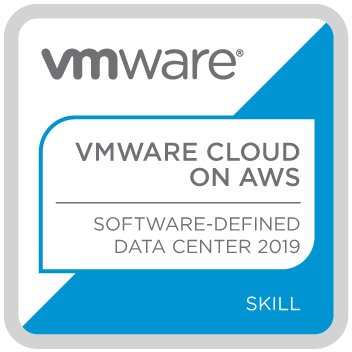
Couple of days back I passed “VMware Cloud on AWS Management Exam 2019 (5V0-31.19 )” and I thought, it is worth to share my preparation experience with you. Once we pass the exam, we get below skill badge from VMware. As per VMware, skill badges indicate developing competencies and a broad understanding of an individual’s capabilities and accomplishments.
Why I chose to write this exam?
Exploring more on VMware cloud on AWS has been on my radar since quite some time now. When I came to know about this VMware cloud on AWS management exam, I thought to use this opportunity to take my skill around VMC to the next level. Usually I like exams not to just get the badge or to be certified but I use them as motivation in my preparation/learning journey. As per me, what counts more is what we do during the moment we decide to write the exam and the moment we start attempting the exam. Preparation journey should be the focus. Exam and its objective/syllabus help us streamline or direct our learning properly.
Side note: There is vBlog voting for 2018 is open, if my blog or any other blog helped you, please go ahead and vote. Your vote would be motivation to generate even more quality content.
How to Prepare?
Below are the resources I used.
Though there is no strict course/training requirement for this exam but VMware recommends a course i.e. VMware cloud on AWS: Deploy and Manage . I was lucky to undergo this course. It is fine if you could not complete this course from exam perspective. However, from learning perspective, any time formal course is really insightful.
I highly recommend to complete this Hands On Lab. Please do not underestimate this lab. Very helpful for exam as well as learning. I was able to access one of internal VMware cloud on AWS labs as well. It is fine if you do not have your own lab.
I was really impressed on FAQs compiled on official site. Once you have some hands on experience, these FAQs are really worth to go through. It not only covers general FAQs but it also focuses on each VMC component/feature.
From exam perspective, it is good to just have basic idea on what AWS compute & storage options available. It is not required to undergo any course or training. If you want to learn more on AWS, I found this blog post interesting i.e. AWS in plain English . There are couple of pluralsight courses are useful as well (not required for exam itself).
Yes, it is assumed that you have fundamental knowledge on vSphere, vSAN and NSX.
Exam format, level and scheduling?
If you take a look at Exam preparation guide , it is about VMware cloud on AWS fundamentals. Accordingly exam also was inline with sections listed in the guide. There are 30 questions to be solved within 45 min. All are multiple choice questions. Once we pass this exam, we get “VMware Cloud on AWS – Software Defined Data Center 2019” badge. Passing score is 300. My score was 411. This exam is un-proctored i.e. you can attempt from your own laptop browser and once scheduled, you must begin the exam in 2 days time (i.e. you can attempt any time during those 2 days). Voucher I had received was valid for 2 attempts.
Additional VMware Cloud on AWS resources that I found useful for your further learning.
Vikas Shitole is a Senior Tech Lead at VMware by Broadcom, VCF division, India, where he leads system test efforts—including scale, stress, and resiliency testing—and drives product quality across VMware Cloud Foundation (VCF), Broadcom’s flagship private cloud platform. He is an AI and Kubernetes enthusiast, and is passionate about VMware customers and automation around vSphere and VCF. Vikas has been honoured as a vExpert for 13 consecutive years (2014–2026) for his sustained technical contributions and community leadership. He is the author of two VMware Flings, holds multiple industry certifications including VCF admin 9.0, and is one of the top contributors to the VMware API Sample Exchange, where his automation scripts have been downloaded over 50,000 times. Vikas has shared his expertise as a speaker at international conferences such as VMworld Europe and VMworld USA, and was selected as an official VMworld 2018 blogger. He also served as lead technical reviewer for the Packt-published books vSphere Design and VMware Virtual SAN Essentials. Beyond tech, Vikas is a dedicated cricketer, cycling enthusiast, and a lifelong learner in fitness and nutrition, with the personal goal of completing an Ironman 70.3
Last month, I got an opportunity to share my expertise around vSphere automation as part of VMUG bangalore. I was pumped up to present it since it was my first ever VMUG session. Exciting news is all sessions are recorded and I thought it would be great to share it with you. If you want to get started with vSphere automation or take your understanding to the next level, I am sure you will find this session very useful. I personally felt how cool it would have been if I would have come across such informative but crisp session (just 41 min) when I started my vSphere automation journey.
Agenda :
Why APIs are needed?
Getting started: PowerCLI
PowerCLI cmdlets and beyond
PowerCLI: key noteworthy points
Basics : vSphere SOAP based SDKs
Getting started: vSphere API reference, MOB & pyVmomi
Basics: vSphere REST based SDKs
Getting started: API explorer, python
Useful resources
Your critical comment/feedback is welcome. Besides my session, we had great technical sessions as follows. I would suggest to take a look at it as well.
Vikas Shitole is a Senior Tech Lead at VMware by Broadcom, VCF division, India, where he leads system test efforts—including scale, stress, and resiliency testing—and drives product quality across VMware Cloud Foundation (VCF), Broadcom’s flagship private cloud platform. He is an AI and Kubernetes enthusiast, and is passionate about VMware customers and automation around vSphere and VCF. Vikas has been honoured as a vExpert for 13 consecutive years (2014–2026) for his sustained technical contributions and community leadership. He is the author of two VMware Flings, holds multiple industry certifications including VCF admin 9.0, and is one of the top contributors to the VMware API Sample Exchange, where his automation scripts have been downloaded over 50,000 times. Vikas has shared his expertise as a speaker at international conferences such as VMworld Europe and VMworld USA, and was selected as an official VMworld 2018 blogger. He also served as lead technical reviewer for the Packt-published books vSphere Design and VMware Virtual SAN Essentials. Beyond tech, Vikas is a dedicated cricketer, cycling enthusiast, and a lifelong learner in fitness and nutrition, with the personal goal of completing an Ironman 70.3
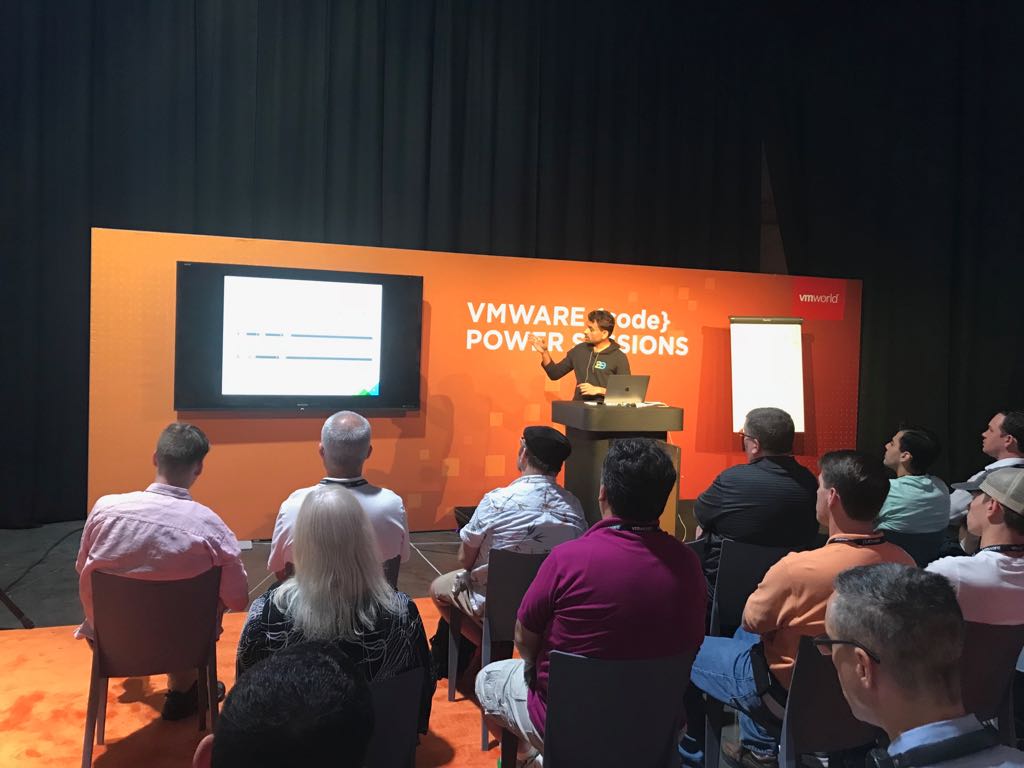
VMworld 2018 US was my first VMworld at Las Vegas and without a doubt, it was really exciting & insightful experience for me. In this post, I am going to share my experience as VMware {code} power session speaker & will share youtube , facebook stream recording for the same. In addition, I will also brief on how was the excitement at VMworld as blogger.
1. Experience as power session speaker.
Beauty of these sessions was that all sessions were exclusively about coding across VMware, CICD, DevOps, open-source, hybrid cloud, cloud-native & block-chain etc. I do not have any doubt that this track will become one of the famous VMworld tracks. Below were my power sessions.
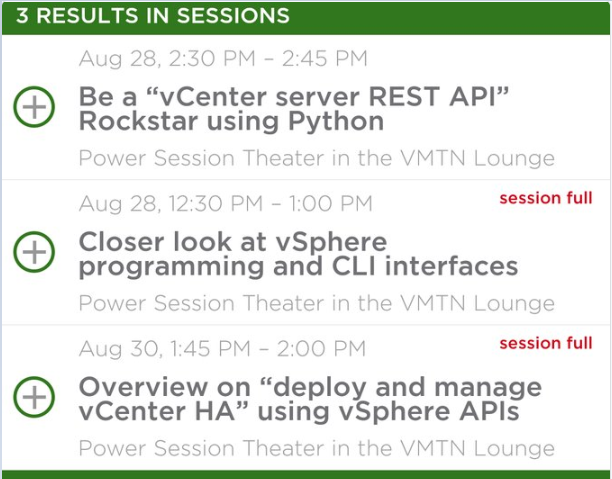
You could see focus of all my sessions was around vSphere Automation (SOAP, REST & CLI ) , the area I am passionate about. Personally it was really thrilling experience since challenge was to make relatively complex topic such as vSphere Automation simplified and cover within stipulated time. More exciting was that these sessions were being live streamed on facebook. My objective was to make sure content I am presenting is simplified as much as possible that anyone will be able to understand with little or no knowledge. After presenting these sessions, I felt that efforts put into preparation phase, multiple mock presentations were really worth. Based on the number of people attended and discussion on queries with customers, I could say that sessions were well received. Below is the list of my sessions with youtube and facebook live stream recording. I would highly recommend you to listen to all of these sessions. I am sure they will power you as well. Your critical feedback is welcome.
2. VMware {code} power sessions
1] Closer look at vSphere Programming and CLI interfaces.
Agenda was as follows:
Why APIs are needed?
vSphere SOAP based SDKs
Getting started: vSphere API reference, MOB & pyVmomi
vSphere REST based SDKs
Getting started: API explorer
vSphere CLI interfaces
Getting started: PowerCLI
Useful resources
2] Overview on “Deploy & Manage vCenter server HA” using vSphere APIs
Agenda was as follows:
What is vCenter HA?
vSphere API basics
vCenter HA managed objects
Getting started with pyVmomi
Sample example: Getting vCenter HA health
Useful resources
3] Be a ” vCenter REST API” rockstar using python
Agenda was as follows:
Key HTTP methods
vCenter features supported @REST
What is api-explorer and how to use it?
Getting started with REST APIs using python
Sample example: Getting VMs and powering them
Useful resources
Good news is, I do have blog post associated with this content here. I would highly recommend you to read it. Watch it on below facebook stream at 3:47:59.
Note: I would have liked to make these sessions as comprehensive as possible but in an attempt to make it simplified and due to time constraints, I had to cut short. Your feedback is welcome. In addition, I am working on uploading my slide deck , please stay tuned.
3. Excitement as VMworld Blogger
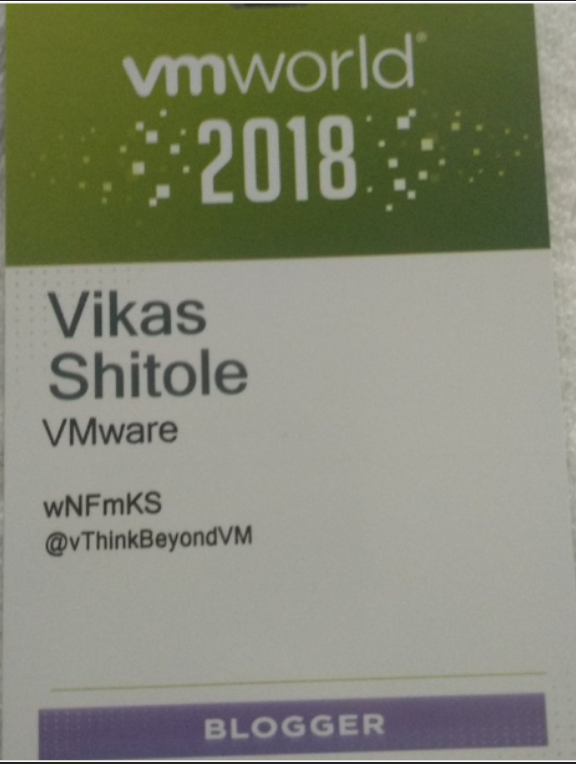
You can not imagine how proud I felt while wearing this VMworld badge as blogger.
It is absolute honor to be one among this VMworld bloggers list and being part of VMworld as blogger. Community team had setup nice blogger lounge for bloggers.
Inside general session theater, special seats with “blogger label” were made available as well. was not that extra super cool?
Most heartening moment
Last time at VMworld 2017 Barcelona , I was roaming around, not many people were knowing me. This time, I could see many people from vCommunity were knowing me, recognizing my face, saying “Hi”. Beyond that, it was great feeling when VMware users came forward to meet me and thanked for the content I generated so far.
I would like to take this opportunity to thank VMware community team (Eric , Elsa, Kripa, Julia ) for putting great show @power sessions and bloggers space.
Vikas Shitole is a Senior Tech Lead at VMware by Broadcom, VCF division, India, where he leads system test efforts—including scale, stress, and resiliency testing—and drives product quality across VMware Cloud Foundation (VCF), Broadcom’s flagship private cloud platform. He is an AI and Kubernetes enthusiast, and is passionate about VMware customers and automation around vSphere and VCF. Vikas has been honoured as a vExpert for 13 consecutive years (2014–2026) for his sustained technical contributions and community leadership. He is the author of two VMware Flings, holds multiple industry certifications including VCF admin 9.0, and is one of the top contributors to the VMware API Sample Exchange, where his automation scripts have been downloaded over 50,000 times. Vikas has shared his expertise as a speaker at international conferences such as VMworld Europe and VMworld USA, and was selected as an official VMworld 2018 blogger. He also served as lead technical reviewer for the Packt-published books vSphere Design and VMware Virtual SAN Essentials. Beyond tech, Vikas is a dedicated cricketer, cycling enthusiast, and a lifelong learner in fitness and nutrition, with the personal goal of completing an Ironman 70.3
Few hours back, VMware released vSphere patches to mitigate “Speculative Store Bypass Disable (SSBD)” security issue. Please take a look at this KB for more details. In this post, as I did in the past, I am going to provide you a pyVmomi script to confirm whether vCenter server, ESXi hypervisor and microcode patches are applied or not to mitigate this critical security issue. Before we look into script, one of the important points you should note that, these latest vSphere (both vCenter server and ESXi) patches are cumulative & if you haven’t applied earlier spectre vulnerability patches [released as on 20th March] yet, you can directly apply these patches to get earlier fixes as well.
pyVmomi script to confirm SSBD mitigation
Notes:
This script works for all vSphere releases i.e. 5.5, 6.0, 6.5, 6.7.
Since this patch is cumulative, focus in this script is only SSBD cpubit
This script takes VCIP, username, password and cluster-name (with or without EVC) as parameter.
Please take a note of line #72 on SSL/TLS protocol
As specified in the KB, you need to perform VM power-cycle post patch application.
[python]
# Author: Vikas Shitole
# Product: vCenter server
# Description: Script to confirm whether vCenter server, hypervisor and microcode patches are applied or not : vCenter/ESXi patches for Speculative Store Bypass Disable vulnerability.
# Reference: https://kb.vmware.com/s/article/55111
# How to setup pyVmomi environment?:
# Linux: https://vthinkbeyondvm.com/how-did-i-get-started-with-the-vsphere-python-sdk-pyvmomi-on-ubuntu-distro/
#Windows: https://vthinkbeyondvm.com/getting-started-with-pyvmomi-on-windows-supports-vsphere-6-7/
from pyVim.connect import SmartConnect, Disconnect
from pyVmomi import vim
import atexit
import ssl
import sys
import argparse
import getpass
# Script to confirm whether EVC cluster is patched or not for Spectre vulenerability.
def get_args():
""" Get arguments from CLI """
parser = argparse.ArgumentParser(
description=’Arguments for talking to vCenter’)
parser.add_argument(‘-s’, ‘–host’,
required=True,
action=’store’,
help=’vSpehre service to connect to’)
parser.add_argument(‘-o’, ‘–port’,
type=int,
default=443,
action=’store’,
help=’Port to connect on’)
parser.add_argument(‘-u’, ‘–user’,
required=True,
action=’store’,
help=’Username to use’)
parser.add_argument(‘-p’, ‘–password’,
required=False,
action=’store’,
help=’Password to use’)
parser.add_argument(‘-c’, ‘–cluster’,
required=True,
action=’store’,
default=None,
help=’Name of the cluster you wish to check’)
args = parser.parse_args()
if not args.password:
args.password = getpass.getpass(
prompt=’Enter vCenter password:’)
return args
# Below method helps us to get MOR of the object (vim type) that we passed.
def get_obj(content, vimtype, name):
obj = None
container = content.viewManager.CreateContainerView(content.rootFolder, vimtype, True)
for c in container.view:
if name and c.name == name:
obj = c
break
container.Destroy()
return obj
print ("————————————-")
#Check whether vCenter server is patched or not
supported_evc_mode=si.capability.supportedEVCMode
# It is not required to check "ivy-bridge" EVC mode, you can choose any EVC mode from "intel-penryn" onwords.
for evc_mode in supported_evc_mode:
if(evc_mode.key == "intel-ivybridge"):
ivy_masks=evc_mode.featureMask
break
vCenter_patched=False
for capability in ivy_masks:
if(capability.key in ["cpuid.SSBD"] and capability.value=="Val:1"):
print ("Found::"+capability.key)
vCenter_patched=True
if(not vCenter_patched):
print ("No new cpubit found, hence vCenter server is NOT patched")
else:
print ("New CPU bit is found, hence vCenter Server is patched")
print ("Current vCenter server build::"+si.content.about.fullName)
#Cluster object
cluster = get_obj(content,[vim.ClusterComputeResource],cluster_name)
if(not cluster):
print ("Cluster not found, please enter correct EVC cluster name")
quit()
print ("Cluster Name:"+cluster.name)
# Get all the hosts available inside cluster
hosts = cluster.host
#Iterate through each host to get MaxEVC mode supported on the host
for host in hosts:
print ("———————————-")
print ("Host:"+host.name)
feature_capabilities = host.config.featureCapability
flag=False
for capability in feature_capabilities:
if(capability.key in ["cpuid.SSBD"] and capability.value=="1"):
print ("Found::"+capability.key)
flag=True
if(not flag):
print ("No new cpubit found, hence "+host.name+" is NOT patched")
else:
print ("New CPU bit is found, hence "+host.name+" is patched")
atexit.register(Disconnect, si)
[/python]
Let us take a look at below output.
Output
C:\Professional\vThinkBeyondVM\Spectre posts>python hosts_patched_ssbd.py -s 10.20.30.35 -u Administrator@vsphere.local -c “New Cluster”
Enter vCenter password:
————————————-
Found::cpuid.SSBD
New CPU bit is found, hence vCenter Server is patched
Current vCenter server build::VMware vCenter Server 6.7.0 build-8833179
Cluster Name:New Cluster
———————————-
Host: 10.20.30.51
No new cpubit found, hence 10.20.30.51 is NOT patched
———————————-
Host: 10.20.30.52
Found::cpuid.SSBD
New CPU bit is found, hence 10.20.30.51 is patched
Above output shows that vCenter server is patched and one of the two ESXi hosts is patched successfully.
Vikas Shitole is a Senior Tech Lead at VMware by Broadcom, VCF division, India, where he leads system test efforts—including scale, stress, and resiliency testing—and drives product quality across VMware Cloud Foundation (VCF), Broadcom’s flagship private cloud platform. He is an AI and Kubernetes enthusiast, and is passionate about VMware customers and automation around vSphere and VCF. Vikas has been honoured as a vExpert for 13 consecutive years (2014–2026) for his sustained technical contributions and community leadership. He is the author of two VMware Flings, holds multiple industry certifications including VCF admin 9.0, and is one of the top contributors to the VMware API Sample Exchange, where his automation scripts have been downloaded over 50,000 times. Vikas has shared his expertise as a speaker at international conferences such as VMworld Europe and VMworld USA, and was selected as an official VMworld 2018 blogger. He also served as lead technical reviewer for the Packt-published books vSphere Design and VMware Virtual SAN Essentials. Beyond tech, Vikas is a dedicated cricketer, cycling enthusiast, and a lifelong learner in fitness and nutrition, with the personal goal of completing an Ironman 70.3
Enhanced vMotion Compatibility (EVC) is without a doubt has been one of the famous vSphere features. As you know already, EVC is a cluster level feature, which makes it possible to have vMotion across different generations of CPU within the cluster. vSphere 6.7 has taken EVC to the next level. This latest release has introduced one of cool features around EVC i.e. per-VM EVC. Recently I got an opportunity to explore this cool feature and I thought to share my learning with you. In this blog post, I will take a through below items around per-VM EVC.
What is per-VM EVC?
Notes on per-VM EVC
per-VM EVC UI workflow
Configuring per-VM EVC using pyVmomi
Playing around featureMask using pyVmomi
Disabling per-VM EVC using pyVmomi
What is per-VM EVC?
As name indicates, per -VM EVC can be enabled on individual VM. Great thing about per VM EVC is that, it not only works on VMs inside the cluster but also VMs outside of the cluster. Unlike cluster level EVC, this feature enables vMotion across clusters, standalone hosts, cross vCenters & hybrid clouds such as VMware cloud on AWS (from on-prem vCenter). How cool is that?
Notes on per-VM EVC
User needs to have vSphere 6.7
VM hardware version must be vmx-14
User must powered off the VM before configuring per-VM EVC
If user is enabling per -VM EVC on a VM, which is inside EVC enabled cluster, EVC mode on the VM should be equal or lower than that of EVC mode configured on cluster.
If user wants to enable this feature from UI, only vSphere H5 client supports it and not the flex based client.
per-VM EVC works fine with vSphere DRS
If user clones per-VM EVC configured VM, it will retain per-VM EVC configuration on cloned VM.
If underlying host does not support EVC mode configured on VM, VM can not power ON
User can enable per-VM EVC on a VM though VM is already part of a EVC enabled cluster.
per-VM EVC UI workflow
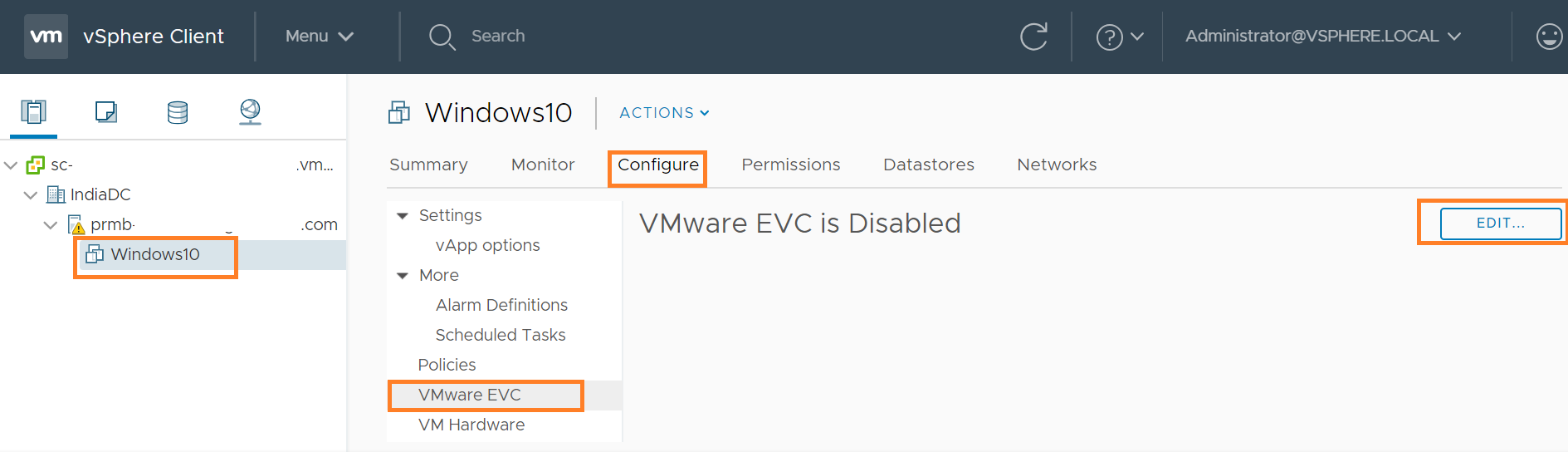
If you ask me, it is pretty easy to configure per-VM EVC from vSphere H5 client (flex client does not support). User just needs to click on the VM >> Configure >> VMware EVC >>Edit >> Configure EVC mode of your choice (of course EVC mode supported by underlying host/Cluster). Please take a look at below H5 client screenshots.
Per VM EVC UI configuration workflow
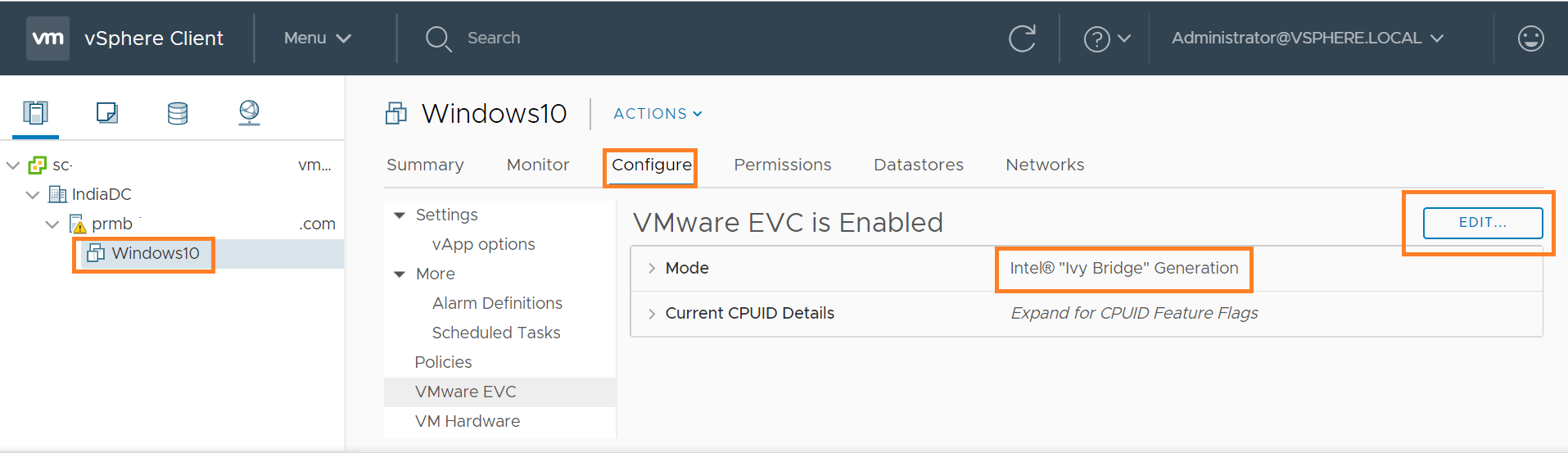
I configured “Intel ivy-bridge” EVC mode and below is how it looks like post configuration.
per VM EVC UI post configuration
Configuring per-VM EVC using pyVmomi
vSphere 6.7 has exposed a vSphere API to configure per-VM EVC i.e. ApplyEvcModeVM_Task(). We need to pass right “featureMask” to this API in order to configure appropriate EVC mode on the VM. Note that every EVC mode defines its own set of featureMask. Ex. intel-sandybridge EVC mode will have corresponding set of featureMask, so is for intel-ivybridge and so on..
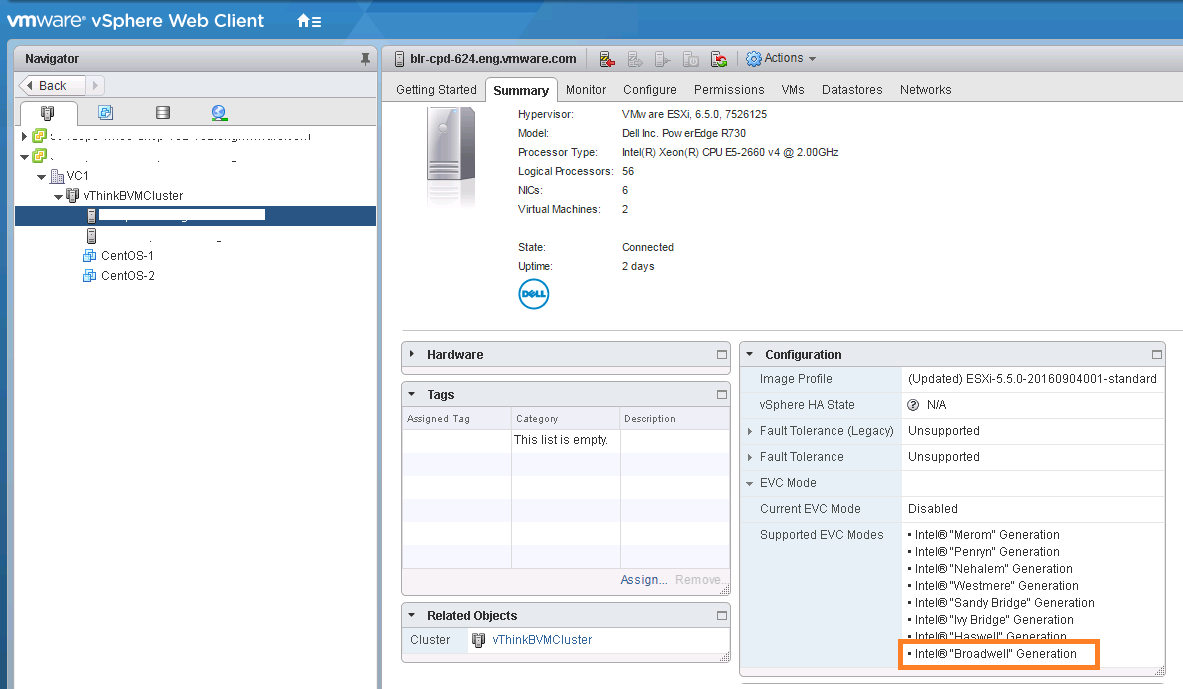
Since we need to pass “featureMask” for particular EVC mode, first important thing user needs to get hold of is right EVC mode. Once we get hold of right EVC mode, we need to get corresponding “featureMask”. In our case, lets configure per-VM EVC on a VM residing on a standalone host. As I said, first we need to find max EVC mode supported on the host. This can be easily found using the script I discussed in my blog post here (Refer section on “Getting max EVCMode key“). It can be quickly found from vSphere web client or H5 client host summary as well. In my case, my host “max EVCMode”was “intel-haswell”. It does mean that I can enable per-VM EVC with featureMask for either “intel-haswell” EVC mode or lower EVCMode such as “intel-ivybridge” , “intel-sandybridge” etc. I chose to enable per-VM EVC on “intel-ivybridge” EVC mode.
Now that we have finalized EVC mode i.e. intel-ivybridge, we now need to get hold of corresponding “featureMask”. Please take a look at below code snippet.
[python]
si= SmartConnect(host=args.host, user=args.user, pwd=args.password, sslContext=s)
supported_evc_mode=si.capability.supportedEVCMode
for evc_mode in supported_evc_mode:
if(evc_mode.key == "intel-ivybridge"):
ivy_mask=evc_mode.featureMask
break
[/python]
If you take a look above snippet, it is fairly easy to get featuremask for particular EVC Mode.
[python]
# Author: Vikas Shitole
# Website: www.vThinkBeyondVM.com
# Product: vCenter server/ per-VM EVC (Enhanced Compatibility Mode)
# Description: Script to get enbale/disable per-VM EVC on VM
# Reference:
# How to setup pyVmomi environment?:
# On linux: https://vthinkbeyondvm.com/how-did-i-get-started-with-the-vsphere-python-sdk-pyvmomi-on-ubuntu-distro/
# On windows: https://vthinkbeyondvm.com/getting-started-with-pyvmomi-on-windows-supports-vsphere-6-7/
from pyVim.connect import SmartConnect
import ssl
from pyVmomi import vim
import atexit
import sys
import argparse
import getpass
def get_args():
""" Get arguments from CLI """
parser = argparse.ArgumentParser(
description=’Arguments for talking to vCenter’)
parser.add_argument(‘-s’, ‘–host’,
required=True,
action=’store’,
help=’vSpehre service to connect to’)
parser.add_argument(‘-o’, ‘–port’,
type=int,
default=443,
action=’store’,
help=’Port to connect on’)
parser.add_argument(‘-u’, ‘–user’,
required=True,
action=’store’,
help=’Username to use’)
parser.add_argument(‘-p’, ‘–password’,
required=False,
action=’store’,
help=’Password to use’)
parser.add_argument(‘-v’, ‘–vmname’,
required=True,
action=’store’,
default=None,
help=’Name of the VM to be configured per VM EVC’)
args = parser.parse_args()
if not args.password:
args.password = getpass.getpass(
prompt=’Enter vCenter password:’)
return args
# Below method helps us to get MOR of the object (vim type) that we passed.
def get_obj(content, vimtype, name):
obj = None
container = content.viewManager.CreateContainerView(content.rootFolder, vimtype, True)
for c in container.view:
if name and c.name == name:
obj = c
break
container.Destroy()
return obj
args = get_args()
s=ssl.SSLContext(ssl.PROTOCOL_SSLv23) # For VC 6.5/6.0 s=ssl.SSLContext(ssl.PROTOCOL_TLSv1)
s.verify_mode=ssl.CERT_NONE
if(vm and vm.capability.perVmEvcSupported):
print ("VM available in vCenter server and it supports perVm EVC, thats good")
else:
print ("VM either NOT found or perVMEvc is NOT supported on the VM")
quit()
supported_evc_mode=si.capability.supportedEVCMode
for evc_mode in supported_evc_mode:
if(evc_mode.key == "intel-ivybridge"):
ivy_mask=evc_mode.featureMask
break
vm.ApplyEvcModeVM_Task(ivy_mask,True)
print ("ApplyEvcModeVM_Task() API is invoked, check out your H5 client")
[/python]
Line #80: This confirms whether VM found or not and it also confirms whether VM supports per-VM EVC or not. #86-90: It is about getting right featureMask corresponding to particular EVC Mode. #92: Finally we called the API “ApplyEvcModeVM_Task()”
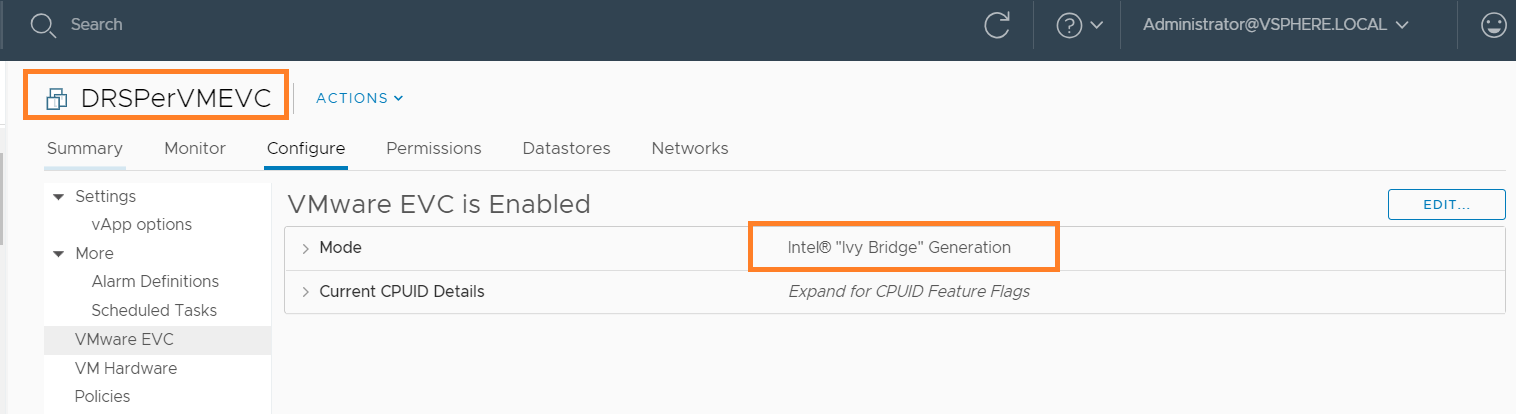
How to run this script “python perVMEVCNew.py -s 10.161.81.159 -u Administrator@vsphere.local -v DRSPerVMEVC”, user needs to enter vCenter password. Below is how it looks like.
I looked into vSphere H5 client and this is how it looks like. isn’t it cool?
Playing with featureMask
In line #86, we learned how to get hold of featureMask. is it the only way we can get featureMask and pass it to this API? Answer is NO. There are multiple ways. However, I recommend to follow the way I did on line #86 above.
Sometime you may want to configure per-VM EVC with the same featureMask as that of EVC enabled cluster. This can be handy specially for the VMs those are outside of the EVC cluster. In such case, you can simply copy the featureMask from EVC cluster and pass it to the per-VM EVC API. Let us take look at below code snippet.
if(cluster):
print ("Cluster available in vCenter server, thats good")
else:
print ("Cluster is NOT available in vCenter server, please enter correct name")
quit()
if(current_evcmode_key):
print ("Current EVC Mode::"+current_evcmode_key)
else:
print ("EVC is NOT enabled on the cluster")
quit()
features_masked = evc_state.featureMask
[/python]
Above EVC API property I had already discussed in my post on cluster level EVC APIs here (Refer: section #4 : Exploring EVC Cluster state). Here is the complete script, where featureMask is copied from EVC cluster. In addition, you can also choose to copy the featureMask from already per-VM EVC configured VM but if you do not document it properly, it can lead to confusion in future, hence it is always better to follow one way consistently to avoid any issues in future.
Disabling per-VM EVC
If you ask me, it is pretty easy. We just need to invoke the same API but without any featureMask as follows
Vikas Shitole is a Senior Tech Lead at VMware by Broadcom, VCF division, India, where he leads system test efforts—including scale, stress, and resiliency testing—and drives product quality across VMware Cloud Foundation (VCF), Broadcom’s flagship private cloud platform. He is an AI and Kubernetes enthusiast, and is passionate about VMware customers and automation around vSphere and VCF. Vikas has been honoured as a vExpert for 13 consecutive years (2014–2026) for his sustained technical contributions and community leadership. He is the author of two VMware Flings, holds multiple industry certifications including VCF admin 9.0, and is one of the top contributors to the VMware API Sample Exchange, where his automation scripts have been downloaded over 50,000 times. Vikas has shared his expertise as a speaker at international conferences such as VMworld Europe and VMworld USA, and was selected as an official VMworld 2018 blogger. He also served as lead technical reviewer for the Packt-published books vSphere Design and VMware Virtual SAN Essentials. Beyond tech, Vikas is a dedicated cricketer, cycling enthusiast, and a lifelong learner in fitness and nutrition, with the personal goal of completing an Ironman 70.3