Category Archives: vSphere API

posts on vSphere API/SDK samples/scripts

Editing Storage DRS VM overrides : Java vSphere SDK and PowerCLI script

Recently I had an opportunity to work on one of customers requirement with respect to Storage DRS. Their requirement was to edit/remove Storage DRS “VM overrides” settings using vSphere API. As part of this exercise, I had written scripts both in PowerCLI as well as using vSphere Java SDK. I thought it is good to share with you as well. Before discussing about these scripts, let us first understand what exactly is Storage DRS VM overrides?

When user selects Storage DRS cluster (SDRS POD) as a storage for a VM, Storage DRS takes care of placing that VM on right datastore among all the datastores inside Storage DRS cluster. Once SDRS places that VM, all the default SDRS cluster level configuration gets applied on that VM such as ‘Storage DRS automation level’, ‘Keeps VMDK together’ etc. “VM overrides” settings comes to into picture if user wants to override some of Storage DRS cluster level settings. Ex. SDRS cluster level settings for “Automation level” is “Manual” and now for particular VM, user wants to have it as “Fully Automated” or user wants to disable SDRS on particular VM or user just wants to disable default affinity rule “Keeps VMDK together” for specific VM. This can be achieved using SDRS VM overrides settings. Let us look at some of vSphere web client screenshot on how to do it.

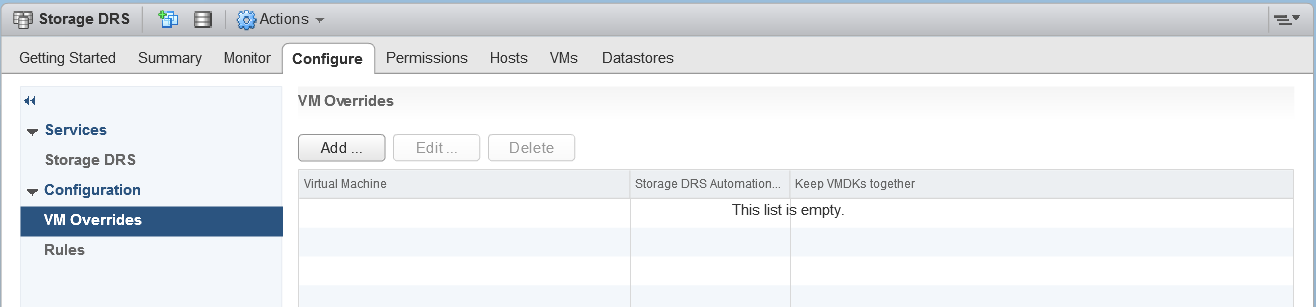
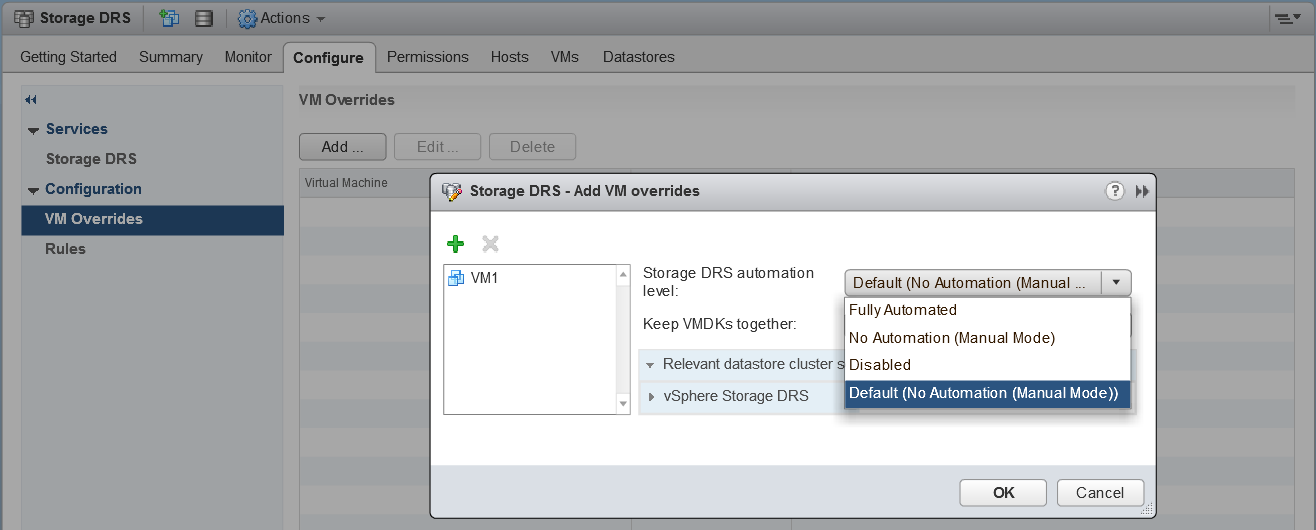
Above screenshot shows how to traverse to the “VM overrides” workflow using web client. You could see, currently there is NO VM for which SDRS settings are overridden. You can click on add button in order to override SDRS settings for specific VM as shown below.

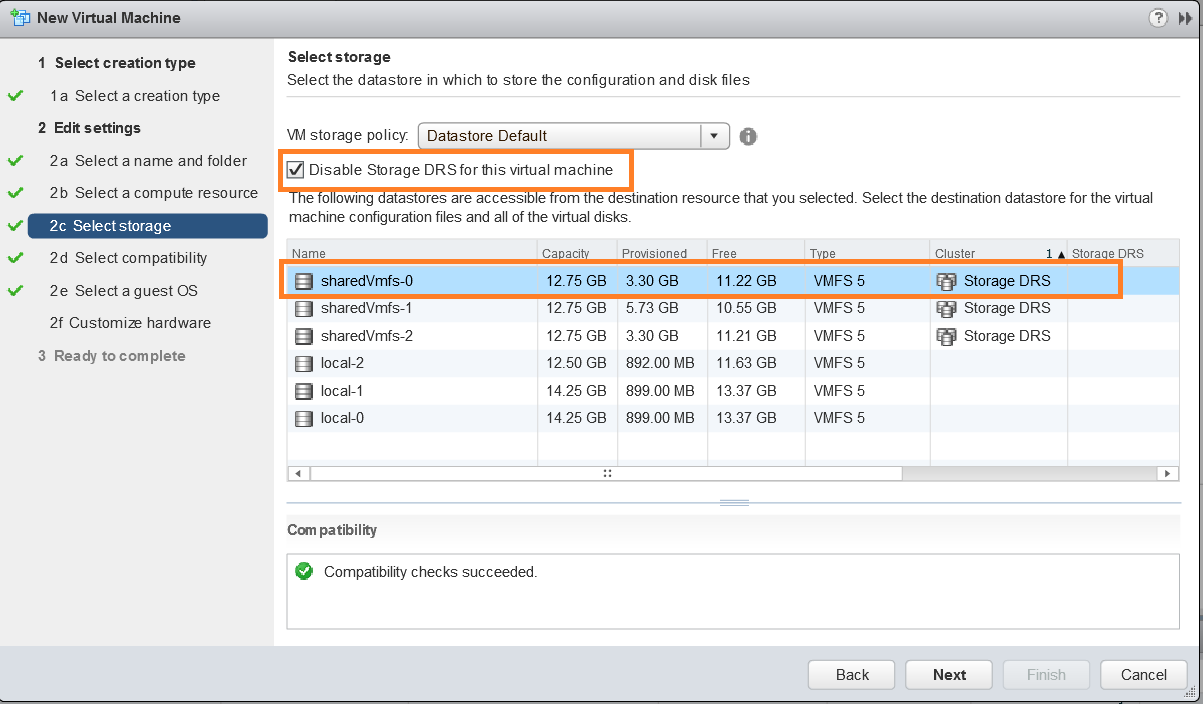
Apart from this, there is another reason VM can get listed under “VM orderride” section i.e. When user is creating a VM and user wants to place that VM on a particular datastore among datastores in SDRS cluster instead of relaying on SDRS itself for initial placement, it does mean that user would like to take control of this VM , hence SDRS gets disabled on such VM and gets listed under “VM override” section. Take a look at below screenshot to understand the same.

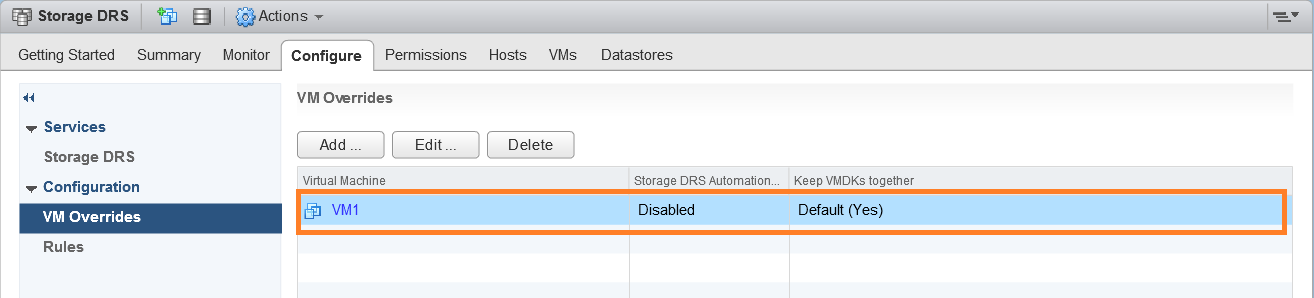
You could see in above screenshot that if user wants to place the VM on a particular datastore from SDRS cluster instead of relaying on SDRS, we can select specific datastore only when we select checkbox for disabling SDRS. Once VM creation is completed, you could see that VM gets listed under “VM overrides” section as shown below.

Now that we understood, what is VM overrides? and how to configure it? Please take a look at scripts for editing/removing these Storage DRS VM overrides. Below are script locations.

1. Java SDK script on my github repo and on VMware Sample Exchange

2. PowerCLI equivalent on my github repo and on VMware Sample Exchange

If you have still not setup your YAVI JAVA Eclipse environment:Getting started tutorial

Important tutorials to start with: Part I & Part II

If you want to understand Storage DRS, take a look at this whitepaper

Let me know if you have any comments.

Great vSphere API ever: Part -I : placevm() API which places the VM on best possible host and datastore

This is the vSphere API personally I was waiting for since long days, I believe this is one of the powerful vSphere APIs ever. The API I am talking about is introduced as part of vSphere 6.0 i.e. placevm(). Here is the API reference for the same.

Why this API is so powerful?
-Basically this API helps to place the VM on appropriate host and datastore. Placing the VM can be as part of creating the VM, relocating the VM, cloning the VM or re-configuring the existing VM.
-How does this API achieves the best host from CPU and Memory perspective and datastore from storage perspective? As per API reference, this API can be invoked to ask DRS (Distributed resource scheduler) for a set of recommendations for placing a virtual machine and its virtual disks into a DRS cluster.
-This API offers so much flexibility that, from storage perspective, it can take input as set of datastores of our choice as well as set of SDRS (Storage DRS) PODs, we can even specify one particular datastore of our choice. From compute perspective, it takes set of hosts or particular host as input. How cool is that when DRS is involved and SDRS POD(s)?
-It also gives us flexibility on not to specify any hosts as well as datastores, in that case, it automatically picks all the hosts inside the DRS cluster and all the datastores connected to hosts inside the cluster.
– Another beauty of this API is, it works perfectly with SPBM (Storage Policy Based Management) as well as across vCenter server. is not it something great capability into single API?

Lets learn now how to use this API in real time. For the sake simplicity I have divided this post into 2 parts.

Part I: How to relocate a Powered ON VM from a DRS enabled cluster to another DRS enabled cluster (One SDRS POD as input) within single vCenter
Part II: How to relocate a Powered ON VM from a DRS enabled cluster to another DRS enabled cluster (Multiple SDRS PODs as input) across vCenter.

Below is the placeVM API sample that achieves the Part I where we invoke placeVM API to get the set of recommendations for VM (cpu, mem, storage) and then we invoke RelocateVM API to apply one of the first recommendations.

Same sample is available on my git hub repository as well as on VMware Sample exchange

[java]

//:: # Author: Vikas Shitole
//:: # Website: www.vThinkBeyondVM.com
//:: # Product/Feature: vCenter Server/DRS
//:: # Reference:
//:: # Description: Tutorial: PlaceVM API: Live relocate a VM from one DRS cluster to another DRS cluster (in a Datacenter or across Datacenter)
//:: # How cool is it when DRS takes care of placement from cpu/mem perspective and at the same time SDRS take care of storage placement
//::# How to run this sample: https://vthinkbeyondvm.com/getting-started-with-yavi-java-opensource-java-sdk-for-vmware-vsphere-step-by-step-guide-for-beginners/

package com.vmware.yavijava;

import java.net.MalformedURLException;
import java.net.URL;
import com.vmware.vim25.ClusterAction;
import com.vmware.vim25.ClusterRecommendation;
import com.vmware.vim25.ManagedObjectReference;
import com.vmware.vim25.PlacementAction;
import com.vmware.vim25.PlacementResult;
import com.vmware.vim25.PlacementSpec;
import com.vmware.vim25.VirtualMachineMovePriority;
import com.vmware.vim25.VirtualMachineRelocateSpec;
import com.vmware.vim25.mo.ClusterComputeResource;
import com.vmware.vim25.StoragePlacementSpecPlacementType;
import com.vmware.vim25.mo.Datacenter;
import com.vmware.vim25.mo.Datastore;
import com.vmware.vim25.mo.Folder;
import com.vmware.vim25.mo.HostSystem;
import com.vmware.vim25.mo.InventoryNavigator;
import com.vmware.vim25.mo.ManagedEntity;
import com.vmware.vim25.mo.ResourcePool;
import com.vmware.vim25.mo.ServiceInstance;
import com.vmware.vim25.mo.StoragePod;
import com.vmware.vim25.mo.VirtualMachine;

public class PlaceVMRelocate {

public static void main(String[] args) throws Exception {
if(args.length!=3)
{
System.out.println("Usage: PlaceVMRelocate url username password");
System.exit(-1);
}

URL url = null;
try
{
url = new URL(args[0]);
} catch ( MalformedURLException urlE)
{
System.out.println("The URL provided is NOT valid. Please check it…");
System.exit(-1);
}
String username = args[1];
String password = args[2];
String SourceClusterName = "Cluster1"; //Source cluster Name, It is not required to have DRS enabled
String DestinationClusterName="Cluster2"; //Destination cluster with DRS enabled
String SDRSClusterName1="POD_1"; //SDRS POD
String VMTobeRelocated="VM2"; //VM Name to be relocated to other cluster
ManagedEntity[] hosts=null;

// Initialize the system, set up web services
ServiceInstance si = new ServiceInstance(url, username,
password, true);
if(si==null){
System.out.println("ServiceInstance Returned NULL, please check your vCenter is up and running ");
}
Folder rootFolder = si.getRootFolder();
ManagedObjectReference folder=rootFolder.getMOR();
StoragePod pod1=null;

//Getting datacenter object
Datacenter dc=(Datacenter) new InventoryNavigator(rootFolder)
.searchManagedEntity("Datacenter", "vcqaDC");

//Getting SDRS POD object
pod1=(StoragePod) new InventoryNavigator(rootFolder)
.searchManagedEntity("StoragePod", SDRSClusterName1);
ManagedObjectReference podMor1=pod1.getMOR();
ManagedObjectReference[] pods={podMor1};

//Getting source cluster object, It is NOT needed to enable DRS on source cluster
ClusterComputeResource cluster1 = null;
cluster1 = (ClusterComputeResource) new InventoryNavigator(rootFolder)
.searchManagedEntity("ClusterComputeResource", SourceClusterName);

//Getting VM object to be relocated
VirtualMachine vm=null;
vm=(VirtualMachine) new InventoryNavigator(cluster1)
.searchManagedEntity("VirtualMachine", VMTobeRelocated);
ManagedObjectReference vmMor=vm.getMOR();

//Getting destination cluster object, DRS must be enabled on the destination cluster
ClusterComputeResource cluster2 = null;
cluster2 = (ClusterComputeResource) new InventoryNavigator(rootFolder)
.searchManagedEntity("ClusterComputeResource", DestinationClusterName);
ManagedObjectReference cluster2Mor=cluster2.getMOR();

//Getting all the host objects from destination cluster.
hosts = new InventoryNavigator(cluster2).searchManagedEntities("HostSystem");
System.out.println("Number of hosts in the destination cluster::" + hosts.length);
ManagedObjectReference[] hostMors=new ManagedObjectReference[hosts.length];
int i=0;
for(ManagedEntity hostMor: hosts){
hostMors[i]=hostMor.getMOR();
i++;
}

//Building placement Spec to be sent to PlaceVM API
PlacementSpec placeSpec=new PlacementSpec();
placeSpec.setPlacementType(StoragePlacementSpecPlacementType.relocate.name());
placeSpec.setPriority(VirtualMachineMovePriority.highPriority);
// placeSpec.setDatastores(dss); //We can pass array of datastores of choice as well
placeSpec.setStoragePods(pods); // Destination storage SDRS POD (s)
placeSpec.setVm(vmMor); //VM to be relocated
placeSpec.setHosts(hostMors); //Destination DRS cluster hosts/ We can keep this unset as well
placeSpec.setKey("xvMotion placement");
VirtualMachineRelocateSpec vmrelocateSpec=new VirtualMachineRelocateSpec();
vmrelocateSpec.setPool(cluster2.getResourcePool().getMOR()); //Destination cluster root resource pool
vmrelocateSpec.setFolder(dc.getVmFolder().getMOR()); //Destination Datacenter Folder
placeSpec.setRelocateSpec(vmrelocateSpec);
PlacementResult placeRes= cluster2.placeVm(placeSpec);
System.out.println("PlaceVM() API is called");

//Getting all the recommendations generated by placeVM API
ClusterRecommendation[] clusterRec=placeRes.getRecommendations();
ClusterAction[] action= clusterRec[0].action;
VirtualMachineRelocateSpec vmrelocateSpecNew=null;
vmrelocateSpecNew=((PlacementAction) action[0]).getRelocateSpec();
vm.relocateVM_Task(vmrelocateSpecNew, VirtualMachineMovePriority.highPriority);

si.getServerConnection().logout();
}

}

[/java]

Notes:
– For the sake of simplicity I have hardcoded some variables, you can change as per your environment
– We can leverage this sample either within a single vCenter datacenter or across vCenter datacenters.
– All the required documentation is added inside the sample itself. Source cluster need not to be DRS enabled.
-Same Sample can used not only for relocate ops but also clone, create and reconfigure VM Ops.

If you have still not setup your YAVI JAVA Eclipse environment:Getting started tutorial

Important tutorials to start with: Part I & Part II

Configure and Audit Latency Sensitivity enabled VMs on vSphere using vSphere API

Recently I had an opportunity to work on “Latency sensitivity feature” which was introduced in vSphere 5.5 release. This feature is one of the reasons why mission critical VMs can be run on vSphere infrastructure or vSphere enabled clouds. In this blog post, my focus is on sharing how we can configure and audit latency sensitivity enabled VMs using vSphere Java SDK. Before looking into Java SDK scripts, lets understand what is this feature in brief. Latency sensitivity feature can be enabled per VM level (From vSphere web client >> Manage >> VM options >> Latency sensitivity set to high), this feature enables vSphere admin to allocate exclusive access to physical resources for the VM, reserving 100% vCPU time ensures that exclusive PCPU access to the VM. Once vCPU time is reserved (in MHz), this features requires to reserve 100% of the VM memory. 100% memory reservation ensures memory availability for the VM, in other words, memory will not be reclaimed (in case of memory contention) from the VM as it is 100% reserved. Overall, this feature enables vSphere Admin to bypass/tune the virtualization layer and have exclusive access to the hosts physical resources. For more details on this feature I highly recommend to read this official whitepaper

So now we understood that, in order to properly configure latency sensitive VMs, admin not only needs to enable this feature but also reserve 100% of vCPU time in Mhz and 100% memory. Setting memory reservation equal to VMs configured memory is straight-forward but what about allocating vCPU time (in Mhz)? How to set proper vCPU reservation? Lets consider one example: Lets say ESXi host’s PCPU speed is 2.5 Ghz (2500 Mhz) per core. Now if your VM has 2 vCPU configured, vCPU reservation must be 2*2500=5000 Mhz i.e. Number of vCPUs*PCPU speed per core. Similarly we need to follow for any number of vCPU configured per VM. There is one more interesting point i.e. vSphere DRS interop with Latency sensitivity enabled VMs. When such VM is there inside vSphere DRS enabled cluster, one VM-Host soft rule gets created internally(not visible from Web client) with such VM and the host on which this VM is currently residing. As rule is soft, if needed (in case of imbalanced cluster) DRS can violate this rule and migrate this VM to another host. As soon as DRS migrates this VM to another host, earlier rule gets deleted automatically and new rule gets created with new host. You may ask why is this rule gets created internally. Purpose is to avoid vMotion (by DRS) of such latency sensitive VM as much as possible as vMotion can lead to performance impact though its low. (Pass-through with latency sensitive VMs can be leveraged as well, this is explained very well in above pointed white paper)

Now lets take a look at Java SDK scripts. There are 2 Java SDK scripts, one is to configure LS VM and another is for auditing all the LS enabled VMs.

1. Script to configure latency sensitivity feature on the VM

Same script can be found on VMware’s sample exchange or on my git hub account here


//:: # Author: Vikas Shitole
//:: # Website: www.vThinkBeyondVM.com
//:: # Product/Feature: vCenter Server/Latency Sensitivity of the VM(Exclusive pCPU-vCPU affinity)
//:: # Description: Script to configure latency sensitivity feature on the VM and getting list of VMs where LS is configured.
//:# How to run this sample: https://vthinkbeyondvm.com/getting-started-with-yavi-java-opensource-java-sdk-for-vmware-vsphere-step-by-step-guide-for-beginners/
//:# Reference: http://www.vmware.com/files/pdf/techpaper/latency-sensitive-perf-vsphere55.pdf

package com.vmware.yavijava;

import java.net.MalformedURLException;
import java.net.URL;
import java.rmi.RemoteException;
import com.vmware.vim25.InvalidProperty;
import com.vmware.vim25.LatencySensitivity;
import com.vmware.vim25.LatencySensitivitySensitivityLevel;
import com.vmware.vim25.ResourceAllocationInfo;
import com.vmware.vim25.RuntimeFault;
import com.vmware.vim25.TaskInfoState;
import com.vmware.vim25.VirtualHardware;
import com.vmware.vim25.VirtualMachineConfigSpec;
import com.vmware.vim25.mo.Folder;
import com.vmware.vim25.mo.HostSystem;
import com.vmware.vim25.mo.InventoryNavigator;
import com.vmware.vim25.mo.ManagedEntity;
import com.vmware.vim25.mo.ServiceInstance;
import com.vmware.vim25.mo.Task;
import com.vmware.vim25.mo.VirtualMachine;
import com.vmware.vim25.mo.util.MorUtil;

public class ConfigLatencySensitivity {

public static void main(String[] args) throws InvalidProperty,
RuntimeFault, RemoteException, MalformedURLException {

if(args.length!=5)
{
System.out.println("Usage: Java ConfigLatencySensitivity vCurl username password hostname/IP VMName");
System.exit(-1);
}

URL url = null;
try
{
url = new URL(args[0]);
} catch ( MalformedURLException urlE)
{
System.out.println("The URL provided is NOT valid. Please check it.");
System.exit(-1);
}

ServiceInstance si = new ServiceInstance(new URL(args[0]), args[1],
args[2], true); // Pass 3 argument as vCenterIP/username/password

String VMHost=args[3]; //Host on which VM is resided
String VMToBeConfigured=args[4]; //VM name to be configured.

Folder rootFolder = si.getRootFolder();
VirtualMachine vm1 = (VirtualMachine) new InventoryNavigator(rootFolder)
.searchManagedEntity("VirtualMachine", VMToBeConfigured);

HostSystem host = (HostSystem) new InventoryNavigator(rootFolder)
.searchManagedEntity("HostSystem", VMHost);

//Check how many Mhz CPU can be reserved per vCPU of the VM
int cpuMhz=host.getSummary().getHardware().getCpuMhz();
System.out.println("cpuMHz that can be reserved per vCPU::"+cpuMhz);

//Get RAM and vCPU configured to VM while creating that VM
VirtualHardware vHw=vm1.getConfig().getHardware();
int vmMem=vHw.getMemoryMB();
System.out.println("RAM of the VM " +vm1.getName()+" ::"+vmMem);
int vCpu=vHw.getNumCPU();
System.out.println("Number of vCPUs configured on VM "+vm1.getName()+ " are::"+ vCpu);

VirtualMachineConfigSpec vmSpec=new VirtualMachineConfigSpec();

//Set the latency sensitive level flag to "high"
LatencySensitivity ls=new LatencySensitivity();
ls.setLevel(LatencySensitivitySensitivityLevel.high);
vmSpec.setLatencySensitivity(ls);

// It is highly recommended to reserve the CPU in Mhz equal to Multiples of vCPU
ResourceAllocationInfo cpuAlloc=new ResourceAllocationInfo();
cpuAlloc.setReservation((long) (vCpu*cpuMhz));
vmSpec.setCpuAllocation(cpuAlloc);

//It is highly recommended to reserve the memory equal to RAM of the VM
ResourceAllocationInfo memAlloc=new ResourceAllocationInfo();
memAlloc.setReservation((long) vmMem);
vmSpec.setMemoryAllocation(memAlloc);

//Reconfigure the VM and check reconfigure task status
Task task=vm1.reconfigVM_Task(vmSpec);
System.out.println("Reconfigure Task started ......");

//Wait till task is either queued or running, that will help us to verify whether task is successful or not
while(task.getTaskInfo().getState().equals(TaskInfoState.queued)||task.getTaskInfo().getState().equals(TaskInfoState.running) ){
System.out.println(task.getTaskInfo().getState());
}
if(task.getTaskInfo().getState().equals(TaskInfoState.success))
{
System.out.println("Latency sensitive feature is enabled on the VM "+vm1.getName()+" successfully");
}else{

System.out.println("Latency sensitive feature is NOT enabled on the VM "+vm1.getName()+" successfully");
}

//List of VMs with latency sensitivity enabled will be printed for reference.
System.out.println("==============================================================");
System.out.println("List of VMs where Latency sensitivity feature is enabled");
System.out.println("==============================================================");
ManagedEntity[] vms = new InventoryNavigator(rootFolder).searchManagedEntities("VirtualMachine");
for(ManagedEntity vm:vms){
VirtualMachine vmMo = (VirtualMachine) MorUtil
.createExactManagedEntity(si.getServerConnection(), vm.getMOR());
if(vmMo.getConfig().getLatencySensitivity().getLevel().equals(LatencySensitivitySensitivityLevel.high)){

System.out.println(vmMo.getName());
}
}

si.getServerConnection().logout();
}

}

2. Script to audit Latency sensitivity feature configuration on all the VMs in a vCenter Server.

Same script can be found on VMware’s sample exchange or on my git hub repo here

//:: # Author: Vikas Shitole
//:: # Website: www.vThinkBeyondVM.com
//:: # Product/Feature: vCenter Server/Latency Sensitivity of the VM(Exclusive pCPU-vCPU affinity)
//:: # Description: Script to audit Latency sensitivity feature configuration on all the VMs in a vCenter Server.
//:# How to run this sample: https://vthinkbeyondvm.com/getting-started-with-yavi-java-opensource-java-sdk-for-vmware-vsphere-step-by-step-guide-for-beginners/
//:# Reference: http://www.vmware.com/files/pdf/techpaper/latency-sensitive-perf-vsphere55.pdf

package com.vmware.yavijava;

import java.util.HashMap;
import java.util.Map;
import java.net.MalformedURLException;
import java.net.URL;
import java.rmi.RemoteException;
import com.vmware.vim25.InvalidProperty;
import com.vmware.vim25.LatencySensitivitySensitivityLevel;
import com.vmware.vim25.RuntimeFault;
import com.vmware.vim25.VirtualHardware;
import com.vmware.vim25.VirtualMachineConfigInfo;
import com.vmware.vim25.mo.Folder;
import com.vmware.vim25.mo.HostSystem;
import com.vmware.vim25.mo.InventoryNavigator;
import com.vmware.vim25.mo.ManagedEntity;
import com.vmware.vim25.mo.ServiceInstance;
import com.vmware.vim25.mo.VirtualMachine;
import com.vmware.vim25.mo.util.MorUtil;

public class AuditLatencySensitivityConfig {

public static void main(String[] args) throws InvalidProperty,
RuntimeFault, RemoteException, MalformedURLException {

if(args.length!=3)
{
System.out.println("Usage: Java AuditLatencySensitivityConfig vCurl username password ");
System.exit(-1);
}

URL url = null;
try
{
url = new URL(args[0]);
} catch ( MalformedURLException urlE)
{
System.out.println("The URL provided is NOT valid. Please check it.");
System.exit(-1);
}
String username = args[1]; //vCenter username
String password = args[2]; //vCenter password

// Initialize the system, set up web services

ServiceInstance si = new ServiceInstance(url, username,
password, true); // Pass 3 argument as vCenter URL/username/password

Folder rootFolder = si.getRootFolder();
System.out.println("===========================================================================================");
System.out.println("Auditing configuration of Latency Sensitivity Enabled VMs");
System.out.println("Audit criteria:");

System.out.println("1. VM with LS level set to high should have CPU reservation in multiples of vCPU configured");
System.out.println("2. VM with LS level set to high should have memory reservation equal to VM RAM");
System.out.println("===========================================================================================");

//Maps to store VMs with LS configured and mis-configured
Map lsConfiguredVms=new HashMap();
Map
lsMisConfiguredVms=new HashMap();

//Getting all the hosts available in vCenter Server inventory
ManagedEntity[] hosts = new InventoryNavigator(rootFolder).searchManagedEntities("HostSystem");

//Iterating through 1 host at a time as follows
for(ManagedEntity host1 :hosts){

HostSystem host = (HostSystem) MorUtil
.createExactManagedEntity(si.getServerConnection(), host1.getMOR());

//Check how many Mhz CPU can be reserved per vCPU wrt specified host
int cpuMhz=host.getSummary().getHardware().getCpuMhz();

//Getting all the VMs available on the host
ManagedEntity[] vms = new InventoryNavigator(host).searchManagedEntities("VirtualMachine");
if(vms!=null){
//Iterating through each and very VMs available on perticular host
for(ManagedEntity vm:vms){
VirtualMachine vmMo = (VirtualMachine) MorUtil
.createExactManagedEntity(si.getServerConnection(), vm.getMOR());

//Check whether latency sensitivity property set on the hosts or not
if(vmMo.getConfig().getLatencySensitivity().getLevel().equals(LatencySensitivitySensitivityLevel.high)){
VirtualHardware vHw=vmMo.getConfig().getHardware();
int vmMem=vHw.getMemoryMB(); //RAM of the VM
int vCpu=vHw.getNumCPU(); //vCPUs configured to the VM
VirtualMachineConfigInfo vmConfigInfo=vmMo.getConfig();
long cpuReservation=vmConfigInfo.getCpuAllocation().getReservation(); //CPU reservation on the VM
long memReservation=vmConfigInfo.getMemoryAllocation().getReservation(); //Memory reservation on the VM

//Compare mem/cpu reservation wrt configured memory/vCPUs on the host
if((cpuReservation==(vCpu*cpuMhz))&&(memReservation==vmMem)){
lsConfiguredVms.put(vmMo.getName(),host.getName());
}else{
lsMisConfiguredVms.put(vmMo.getName(),host.getName());
}
}
}
}else{
System.out.println("NO VMs available on the specified host");
}
}
System.out.println("VM list where Latency sensitivity is configured properly");
System.out.println("-------------------------------------------------------------");
for (Map.Entry< String , String> lsConfiguredVm : lsConfiguredVms.entrySet()) {
System.out.println("[" + lsConfiguredVm.getKey() + "::" + lsConfiguredVm.getValue()
+ "]");
}
System.out.println("\n VM list where Latency sensitivity is NOT configured properly");
System.out.println("-------------------------------------------------------------");
for (Map.Entry< String , String> lsMisConfiguredVm : lsMisConfiguredVms.entrySet()) {
System.out.println("[" + lsMisConfiguredVm.getKey() + "::" + lsMisConfiguredVm.getValue()
+ "]");
}
si.getServerConnection().logout();
}
}

Let me know if you need any help on this. If you have still not setup your YAVI JAVA Eclipse environment:Getting started tutorial Important tutorials to start with: Part I & Part II

Want to vMotion a VM from one vCenter server to another vCenter using vSphere API?

As part of one of customers case, I was testing vMotion across two 6.0 vCenter servers those are connected to the same SSO domain. As we know already, when 2 vCenter servers are connected to the same SSO domain, you can manage both VCs using web client. Initially I tested vMotion from web client and later in order to automate bulk VMs migration across vCenter, I was looking for vSphere APIs and I could find below 2 vSphere APIs.

1. RelocateVM_Task() under VirtualMachine Managed object
2. placevm() under ClusterComputeResource managed object

I went through above vSphere API reference and I could see RelocateVM_Task() API was already there. However, in vSphere 6.0, it is improved greatly in order to support vMotion between 2 vCenters. On the other hand, placeVM() API was new brand API introduced in vSphere 6.0. Initially, I decided to try RelocateVM_Task() API for automating vMotion across 2 vCenters with same SSO domain. After automating this, I tested my java SDK script on vCenters with same SSO domain and it worked with no any issues. Later, I just thought lets give a try across vCenters those are connected to the different SSO domains and to my surprise, it worked like charm. is it not super cool? How easy it is now to migrate your workloads across data-centers/VCs/Clusters!.

So vMotion between 2 completely different vCenter is supported in vSphere 6.0 but there is NO UI support from web client at the moment. If you want to this functionality i.e. vMotion between 2 VCs with different SSO domains. vSphere API is the only way.

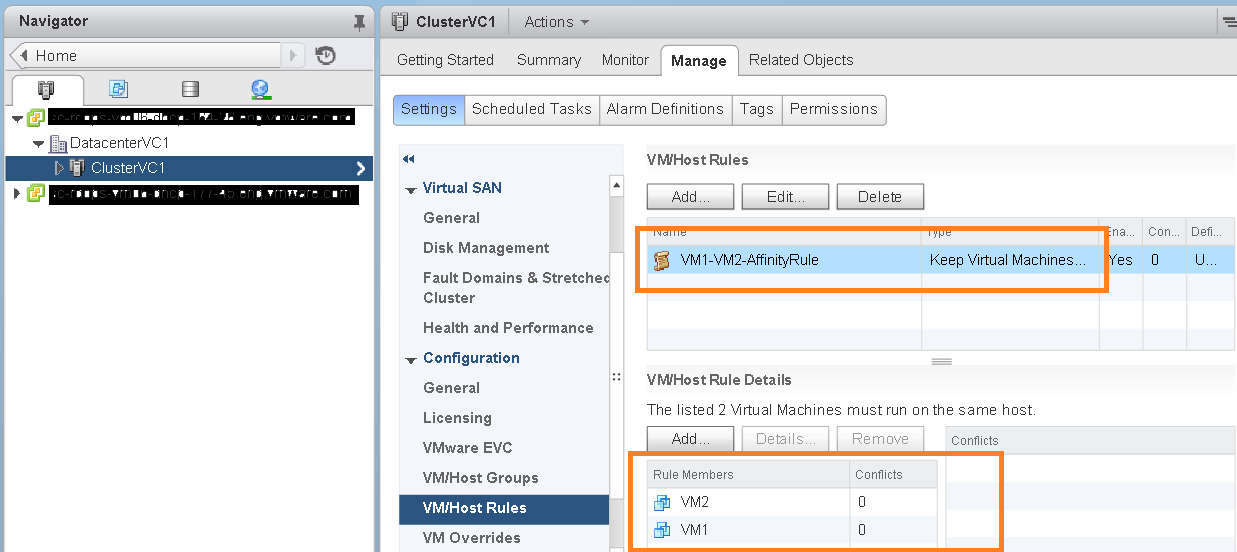
After successful vMotion across different SSO domains, I was really excited and thought to play with this little more by creating a DRS cluster in both VCs. I created a VM-VM affinity rule with couple of VMs in DRS cluster in VC1 as shown in below screenshot.

VC1_Rule_before_vMotion

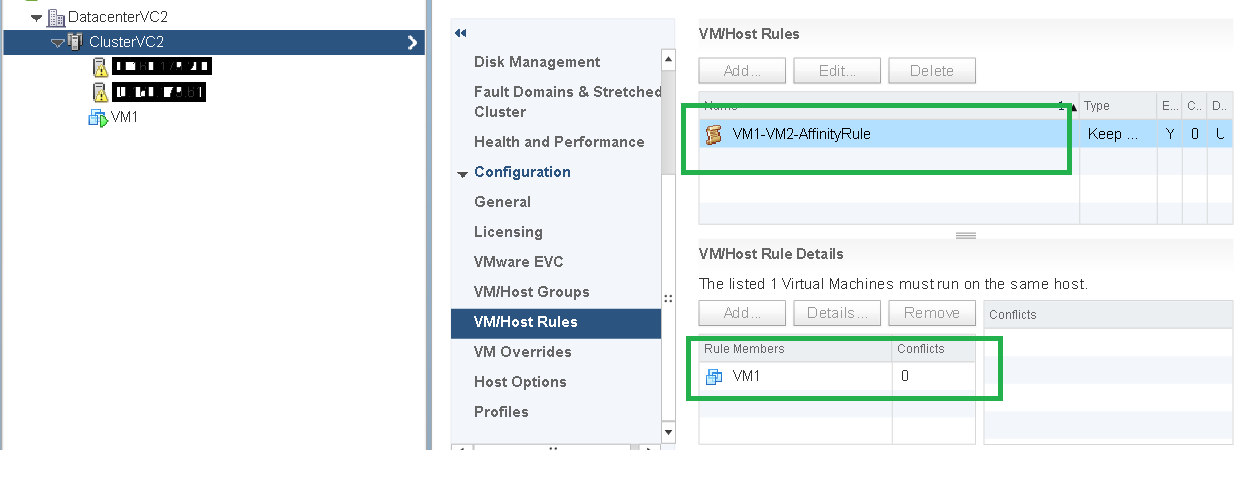
Now I initiated vMotion from first VC to DRS cluster in second VC using same Java SDK script and I could see the DRS rule associated the migrated VM also got migrated as shown in below screen shot. How cool is that!

VC2_Rule_After_vMotion

Below is the complete code sample which can help you quickly to vMotion from a VC to other VC.

Note that this sample works fine with VCs with same SSO or VCs with different SSO. You do not even need to have shared storage between both VCs. This script will work fine within the same VC as well (with some change).

Same script is available on my git hub repository: ExVC_vMotion.java

[java]<code lang="java">
//:: # Author: Vikas Shitole
//:: # Website: www.vThinkBeyondVM.com
//:: # Product/Feature: vCenter Server/DRS/vMotion
//:: # Description: Extended Cross VC vMotion using RelocateVM_Task() API. vMotion between vCenters (with same SSO domain or different SSO domain)</code>

package com.vmware.yavijava;

import java.net.MalformedURLException;
import java.net.URL;
import com.vmware.vim25.ManagedObjectReference;
import com.vmware.vim25.ServiceLocator;
import com.vmware.vim25.ServiceLocatorCredential;
import com.vmware.vim25.ServiceLocatorNamePassword;
import com.vmware.vim25.VirtualDevice;
import com.vmware.vim25.VirtualDeviceConfigSpec;
import com.vmware.vim25.VirtualDeviceConfigSpecOperation;
import com.vmware.vim25.VirtualDeviceDeviceBackingInfo;
import com.vmware.vim25.VirtualEthernetCard;
import com.vmware.vim25.VirtualMachineMovePriority;
import com.vmware.vim25.VirtualMachineRelocateSpec;
import com.vmware.vim25.mo.ClusterComputeResource;
import com.vmware.vim25.mo.Datastore;
import com.vmware.vim25.mo.Folder;
import com.vmware.vim25.mo.HostSystem;
import com.vmware.vim25.mo.InventoryNavigator;
import com.vmware.vim25.mo.ServiceInstance;
import com.vmware.vim25.mo.VirtualMachine;

public class ExVC_vMotion {

public static void main(String[] args) throws Exception {
if(args.length!=7)
{
//Parameters you need to pass
System.out.println("Usage: ExVC_vMotion srcVCIP srcVCusername srcVCpassword destVCIP destVCusername destVCpassword destHostIP");
System.exit(-1);
}

URL url1 = null;
try
{
url1 = new URL("https://"+args[0]+"/sdk");
} catch ( MalformedURLException urlE)
{
System.out.println("The URL provided is NOT valid. Please check it.");
System.exit(-1);
}

String srcusername = args[1];
String srcpassword = args[2];
String DestVC=args[3];
String destusername=args[4];
String destpassword = args[5];
String destvmhost=args[6];

//Hardcoded parameters for simplification
String vmName="VM1"; //VM name to be migrated
String vmNetworkName="VM Network"; //destination vSphere VM port group name where VM will be migrated
String destClusterName="ClusterVC2"; //Destination VC cluster where VM will be migrated
String destdatastoreName="DS1"; //destination datastore where VM will be migrated
String destVCThumpPrint="c7:bc:0c:a3:15:35:57:bd:fe:ac:60:bf:87:25:1c:07:a9:31:50:85"; //SSL Thumbprint (SHA1) of the destination VC

// Initialize source VC
ServiceInstance vc1si = new ServiceInstance(url1, srcusername,
srcpassword, true);
URL url2 = null;
try
{
url2 = new URL("https://"+DestVC+"/sdk");
} catch ( MalformedURLException urlE)
{
System.out.println("The URL provided is NOT valid. Please check it.");
System.exit(-1);
}

// Initialize destination VC

ServiceInstance vc2si = new ServiceInstance(url2, destusername,
destpassword, true);
Folder vc1rootFolder = vc1si.getRootFolder();
Folder vc2rootFolder = vc2si.getRootFolder();

//Virtual Machine Object to be migrated
VirtualMachine vm = null;
vm = (VirtualMachine) new InventoryNavigator(vc1rootFolder)
.searchManagedEntity("VirtualMachine", vmName);

//Destination host object where VM will be migrated
HostSystem host = null;
host = (HostSystem) new InventoryNavigator(vc2rootFolder)
.searchManagedEntity("HostSystem", destvmhost);
ManagedObjectReference hostMor=host.getMOR();

//Destination cluster object creation
ClusterComputeResource cluster = null;
cluster = (ClusterComputeResource) new InventoryNavigator(vc2rootFolder)
.searchManagedEntity("ClusterComputeResource", destClusterName);

//Destination datastore object creation
Datastore ds=null;
ds = (Datastore) new InventoryNavigator(vc2rootFolder)
.searchManagedEntity("Datastore", destdatastoreName);
ManagedObjectReference dsMor=ds.getMOR();

VirtualMachineRelocateSpec vmSpec=new VirtualMachineRelocateSpec();
vmSpec.setDatastore(dsMor);
vmSpec.setHost(hostMor);
vmSpec.setPool(cluster.getResourcePool().getMOR());

//VM device spec for the VM to be migrated
VirtualDeviceConfigSpec vdcSpec=new VirtualDeviceConfigSpec();
VirtualDevice[] devices= vm.getConfig().getHardware().getDevice();
for(VirtualDevice device:devices){

if(device instanceof VirtualEthernetCard){

VirtualDeviceDeviceBackingInfo vddBackingInfo= (VirtualDeviceDeviceBackingInfo) device.getBacking();
vddBackingInfo.setDeviceName(vmNetworkName);
device.setBacking(vddBackingInfo);
vdcSpec.setDevice(device);
}

}

vdcSpec.setOperation(VirtualDeviceConfigSpecOperation.edit);
VirtualDeviceConfigSpec[] vDeviceConSpec={vdcSpec};
vmSpec.setDeviceChange(vDeviceConSpec);

//Below is code for ServiceLOcator which is key for this vMotion happen
ServiceLocator serviceLoc=new ServiceLocator();
ServiceLocatorCredential credential=new ServiceLocatorNamePassword();
((ServiceLocatorNamePassword) credential).setPassword(destpassword);
((ServiceLocatorNamePassword) credential).setUsername(destusername);
serviceLoc.setCredential(credential);

String instanceUuid=vc2si.getServiceContent().getAbout().getInstanceUuid();
serviceLoc.setInstanceUuid(instanceUuid);
serviceLoc.setSslThumbprint(destVCThumpPrint);
serviceLoc.setUrl("https://"+DestVC);
vmSpec.setService(serviceLoc);
System.out.println("VM relocation started….please wait");
boolean flag=false;
vm.relocateVM_Task(vmSpec, VirtualMachineMovePriority.highPriority);
flag=true;
if(flag){
System.out.println("VM is relocated to 2nd vCenter server");
}
vc1si.getServerConnection().logout();
vc2si.getServerConnection().logout();
}
}

[/java]

Notes:
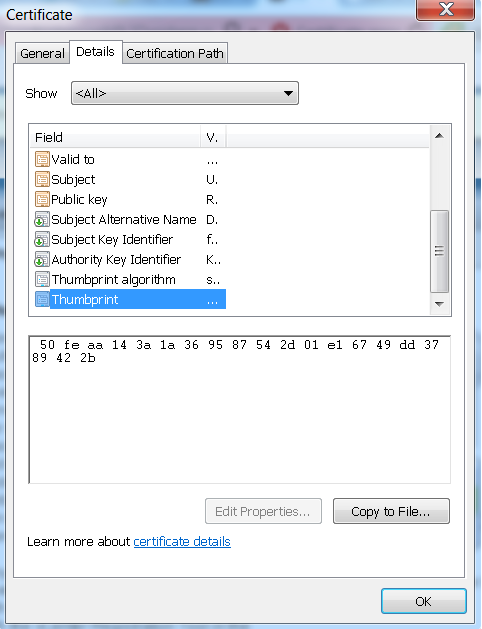
– There is one imp parameter you need to pass into migration spec i.e. Destination VC Thumbprint. There are several ways to get it as shown here. I personally used below way to get the destination VC thumbprint.
From google chrome browser : URL box of the VC (besides https:// lock symbol)>>view site information >> Certificate information >> Details >> Scroll down till last as shown in below screenshot

Thumbprint

– For the sake of simplicity, I have hard-coded some parameters, you can change it based on your environment.
– You can scale the same code to vMotion multiple VMs across vCenter server
– As I said, there is another API for vMotion across VCs, please take a look at this post on  placevm()

If you want to automate the same use case using PowerCLI, here is great post by William Lam.

If you have still not setup your YAVI JAVA Eclipse environment:Getting started tutorial

Important tutorials to start with: Part I & Part II

Emulate HDD as SSD and SSD as HDD: Sample API script

Recently I wanted to test vFRC (vSphere Flash Read Cache) feature interop with vSphere DRS and vSphere HA. I was figuring out ways to emulate my hosts local HDDs as SSD as I did not have real SSDs in my lab. There are couple of ways I used to fake/emulate local HDD as SSD earlier but this time I found other cool way to automate this quickly by using readily available API. The API that I am talking about is markAsSSD(). This API got introduced in vSphere 6.0. It is important to know why this API is made officially available. The reason this API primarily introduced is: Some time SSDs behind some controllers might not be recognized as SSD correctly. Other use cases for this API can be used to test VMware vSAN (just playing around), vFRC, flash host cache, interop testing etc. Of course, performance of real SSD is incomparable with fake SSD.

Below is the complete code sample which can help you quickly to Mark the local Lun of the host as SSD..

[java]
//:: # Author: Vikas Shitole
//:: # Website: www.vThinkBeyondVM.com
//:: # Product/Feature: vCenter Server/Storage
//:: # Description: Mark the local Lun of the host as SSD for testing purpose.

package com.vmware.yavijava;
import java.net.MalformedURLException;
import java.net.URL;
import com.vmware.vim25.ScsiLun;
import com.vmware.vim25.mo.Folder;
import com.vmware.vim25.mo.HostStorageSystem;
import com.vmware.vim25.mo.HostSystem;
import com.vmware.vim25.mo.InventoryNavigator;
import com.vmware.vim25.mo.ServiceInstance;
import com.vmware.vim25.mo.VirtualMachine;

public class MarkAsSSD {

public static void main(String[] args) throws Exception {
if(args.length!=4)
{
System.out.println("Usage: MarkAsSSD url username password hostip/fqdn");
System.exit(-1);
}

URL url = null;
try
{
url = new URL(args[0]);
} catch ( MalformedURLException urlE)
{
System.out.println("The URL provided is NOT valid. Please check it.");
System.exit(-1);
}
String username = args[1]; //vCenter username
String password = args[2]; //vCenter password
String hostname = args[3]; // host IP on which local HDD is available
String LunDisplayName="Local VMware Disk (mpx.vmhba1:C0:T2:L0)"; //Add the Display name of the lun that can be seen from VI client or NGC
// Initialize the system, set up web services
ServiceInstance si = new ServiceInstance(url, username,
password, true);

Folder rootFolder = si.getRootFolder();
HostSystem host = null;

host = (HostSystem) new InventoryNavigator(rootFolder)
.searchManagedEntity("HostSystem", hostname);

if (host == null) {
System.out.println("Host not found on vCenter");
si.getServerConnection().logout();
return;
}

HostStorageSystem hhostsystem = host.getHostStorageSystem();
ScsiLun[] scsilun = hhostsystem.getStorageDeviceInfo().getScsiLun();
boolean flag = false;
for (ScsiLun lun : scsilun) {
System.out.println("Display Name"+lun.getDisplayName());
if (lun.getDisplayName().equals(
LunDisplayName)) {
hhostsystem.markAsSsd_Task(lun.getUuid());
flag = true;
break;
// hhostsystem.markAsNonSsd_Task(lun.getUuid());

}

}
if (flag) {
System.out.println("LUN is marked as SSD successfully");

}else{
System.out.println("LUN is NOT marked as SSD, plz check if local lun is in use");

}

si.getServerConnection().logout();

}
}
[/java]

Notes:
– For the sake of simplicity, I have hard-coded LUN display name, you can change it based on your environment.
– You can scale the same code to mark all the local HDDs to SSDs in all the hosts across datacenter or multiple datacenter.
– I would like you to have your attention on other new useful/handy related vSphere 6.0 APIs such as “MarkAsNonSSD” , “MarkAsLocal”, “MarkAsNonLocal“. Same sample can be leveraged to automate these related APIs.

If you have still not setup your YAVI JAVA Eclipse environment:Getting started tutorial

Important tutorials to start with: Part I & Part II