Tag Archives: drs

How to edit DRS affinity rules using vSphere API: Bit tricky solution

Recently I got a question through mail on how to edit DRS affinity rules (VM VM rules)? It is bit tricky to edit VM VM rules and vSphere API beginners are likely to get bit confused. Hence I thought its better write a program on the same which can be used as sample when anybody would like to edit DRS affinity rules.

Below is the complete code sample for the same. Please do modify this sample as per your need.

[java]

//:: # Author: Vikas Shitole
//:: # Website: www.vThinkBeyondVM.com
//:: # Product/Feature: vCenter Server/DRS
//:: # Description: Script to edit VM VM affinity rules

package com.vmware.yavijava;

import java.util.Arrays;
import org.apache.commons.lang.ArrayUtils;

import java.net.MalformedURLException;
import java.net.URL;
import java.rmi.RemoteException;

import com.vmware.vim25.ArrayUpdateOperation;
import com.vmware.vim25.ClusterAffinityRuleSpec;
import com.vmware.vim25.ClusterAntiAffinityRuleSpec;
import com.vmware.vim25.ClusterConfigInfoEx;
import com.vmware.vim25.ClusterConfigSpec;
import com.vmware.vim25.ClusterRuleInfo;
import com.vmware.vim25.ClusterRuleSpec;
import com.vmware.vim25.InvalidProperty;
import com.vmware.vim25.ManagedObjectReference;
import com.vmware.vim25.RuntimeFault;
import com.vmware.vim25.mo.ClusterComputeResource;
import com.vmware.vim25.mo.Folder;
import com.vmware.vim25.mo.InventoryNavigator;
import com.vmware.vim25.mo.ServiceInstance;
import com.vmware.vim25.mo.VirtualMachine;
import com.vmware.vim25.mo.util.MorUtil;

public class EditVmVmDrsRule {

public static void main(String[] args) throws InvalidProperty,
RuntimeFault, RemoteException, MalformedURLException {
ServiceInstance si = new ServiceInstance(new URL(args[0]), args[1],
args[2], true); // Pass 3 argument as vCenterIP/username/password
String ClusterName = "Cluster"; // Cluster Name
String VMToBeRemoved="VM1";
String VMToBeAdded="VM3";
Folder rootFolder = si.getRootFolder();
VirtualMachine vm1 = (VirtualMachine) new InventoryNavigator(rootFolder)
.searchManagedEntity("VirtualMachine", VMToBeRemoved);
VirtualMachine vm2 = (VirtualMachine) new InventoryNavigator(rootFolder)
.searchManagedEntity("VirtualMachine", VMToBeAdded);
ManagedObjectReference vmMor1 = vm1.getMOR();
ManagedObjectReference vmMor2 = vm2.getMOR();

ClusterComputeResource cluster = null;
cluster = (ClusterComputeResource) new InventoryNavigator(rootFolder)
.searchManagedEntity("ClusterComputeResource", ClusterName);

// Number of rules in a cluster
ClusterRuleInfo[] ruleinfo = ((ClusterConfigInfoEx) cluster
.getConfigurationEx()).getRule();

if (ruleinfo == null || ruleinfo.length == 0) {
System.out.println("There is no DRS rule in the cluster:: "
+ cluster.getName());
}

for (ClusterRuleInfo rule : ruleinfo) {
if (((rule instanceof ClusterAffinityRuleSpec)) && (rule.getName().equals("VM VM Rule"))){
ManagedObjectReference[] vms=((ClusterAffinityRuleSpec) rule).getVm();
for(ManagedObjectReference vm:vms){
if(vm.getVal().equals(vmMor1.getVal())){
//Removed the VM from rule
vms=(ManagedObjectReference[]) ArrayUtils.removeElement(vms, vm );
break;
}

}
//Added the new VM to the rule
vms=(ManagedObjectReference[]) ArrayUtils.add(vms, vmMor2 );

ClusterAffinityRuleSpec cars=(ClusterAffinityRuleSpec) rule;
cars.setVm(vms);

ClusterRuleSpec crs1 = new ClusterRuleSpec();
crs1.setInfo(cars);
crs1.setOperation(ArrayUpdateOperation.edit);

ClusterConfigSpec ccs = new ClusterConfigSpec();
ccs.setRulesSpec(new ClusterRuleSpec[]{crs1} );

cluster.reconfigureCluster_Task(ccs, true);
System.out.println("Rule reconfigured successfully ");

}
}

}
}

[/java]

Note:
– For the sake of simplicity, I have hard-coded VM names, you can change those based on your environment.
– Also you need resolve the dependency on apache.commons.lang in your java project. Let me know if you have any more doubts.

If you have still not setup your VI JAVA Eclipse environment:Getting started tutorial
Important tutorials to start with: Part I & Part II

One more exciting news: VI JAVA open source project is forked into YA VIJAVA(Yet another VI JAVA), it will have support to all the new APIs introduced in vSphere 6.0. VI JAVA itself works fine even on vSphere 6.0 (except the new features in vSphere 6.0).

PART 2: vSphere DPM vs ESXi memory ballooning

In PART I of my post we learned how vSphere DPM works & DPM memory demand metric. If you have not read PART I, I strongly recommend reading it first.

In PART 2 we will touch upon 2 important points with example.
1. How earlier vSphere DPM behavior was more aggressive from memory perspective?
2. How can we now control DPM behavior with new memory demand metric & avoid memory ballooning?

Let’s start with first point: How earlier DPM behavior was more aggressive?
OLD DPM memory demand metric was considering just Active memory as memory demand. To understand it clearly, we will take one example: Say we have 2 ESXi hosts(H1 & H2) with 2 VMs on each hosts(VM1,VM2 on H1 & VM3, VM4 on H2) in the DPM enabled cluster. Memory configuration was as follows:
H1-4GB
H2-4GB
VM1-3GB
VM2-3GB
VM3-3GB
VM4-3GB
Clearly environment is memory over-committed. All VMs are already powered ON, host consumed memory on H1 =3 GB, H2=1GB & current active memory usage on each VM is just 256MB. You may wonder that why host consumed memory is 3 GB on H1 when current active memory on H1 is just 512 MB(256x2VMs). The reason is, initially active memory usage for VMs on host H1 was 3GB but at this point active memory usage on H1 reduced to 512MB & as per the ESXi memory management, unused memory on the VMs will not freed itself to host until ESXi does not use its memory reclamation technique such as memory ballooning. Memory ballooning reclaims the VM memory only when host memory usage crosses 96% of its total host memory.

DPM will evaluate the cluster based on Target Resource Utilization Range = 63±18 i.e. Default range is 45 to 81%. As per active memory usage on both hosts, it is clear that only 1GB(256×4 VMs) memory is being used actively in the cluster which is just around 12.5% of the total memory (4 GB) available per host. Each ESXi host’s resource utilization demand is calculated as aggregate of memory required by VMs running on that host. Based on Target utilization range DPM identifies one of hosts as candidate host (in our case H2) to put into standby mode. DPM runs DRS simulation on the remaining one host i.e. H1 (DRS simulation will not consider the candidate hosts to be powered OFF, in our case it is H2), simulation uses the DPM demand metric formula i.e. just active memory to analyze whether VMs(VM3,VM4) on candidate host H2 can be accommodated on host H1 without impacting existing VMs(VM1,VM2). As the overall active memory across all the VMs is 1GB (256×4 VMs) & 1GB is just 25% of the memory utilization of H1 which is too less than upper target utilization range i.e. 81. (Before putting host into standby mode, DPM also makes sure that remaining host memory utilization should not cross the upper utilization range i.e. 81%). Hence DPM will vMotion VMs (with the help of DRS) from candidate host H2 to H1 and will put H2 into standby mode to save the power consumption. Note that by this time host consumed memory would be at-least 3 GB(earlier)+512 MB(VMs on H2 those are migrated to H1)=3.5 GB. If say, suddenly memory demand for recently migrated VMs increased by even 200MB each, host consumed memory on H1 would cross 96% of total memory available. This is where host H1 is very short on memory & it will immediately start memory ballooning in order to reclaim the unused VM memory to satisfy the memory demand by VMs. It is clear that old DPM memory demand metric did not consider future memory demand growth on any VMs those are currently on H1. Memory ballooning itself will not cause the performance impact as balloon driver will first reclaim the guest memory which is unused by guest OS which is perfectly safe (More on ballooning in next post). If memory is excessively over-committed & memory reclaimed by ballooning is not enough, it can lead to host swapping and it severally impacts the performance of the VMs.

Note: For the sake of simplicity in examples I did not consider memory required for virtualization layer.

Now you will be wondering, does not DPM evaluate(in above case) cluster to bring back the standby host H2 to meet the memory demand? Of course YES but as DPM evaluates hosts for power ON recommendation every 5 min, DPM will wait to complete the 5 min. As soon as DPM is invoked, DPM evaluates the cluster to bring back the standby host to meet the memory demand, once the standby host is powered ON, DRS balances the memory load in the cluster and it will stop the memory ballooning. However, hosts in the cluster may come across memory ballooning for the minimum time ranges from 5 min i.e. DPM invocation time for power on host recommendations + time DPM takes to evaluate the hosts + time required for the host to boot up from standby mode + Time required to vMotion as a result of balancing the memory load.

Overall, with DPM’s old memory demand metric DPM may lead to memory ballooning when active memory is low but host consumed memory is high. Host consumed memory can be high with low active memory when allocated VMs memory is either overcommitted OR it can even happen when VMs memory is fully backed by physical memory.

At this point I assume that you clearly understood that how earlier memory demand metric (active memory) was very aggressive.

Now it is time to see, how can we now control DPM behavior with new memory demand metric?
In order to control DPM’s aggressiveness, from vCenter 5.1 U2c onwards and all the versions of vCenter 5.5, DPM can be tuned to consider idle consumed memory as well in DPM memory demand metric. i.e. new DPM memory demand metric = active memory + X% of idle consumed memory. Default value of the X is 25. X value can be modified by using DRS advanced option “ PercentIdleMBInMemDemand” on cluster level. We can set this value in the range from 0 to 100. Refer this KB on how to configure PercentIdleMBInMemDemand advanced option.

We will continue the same above example:
We set “PercentIdleMBInMemDemand” option to 100 i.e. X value is 100. Initially on H1 host consumed memory was 3 GB & active memory usage was 512MB (256×2 VMs) and on H2 host consumed memory was 1 GB & active memory usage was 512MB(256×2 VMs). In this case when DPM evaluates the cluster, as host H2 has less than 45% memory usage, DPM picks host H2 as candidate host in order to put H2 into standby mode. DPM runs DRS simulation without considering the host H2 as it is a identified candidate host to be put into standby mode. DRS simulation uses DPM new demand memory metric i.e. Active memory + X% of idle consumed memory. Active memory on H1 is 512 MB, hence idle consumed memory on H1 is 3GB-512 MB=2.5GB. It shows that memory demand on H1 is 3 GB as X is 100. Active memory usage for the VMs on H2 those are going to be migrated to H1 (only if DPM finalizes to put H2 into standby mode) is 512 MBs, hence idle consumed memory on H2 is 1GB-512 MB=512 MB, it shows memory demand for VMs on H2 is 1 GB as X is 100. Finally, total memory demand by DPM is 4GB (3GB from VMs on H1 and 1 GB from VMs on H2), 4GB memory demand is way out of memory utilization target range i.e. 81%. As total memory demand by all the VMs goes out of utilization target range(Default range 45%-81%), DPM does not see any value in putting H2 into standby mode as for DPM performance is preference than saving power consumption, hence DPM will not put any host into standby mode & consequently avoids memory ballooning. This example shows that when there is high consumed memory and low active memory usage in your environment, it is better to set DRS advanced option PercentIdleMBInMemDemand to 100.

Note: DRS memory demand metric also uses the same formula but in this post I have just focused on DPM.

Now I am sure that you understood how DPM’s new memory demand metric can be used to fine tune DPM behavior which in turn can help to avoid memory ballooning.

is there direct relationship between new DPM memory demand metric and ESXi host memory ballooning. Answer is NO. There is NO direct relationship between new DPM memory demand metric and VM memory ballooning. New memory demand metric just gives us configurable option to fine tune DPM to consider more consumed memory as future memory demand while making host power ON/Off decisions. This would keep more memory resources available in cluster. Hence, it should indirectly avoid the ballooning.
It is also important to note that, DPM will not power on the standby host only because ballooning is happening on other host in the cluster as there is no direct relation between ballooning and DPM. In this case as well, when DPM gets invoked, it will check the target utilization range and only if host memory utilization exceeds the range, it starts evaluating the standby host based on memory demand formula (active memory + X% of idle consumed memory) in order to take hosts out of standby mode.
However, memory ballooning on VMs may happen (when host(s) are in standby mode) very rarely as DPM already would have considered conservative X% value before putting hosts into standby mode i.e. DPM would have kept enough memory resources(of course it is depend on the value of X i.e. PercentIdleMBInMemDemand) available in the cluster before putting any host into standby. Even then if ballooning happens, it is mean that there is excessive memory over commitment and/or actual memory demand by powered ON VMs is more than anticipated by DPM (using active + X% idle consumed).

Can actual memory demand of powered ON VMs be more than anticipated by DPM (which was based on new demand metric)? Yes, it can happen in very rare cases that too due to highly unpredictable increase in memory workloads/usage . Ex. Say cluster has 2 hosts(H1 and H2) with 1 VM on each. Consider, VM on a H1 has 8GB memory allocated but only 3GB is consumed by VM at the moment & X is set to 100. If X is 100, DPM considers entire consumed memory as memory demand. Based on 3GB memory demand, DPM puts host into standby mode (consider 3 GB is available on other host H2) but unfortunately, the moment DPM put the host into standby mode, memory demand of the VM got increased & consumed memory for the VM reached to say 7GB (very corner case) which is 4GB more than DPM had just anticipated. Now if host H2 does not have memory to satisfy this memory demand, it can lead to ballooning. However, once DPM realizes that memory utilization range is exceeding the target utilization range, it again evaluates cluster to bring back the standby host. It is worth to note that if VMs shares,limits & reservations are misconfigured, it can lead to ballooning even if there is plenty of memory available on host. (More on this in next post).

I hope you enjoyed DPM memory behavior, please leave the comment if you have any query. Stay tuned for PART 3 post on ESXi memory ballooning & memory best practices.

If you want to have even more depth understanding of DPM, please refer below resources
1. White Paper on DPM by VMware
2. Great book by “Duncan & Frank”: VMware vSphere 5.1 Clustering Deepdive

PART 1: vSphere DPM vs ESXi memory ballooning

One question is always getting popped into my inbox , the question is: can vSphere DPM lead to ESXi host memory ballooning? if yes, is there any way we can fine tune vSphere DPM to avoid the memory ballooning? I explained it whenever possible but when this question keeps popping up again and again, I thought its better to write one posts to give overview of the vSphere DPM, its memory demand metric and how memory ballooning relates to DPM.

I have divided this post in 3 parts as follows
Part 1: DPM basic overview & its memory demand metric calculations.
Part 2 : DPM vs Memory ballooning & memory best practices.
Part 3: What are the ways we can fine tune DPM?

Today I have covered Part 1 : “DPM basic overview & its memory demand metric calculations”.

DPM basic overview:
As we already know that consolidation of physical servers into virtual machines reduces significant power consumption. VMware DPM (Distributed Power Management) takes this reduction in power consumption to the next level.
DPM is feature of VMware DRS (Distributed Resource Scheduler), once we enable DRS on cluster from vSphere client or Web client, enabling DPM is just a click away. DRS does dynamic CPU and memory load balancing across all ESXi in the cluster & DPM does the evaluation of each ESXi host in the cluster so that DPM can put one or more hosts into standby mode (Power OFF) to save the power consumption OR bring back one or more hosts from standby mode to meet the resource (cpu, memory) demand of virtual machines in the cluster. You might be wondering how DPM evaluates ESXi host? It is the Target Resource utilization Range that plays the crucial role. DPM calculates Target Resource Utilization Range as follows.

Target Resource Utilization Range = DemandCapacityRatioTarget ±
DemandCapacityRatioToleranceHost

DemandCapacityRatioTarget is the target utilization of the ESXi host in the cluster. By default this is set at 63%.
DemandCapacityRatioToleranceHost sets the tolerance value around target utilization of each ESXi host, by default this is set at 18%.
Hence, by default, Target Resource Utilization Range = 63±18 i.e. Range is 45 to 81%

It is mean that DPM try its best to keep the ESXi host resource utilization in the range between 45 and 81 percent. If resource utilization of cpu or memory on each ESXi host is below 45%, DPM evaluates that host for putting into standby mode (Power OFF). If the resource utilization exceeds the 81% of either CPU or memory resources, DPM evaluates ESXi host to bring back that hosts from standby mode.
Note: DPM considers CPU & memory as resource for evaluation however, In this blog post, we would be focusing only on memory resource.

Basic terms:
Active memory: Memory which is being actively used at any point of moment by VM. This keeps changing as the VM load increases or decreases.

Consumed memory: It is the memory consumed by VM since it is booted. Note that consumed memory is not the same as memory allocated to VM. Consumed memory can be equal to allocated (configured) memory if & only if VM consumes entire memory allocated to VM. ESXi host never allocates memory to any VM until that VM touches/requests the host memory. When VM is powered off consumed memory would be zero. It is good to note that every VM only can get min(Configured memory, specified limit). When VM is powered OFF, consumed memory would be zero. If there is no any limit set on VM, configured memory itself will be default limit.

DPM memory demand metric.

In earlier releases, DPM was just considering active memory as memory demand from each VM on the host. i.e. “DPM memory demand metric=active memory” which is aggressive. In order to control DPM’s aggressiveness, with version vCenter 5.1 U2c onwards and all the versions of vCenter 5.5, DPM can be tuned to consider idle consumed memory as well in DPM memory demand metric. i.e. DPM memory demand metric = active memory + X% of idle consumed memory.

1. Default value of the X is 25. X value can be modified by using DRS advanced option “ PercentIdleMBInMemDemand” on cluster level. We can set this value in the range from 0 to 100. When we set this value to 0, it is mean that DPM will be aggressive the way it was in earlier release & as we increase X value DPM keeps becoming less aggressive. If X value is 100, it is mean that DPM considers entire consumed memory as memory demand. (Consumed memory =active memory + idle consumed memory).

2. Example. : Say, we have one VM with 8192MB (8GB) configured memory. Consider since the VM is booted, VM has consumed 6144MB (6GB) memory from host but only 20% is being used actively, hence active memory would be 20% of 6144 MB=1228.8 MB. Idle consumed memory =6144-1228.8=4915.2 MB. If X value is 25 then DPM memory demand would be=1228.8 + 25 % of 4915.2 =2457.6 MB + overhead. Setting X to 25 means, DPM considers 25% of idle consume memory as a demand by VM to avoid performance impact. As we increase X, DPM becomes more conservative. Hence user needs to set the X value as per his environment & requirement.

3. DPM Power OFF recommendations: Based on Target Resource utilization range, DPM evaluates candidate hosts to put into standby mode (i.e. When utilization is under 45%), and then DPM takes help from DRS to run the simulations considering candidate hosts are powered off in the cluster. These DRS simulations internally use the DPM memory demand metric (active memory + X% of idle consumed memory) to calculate the memory demand by each VM in the cluster. These simulations will be used by DPM to see if there is improvement in Target Resource Utilization Range when candidate host(s) is powered OFF. If resource utilization of the all non-candidate hosts is within the target range (i.e. 45%-81%), DPM puts the candidate hosts into standby mode & saves the power.

4. DPM Power ON recommendations: DPM evaluates each standby host when resource utilization of the powered ON host is above 81%, and then DPM takes help from DRS to run the simulations considering standby host(s) is powered ON in the cluster. These DRS simulations internally use the DPM memory demand metric (active memory + X% of idle consumed memory) to calculate the memory demand by each VM in the cluster & distributes the VMs across all hosts. These simulations will be used by DPM to see if there is improvement in Target Resource Utilization Range when standby host(s) is powered-on. If resource utilization of the all hosts is within the target range, DPM generates host power ON recommendations.

I hope you enjoyed how DPM works in general, please do leave comment for any clarification & stay tuned for exciting PART 2 “DPM vs Memory ballooning & memory best practices.”

If you want to have even more depth understanding of DPM, please refer below resources
1. White Paper on DPM by VMware
2. Great book by “Duncan & Frank”: VMware vSphere 5.1 Clustering Deepdive

DRS rules PART II: How to create VM-VM affinity rules using vSphere API.

In my last post we learned how to create VM-Host DRS affinity rules using vSphere API. Now today in PART II, we will see how to create VM-VM affinity rules using vSphere API. Before jumping on API coding, I would like to list out what VM-VM affinity rules are there and when we should use these rules.

What are the DRS VM-VM rules we can create on ESXi host cluster.

1. VM-VM affinity rule: This rule will keep the 1 or more VMs together on a host. i.e. DRS will make sure these VMs are running together on the same host all the time. Note that, this rule is soft rule, it is mean that, DRS can violate this rule if required in order to balance the cpu/memory load on the cluster. However, DRS will try its best to resolve this rule violation in next DRS invocation(Default DRS invocation is 5 mins).

Use cases:
1. If there is a group of VMs in DRS cluster those communicate frequently with each other, it would make sense to keep these VMs together on the same host to save some network bandwidth & increase the performance. If we keep such VMs on separate hosts, network traffic should exit from external physical network & will impact network latency.
2. If there is group of VMs in DRS cluster with same GuestOS, Apps or user data, we can keep these VMs together on same host to take advantage of Transparent Page Sharing (TPS) memory reclamation technique, so that host memory will be efficiently shared wherever there is opportunity.
Both of above use-cases can be satisfied by using VM-VM affinity rule

2. VM-VM anti-affinity rule: This rule is exactly opposite to above rule. Here this rule will keep 2 or more VMs away from each other. As per this rule, all the VMs involved in this rule should run on separate hosts. Again this rule is soft rule and DRS can violate this rule if required.
Use case:
If you want to make 2 critical VMs highly available, it makes sense to configure VM-VM anti-affinity rule on these 2 critical VMs. If one host goes down, second VM will be still running.

I strongly suggest you to read my blog post is HA aware of DRS rules in order to understand impact of above DRS rules on vSphere HA.

Note: All DRS rules are very popular among VMware admin but it is important to note that, if there are multiple rules configured on DRS cluster, it can impose constraint on DRS load balancing ability as DRS has to think on satisfying configured rules on cluster. It reduces DRS migration options. Hence please make use of these rules if absolutely required.

Creating these rules using vSphere API
Now with above basic fundamentals on DRS rules, we are ready to deal with creating these rules using vSphere APIs. I assume now you are familiar with vSphere API reference, go through below pointed data-object in detail so that you will understand code yourself. (Click on image to enlarge)
VMVMrules Dataobject
Refer: ClusterRuleInfo data object API reference

Below program creates both VM-VM affinity rule and VM-VM anti-affinity rule
[java]
package com.vmware.vijava;
import java.net.MalformedURLException;
import java.net.URL;
import java.rmi.RemoteException;
import com.vmware.vim25.ArrayUpdateOperation;
import com.vmware.vim25.ClusterAffinityRuleSpec;
import com.vmware.vim25.ClusterAntiAffinityRuleSpec;
import com.vmware.vim25.ClusterConfigSpec;
import com.vmware.vim25.ClusterRuleSpec;
import com.vmware.vim25.InvalidProperty;
import com.vmware.vim25.ManagedObjectReference;
import com.vmware.vim25.RuntimeFault;
import com.vmware.vim25.mo.ClusterComputeResource;
import com.vmware.vim25.mo.Folder;
import com.vmware.vim25.mo.InventoryNavigator;
import com.vmware.vim25.mo.ServiceInstance;
import com.vmware.vim25.mo.VirtualMachine;
import com.vmware.vim25.mo.util.MorUtil;

public class DRSVMVMRules {

public static void main(String[] args) throws InvalidProperty,
RuntimeFault, RemoteException, MalformedURLException {
ServiceInstance si = new ServiceInstance(new URL(args[0]), args[1],
args[2], true); // Pass 3 argument as vCenterIP/username/password
String ClusterName = "BLR-NTP"; // Cluster Name
String affineVM1 = "CentOS6_x64_2GB_1"; // First VM for affinity rule
String affineVM2 = "CentOS6_x64_2GB_2"; // Second VM for affinity rule
String anti_affineVM1 = "CentOS6_x64_2GB_3"; // First VM for anti-affinity rule
String anti_affineVM2 = "CentOS6_x64_2GB_4"; // Second VM for anti-affinity rule
Folder rootFolder = si.getRootFolder();

ClusterComputeResource cluster = null;
cluster = (ClusterComputeResource) new InventoryNavigator(rootFolder)
.searchManagedEntity("ClusterComputeResource", ClusterName);
ManagedObjectReference ClusterMor = cluster.getMOR();
ClusterComputeResource ccr = (ClusterComputeResource) MorUtil
.createExactManagedEntity(si.getServerConnection(), ClusterMor);

// VM-VM affinity rule configuration
ClusterConfigSpec ccs = new ClusterConfigSpec();
ClusterAffinityRuleSpec cars = null;
VirtualMachine vm1 = (VirtualMachine) new InventoryNavigator(rootFolder)
.searchManagedEntity("VirtualMachine", affineVM1);
VirtualMachine vm2 = (VirtualMachine) new InventoryNavigator(rootFolder)
.searchManagedEntity("VirtualMachine", affineVM2);
ManagedObjectReference vmMor1 = vm1.getMOR();
ManagedObjectReference vmMor2 = vm2.getMOR();
ManagedObjectReference[] vmMors1 = new ManagedObjectReference[] {
vmMor1, vmMor2 };
cars = new ClusterAffinityRuleSpec();
cars.setName("VM-VM Affinity Rule");
cars.setEnabled(true);
cars.setVm(vmMors1);
ClusterRuleSpec crs1 = new ClusterRuleSpec();
crs1.setOperation(ArrayUpdateOperation.add);
crs1.setInfo(cars);

// VM-VM Anti-affinity rule configuration
ClusterAntiAffinityRuleSpec caars = null;
VirtualMachine vm3 = (VirtualMachine) new InventoryNavigator(rootFolder)
.searchManagedEntity("VirtualMachine", anti_affineVM1);
VirtualMachine vm4 = (VirtualMachine) new InventoryNavigator(rootFolder)
.searchManagedEntity("VirtualMachine", anti_affineVM2);
ManagedObjectReference vmMor3 = vm3.getMOR();
ManagedObjectReference vmMor4 = vm4.getMOR();
ManagedObjectReference[] vmMors2 = new ManagedObjectReference[] {
vmMor3, vmMor4 };
caars = new ClusterAntiAffinityRuleSpec();
caars.setName("VM-VM Anti-Affinity Rule");
caars.setEnabled(true);
caars.setVm(vmMors2);
ClusterRuleSpec crs2 = new ClusterRuleSpec();
crs2.setOperation(ArrayUpdateOperation.add);
crs2.setInfo(caars);

// Passing the rule spec
ccs.setRulesSpec(new ClusterRuleSpec[] { crs1, crs2 });
// Reconfigure the cluster
ccr.reconfigureCluster_Task(ccs, true);
System.out.println("Rules are created with no issues:");

}
}
[/java]

Code itself is self explanatory, just map the code with data-objects in vSphere API reference. Note that for the sake of simplicity, I have hard-coded VM/Cluster name , do make changes according to your environment. Please do leave the comment if you have any doubt.

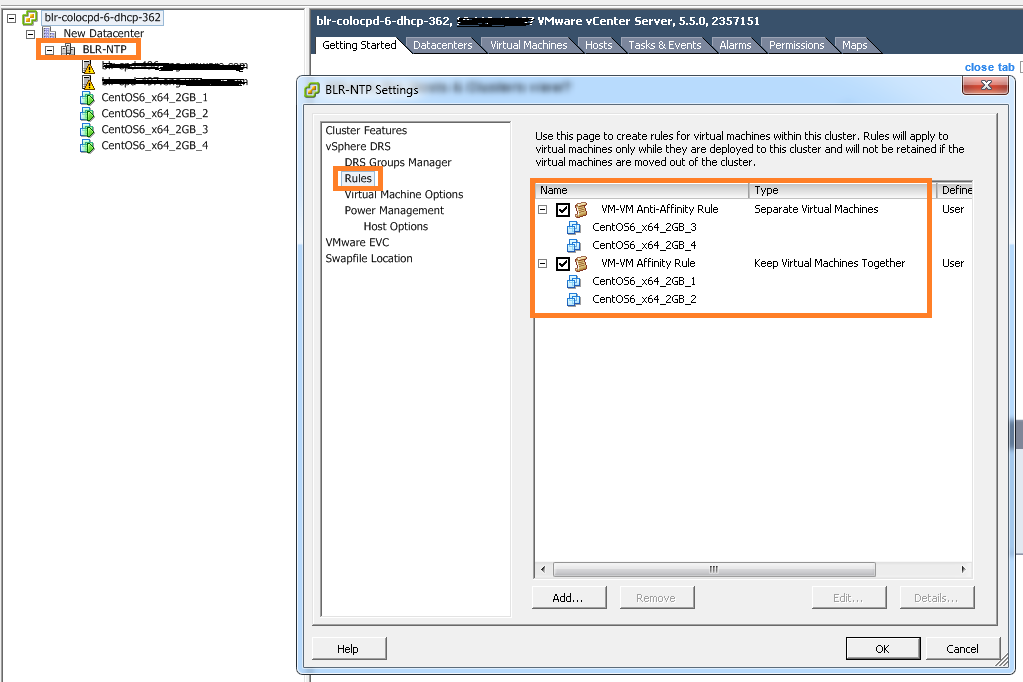
Below is the VI client view of created VM-VM DRS rules using above code.
VM-VM Rules

If you have still not setup your VI JAVA Eclipse environment:Getting started tutorial
Important tutorials to start with: Part I & Part II

is vSphere HA aware of DRS affinity rules?

Recently I was exploring vSphere HA interop with DRS affinity rules. It is quite interesting to know that as of vCenter server 5.5, how vSphere HA deals with various DRS affinity rules.

Here are the current DRS rules we can configure on the DRS cluster:
1. VM-VM affinity rule: This rule is intended to keep group of VMs together on single host.

2. VM-VM anti-affinity rule: This rule is intended to keep group of VMs away from each other all the time.

3. VM-Host affinity rule: This rule restricts to run a group of VMs on a group of Host. It is mean that, VMs in VM group should/must always be running on hosts in Host Group. This rule can be hard/must or soft/should rule.

4. VM-Host anti affinity rule: This rule is exactly opposite to above VM-Host Affinity rule. This rule does not allow  to  run a group of VMs on a group of Host. This rule can be hard/must or soft/should rule.

Now question is : whether vSphere HA aware of DRS affinity rules? Answer is “Yes”, as of vSphere 5.5, vSphere HA is aware of 2 DRS rules. Here are the rules those are honored by vSphere HA.

1 . VM-Host must affinity/anti-affinity rule

2.  VM-VM anti-affinity rule.

vSphere HA honors these rules, it is mean that, in case of host failure, if re-starting VMs on available host  leads to rule violation, vSphere HA will not re-start VMs those were on the failed host. vSphere HA will raise the error instead.

Example: Say , you have a HA-DRS enabled cluster of 2 hosts (H1, H2) & with 2 VMs (VM1-H1, VM2-H2) one on each host in powered on state. Now you configured VM-Host must affinity rule :HostGroup:H1 & VMGroup:VM1. It is mean that VM1 must always run on H1. Once you configure this rule, say, H1 host got failed. Now vSphere HA will try to restart the VM on H2 but as HA knows that VM-Host rule is configured, it will not restart the VM1 on H2.

It is important to note that, by default, VM-Host must affinity/anti-affinity is honored by vSphere HA. You just need to configure VM-host must affinity/anti-affinity rule but in order to make VM-VM anti-affinity rule vSphere HA aware, you will have to configure one HA advanced option “das.respectVmVmAntiAffinityRules” to true. (default value of this advanced option is false). I repeat this is a HA advanced option, not the DRS advanced option. You can configure this option from web client through this workflow (Cluster>>Manage>>vSphere HA>>Advanced option). However, you can configure this option from Desktop client as well.

It is also important to note that, even when DRS is disabled on cluster, HA continues to honor them. As per the current design, we can not disable these rules when DRS is disabled. Hence care must be taken while disabling DRS, you can disable these rule when you disable DRS or when you want to disable these rules, enable DRS for a while in conservative migration threshold mode & disable these rules.

As I specified earlier, in case of host failure, HA will not restart VMs if that is going to violate the configured rule. Hence, admin need be to very cautious while configuring these rules as these rule can have availability impact. These rules should be configured when it is absolutely required.