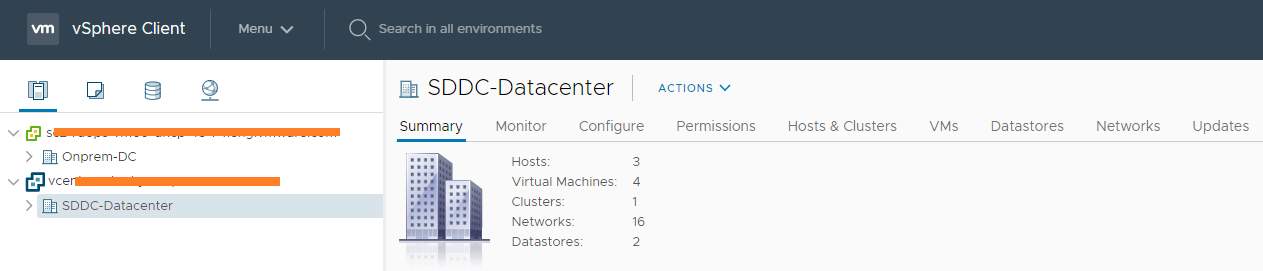
This is going to be my first 2019 post and in this post, I am excited to share couple of ways to configure Hybrid Linked Mode (HLM) using REST API. One of the ways is using UI REST client i.e. apiexplorer and another way is using python. If you are not already familiar with vCenter server REST APIs, I would suggest to first go over my earlier post i.e. Getting started with vCenter REST APIs.
Before I move further, I would like to point out that I am not explaining end to end steps required to configure HLM since Emad already has a detailed post on it here. My focus is on vCenter REST API required to link your Onprem vCenter server to VMware cloud on AWS (Cloud vCenter).
Notes:
1. As you might know, there are 2 ways from which user can configure HLM. One way is to configure HLM from Cloud vCenter,where you can see both VCs (onprem and cloud VC) from cloud vCenter vSphere client (H5C) and another way is to configure HLM using vCenter cloud gateway,which allows users to see both VCs from vCenter cloud gateway H5C. Here is my new post on configuring HLM through vCenter cloud gateway using API
2. Just to avoid any confusion: Since this HLM linking operation is done from vCenter server or vCenter cloud gateway, REST API also comes from vCenter itself and not from CSP (Cloud services platform APIs, which are about Cloud services console operations)
3. Great news is that API remains exactly same no matter which way you go for. Only change is: If you are configuring HLM from cloud vCenter (i.e. VMC VC), API end-point would be VMC VC IP/FQDN and if you are configuring HLM using vCenter cloud gateway, API end-point would be vCenter cloud gateway.
How to do HLM linking from H5C UI
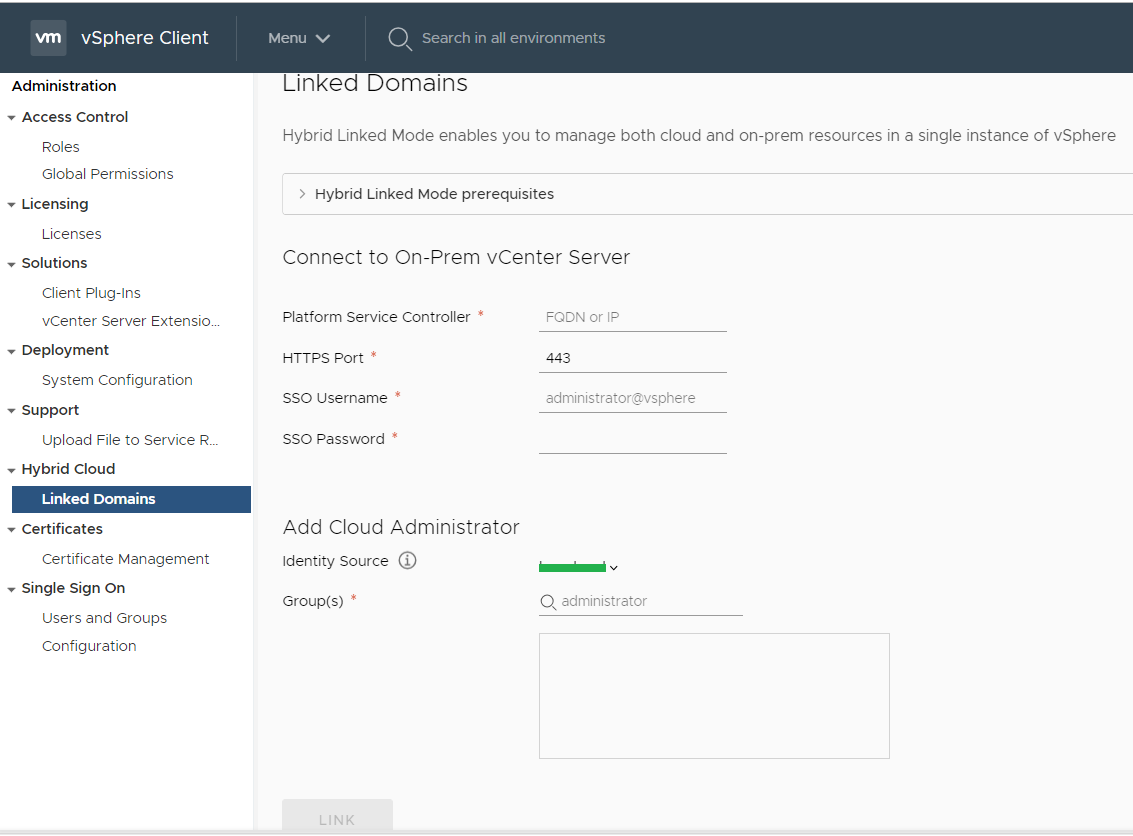
You could see, in order to link, we need to pass PSC details and cloud administrator group(s). This is exactly we will do using REST API.
HLM APIs overview
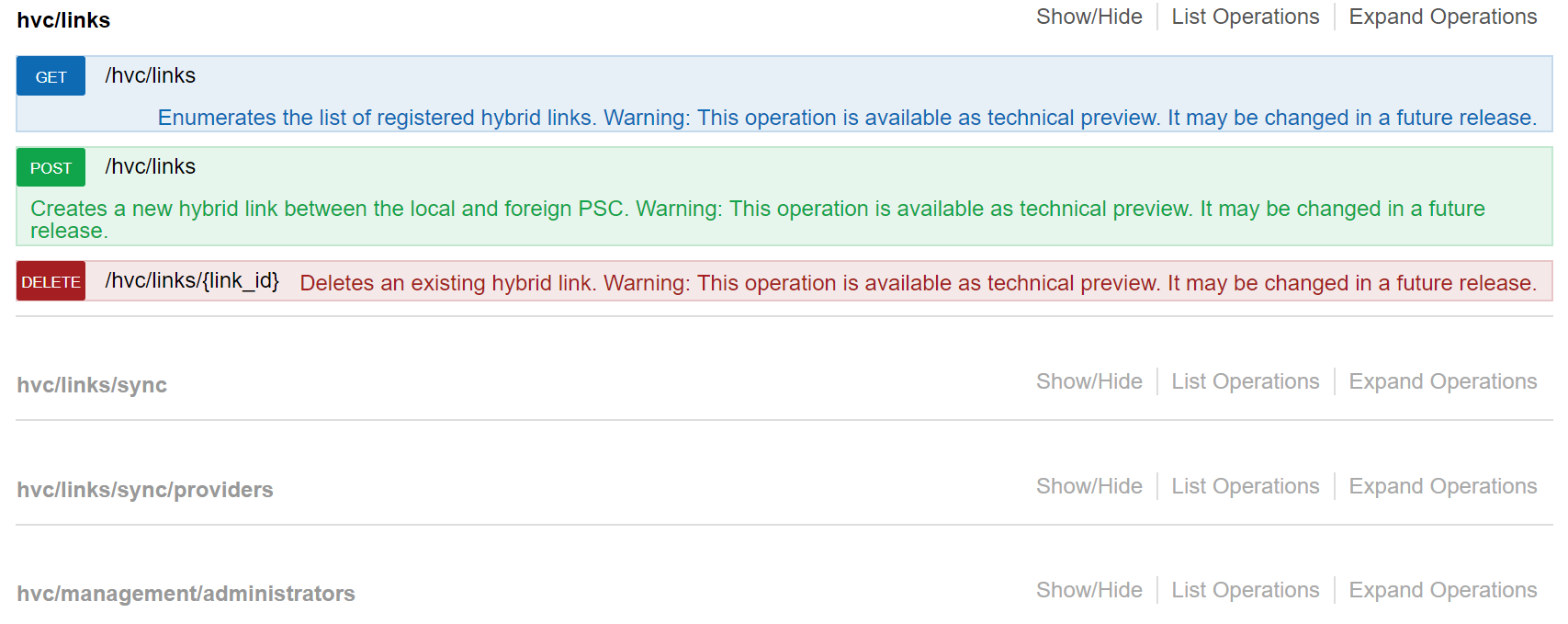
Below are the REST APIs available around HLM. We are more interested in POST /hvc/links call as this is the key API for configuring HLM no matter its from VMC VC or vCenter cloud gateway.
Invoking from UI REST client i.e. APIExplorer
By now you might have already used apiexplorer (swagger based) vCenter REST client. To access it, just browse “https://[vCenter IP]/apiexplorer”. If you see above screen-shot, there are multiple APIs on HLM operations. The one we are interested in is “/hvc/links” POST method, which is responsible for HLM linking.
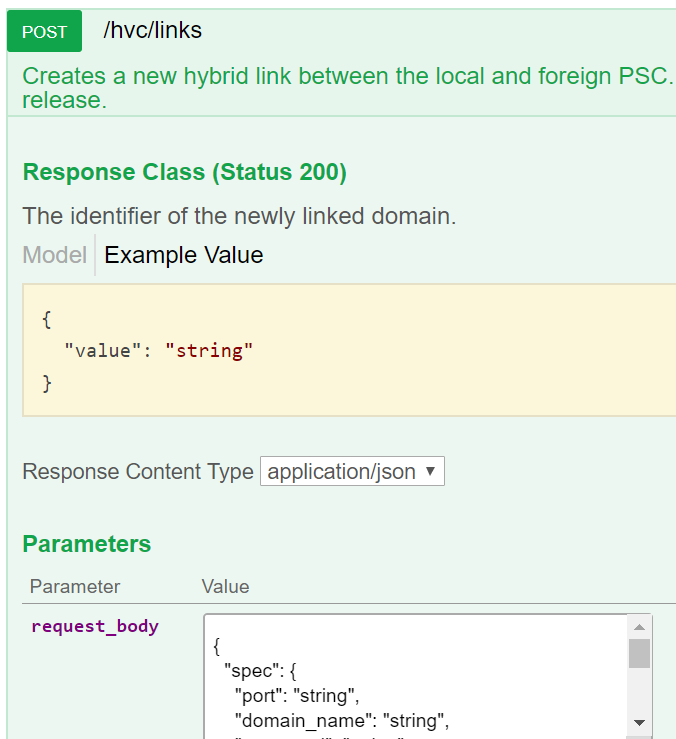
As part of above request body, we need to pass exactly the same details as we passed while configuring from UI. Let us take a look the “request_body” spec I passed.
{
“spec”: {
“port”: “443”,
“domain_name”: “vsphere.local”,
“username”: “Administrator@vsphere.local”,
“ssl_thumbprint”: “F9:1C:2B:E7:C5:A0:CC:02:D3:37:33:04:B0:2D:2F:6C:77:50:EB:9C”,
“admin_groups”: [
“yourcloudadmingroup@yourdomain.local”
],
“password”: “VMW!23,
“psc_hostname”: “10.161.2.5”
}
}
Let us go over each parameter passed.
port: 443 is default Onprem PSC TCP port (can be custom port also)
domain_name: Onprem PSC default SSO domain
username, password, psc_hostname: Onprem PSC credentials
ssl_thumbprint :
If you need to pass, this is Onprem PSC SSL thumbprint, you can get it using one of the ways posted here . I am going to write a post on how to get vCenter/PSC thumbprint using API itself, please stay tuned.
admin_groups: here you specify cloud administrator group(s). Before configuring HLM linking (apart from HLM standard requirements that Emad has posted here) , identity source must be configured on both Onprem and VMC first and cloud admin groups must be given global permissions on both VCs.
HLM linking using python
By this time, I am sure you know everything about the API, now lets head on to python way of doing these things.
This script is available on my github repo HERE
[python]
# Author: Vikas Shitole
# Website: www.vThinkBeyondVM.com
# Product: VMware Cloud on AWS (VMC)
# Description: Python script to configure Hybrid Linked Mode (HLM) between Onprem and VMC VC
# How to setup vCenter REST API environment?: https://vthinkbeyondvm.com/getting-started-with-vcenter-server-rest-apis-using-python/</pre>
<pre>import requests
import json
import ssl
import atexit
import sys
import argparse
import getpass

from requests.packages.urllib3.exceptions import InsecureRequestWarning
requests.packages.urllib3.disable_warnings(InsecureRequestWarning)

s=requests.Session()
s.verify=False

def get_args():
    """ Get arguments from CLI """
    parser = argparse.ArgumentParser(
        description='Arguments for HLM linking')

    parser.add_argument('-s', '--host',
                        required=True,
                        action='store',
                        help='VMC VC IP or FQDN')

    parser.add_argument('-u', '--user',
                        required=True,
                        action='store',
                        help='VMC VC username')

    parser.add_argument('-p', '--password',
                        required=False,
                        action='store',
                        help='VMC VC password:')

    parser.add_argument('-o', '--port',
                        type=int,
                        default=443,
                        action='store',
                        help='PSC port')

    parser.add_argument('-d', '--domainname',
                        type=str,
			default='vsphere.local',
                        action='store',
                        help='Onprem PSC domain name')

    parser.add_argument('-pu', '--pscuser',
                        required=False,
			default='Administrator@vsphere.local',
                        action='store',
                        help='Onprem PSC username')

    parser.add_argument('-pp', '--pscpass',
                        required=False,
                        action='store',
                        help='Onprem PSC password')

    parser.add_argument('-ph', '--pschost',
                        required=True,
                        action='store',
                        help='Onprem PSC host IP or FQDN')

    parser.add_argument('-a', '--admingroup',
                        required=False,
                        action='store',
                        default='yourcloudadmin@yourdomain.local',
                        help='Cloud admins group')

    parser.add_argument('-pt', '--pscthumb',
                        required=True,
                        action='store',
                        help='Onprem PSC thumbprint')

    args = parser.parse_args()

    if not args.password:
        args.password = getpass.getpass(
            prompt='Enter VMC VC password:')

    if not args.pscpass:
        args.pscpass = getpass.getpass(
            prompt='Enter PSC password:')

    return args

args = get_args()
headers = {'content-type':'application/json'}
session_response= s.post('https://'+args.host+'/rest/com/vmware/cis/session',auth=(args.user,args.password))

if session_response.ok:
	print ("Session creation is successful")
else:
	print ("Session creation is failed, please check")
	quit()

payload = {
  "spec": {
    "port": args.port,
    "domain_name": args.domainname,
    "username": args.pscuser,
    "ssl_thumbprint": args.pscthumb,
    "admin_groups": [
      args.admingroup
    ],
    "password": args.pscpass,
    "psc_hostname": args.pschost
  }
}

json_payload = json.loads(json.dumps(payload))
json_response = s.post('https://'+args.host+'/rest/hvc/links',headers=headers,json=json_payload)
if json_response.ok:
	print ("HLM link is established")
else:
	print ("HLM link is NOT established, please check")
print (json_response)
print (json_response.text)

[/python]
Below is how you would run the script, take a look at the what parameters need to be passed. Each parameter is explained in above script as well.

I hope you enjoyed reading this post. Here is my new post on configuring HLM through vCenter cloud gateway using API.

Vikas Shitole is a Senior Tech Lead at VMware by Broadcom, VCF division, India, where he leads system test efforts—including scale, stress, and resiliency testing—and drives product quality across VMware Cloud Foundation (VCF), Broadcom’s flagship private cloud platform. He is an AI and Kubernetes enthusiast, and is passionate about VMware customers and automation around vSphere and VCF. Vikas has been honoured as a vExpert for 13 consecutive years (2014–2026) for his sustained technical contributions and community leadership. He is the author of two VMware Flings, holds multiple industry certifications including VCF admin 9.0, and is one of the top contributors to the VMware API Sample Exchange, where his automation scripts have been downloaded over 50,000 times. Vikas has shared his expertise as a speaker at international conferences such as VMworld Europe and VMworld USA, and was selected as an official VMworld 2018 blogger. He also served as lead technical reviewer for the Packt-published books vSphere Design and VMware Virtual SAN Essentials. Beyond tech, Vikas is a dedicated cricketer, cycling enthusiast, and a lifelong learner in fitness and nutrition, with the personal goal of completing an Ironman 70.3