All posts by Vikas Shitole

About Vikas Shitole

Vikas Shitole is a Senior Tech Lead at VMware by Broadcom, VCF division, India, where he leads system test efforts—including scale, stress, and resiliency testing—and drives product quality across VMware Cloud Foundation (VCF), Broadcom’s flagship private cloud platform. He is an AI and Kubernetes enthusiast, and is passionate about VMware customers and automation around vSphere and VCF. Vikas has been honoured as a vExpert for 13 consecutive years (2014–2026) for his sustained technical contributions and community leadership. He is the author of two VMware Flings, holds multiple industry certifications including VCF admin 9.0, and is one of the top contributors to the VMware API Sample Exchange, where his automation scripts have been downloaded over 50,000 times. Vikas has shared his expertise as a speaker at international conferences such as VMworld Europe and VMworld USA, and was selected as an official VMworld 2018 blogger. He also served as lead technical reviewer for the Packt-published books vSphere Design and VMware Virtual SAN Essentials. Beyond tech, Vikas is a dedicated cricketer, cycling enthusiast, and a lifelong learner in fitness and nutrition, with the personal goal of completing an Ironman 70.3

Want to delete VMDK file containing sensitive data?

Couple of times, query was asked on VMTN “how to delete the content of VMDK file or what is the best practice to delete VMDK file securely so that it will be more difficult to recover the same content again. In the purview of the same, I thought it is worth to write blog post which explains E2E steps for the same.

This can be easily achieved using “vmkfstools” : It is vSphere CLI for managing VMware volumes . (Learn more about vmkfstools here). Here we go.

1. Power off or shutdown the VM.

2. Record the name of the “datastore” in which VMDK file to be deleted is available.

3.  SSH (through putty) to ESXi host where VM is available.

VMDK content deletion

4. Go to the directory where VMDK file available. i.e. “/vmfs/volumes/<data_store recorded=”” in=”” 1st=”” step=””>/#” . We need to zero out entire content of VMDK to be deleted.

5. run this command : /vmfs/volumes/<data_store recorded=”” in=”” 1st=”” step=””>/#vmkfstools -w <vmdk_file_name.vmdk>

6. Zeroing will start, once the zeroing is done, you can delete the VMDK straightway from VI client >>datastore OR by using vmkfstools itself with “-U” option. (Refer: Above screen for all the steps, I have deleted VMDK using vmkfstools itself)

Now, it will be very difficult to reconstruct the content of the VMDK from physical disk. is not it simple? Note that, this is a best practice to delete the VMDK file when VMDK content has sensitive/confidential data. If the VMDK content is not sensitive, deleting the VMDK directly would be sufficient.


is vSphere HA aware of DRS affinity rules?

Recently I was exploring vSphere HA interop with DRS affinity rules. It is quite interesting to know that as of vCenter server 5.5, how vSphere HA deals with various DRS affinity rules.

Here are the current DRS rules we can configure on the DRS cluster:
1. VM-VM affinity rule: This rule is intended to keep group of VMs together on single host.

2. VM-VM anti-affinity rule: This rule is intended to keep group of VMs away from each other all the time.

3. VM-Host affinity rule: This rule restricts to run a group of VMs on a group of Host. It is mean that, VMs in VM group should/must always be running on hosts in Host Group. This rule can be hard/must or soft/should rule.

4. VM-Host anti affinity rule: This rule is exactly opposite to above VM-Host Affinity rule. This rule does not allow  to  run a group of VMs on a group of Host. This rule can be hard/must or soft/should rule.

Now question is : whether vSphere HA aware of DRS affinity rules? Answer is “Yes”, as of vSphere 5.5, vSphere HA is aware of 2 DRS rules. Here are the rules those are honored by vSphere HA.

1 . VM-Host must affinity/anti-affinity rule

2.  VM-VM anti-affinity rule.

vSphere HA honors these rules, it is mean that, in case of host failure, if re-starting VMs on available host  leads to rule violation, vSphere HA will not re-start VMs those were on the failed host. vSphere HA will raise the error instead.

Example: Say , you have a HA-DRS enabled cluster of 2 hosts (H1, H2) & with 2 VMs (VM1-H1, VM2-H2) one on each host in powered on state. Now you configured VM-Host must affinity rule :HostGroup:H1 & VMGroup:VM1. It is mean that VM1 must always run on H1. Once you configure this rule, say, H1 host got failed. Now vSphere HA will try to restart the VM on H2 but as HA knows that VM-Host rule is configured, it will not restart the VM1 on H2.

It is important to note that, by default, VM-Host must affinity/anti-affinity is honored by vSphere HA. You just need to configure VM-host must affinity/anti-affinity rule but in order to make VM-VM anti-affinity rule vSphere HA aware, you will have to configure one HA advanced option “das.respectVmVmAntiAffinityRules” to true. (default value of this advanced option is false). I repeat this is a HA advanced option, not the DRS advanced option. You can configure this option from web client through this workflow (Cluster>>Manage>>vSphere HA>>Advanced option). However, you can configure this option from Desktop client as well.

It is also important to note that, even when DRS is disabled on cluster, HA continues to honor them. As per the current design, we can not disable these rules when DRS is disabled. Hence care must be taken while disabling DRS, you can disable these rule when you disable DRS or when you want to disable these rules, enable DRS for a while in conservative migration threshold mode & disable these rules.

As I specified earlier, in case of host failure, HA will not restart VMs if that is going to violate the configured rule. Hence, admin need be to very cautious while configuring these rules as these rule can have availability impact. These rules should be configured when it is absolutely required.


Schedule DRS & DPM in Off-Hours by using vSphere Web Client

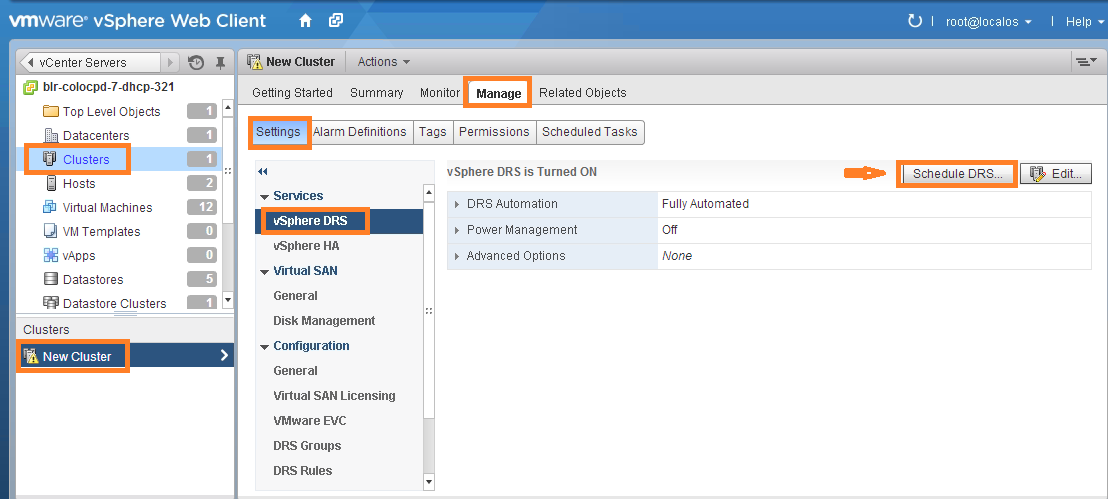
In desktop client (aka VI client) we do not have option to schedule DRS, also scheduling DPM in desktop client we have only option i.e. ON or OFF DPM through “Change cluster power settings” scheduled task.  Recently I was exploring DRS & DPM scheduled task web client workflows & I should say DRS/DPM scheduled task web client workflow has been enhanced greatly. Now we can schedule a task for both DRS & DPM not only just to set ON or OFF but also to configure its automation level & threshold.  This is going to simplify admin efforts in maintaining DRS & DPM.  Is not it great? As everybody probably knows basics of DRS & DPM so I am not going to explain how DRS & DPM works. This post is about how to configure DRS/DPM scheduled tasks by using web client, as DPM is part of DRS, we can configure both DRS & DPM scheduled task in single window pane. Here is where you can get DRS schedule configuration tab.

DRS schedule configuration tab

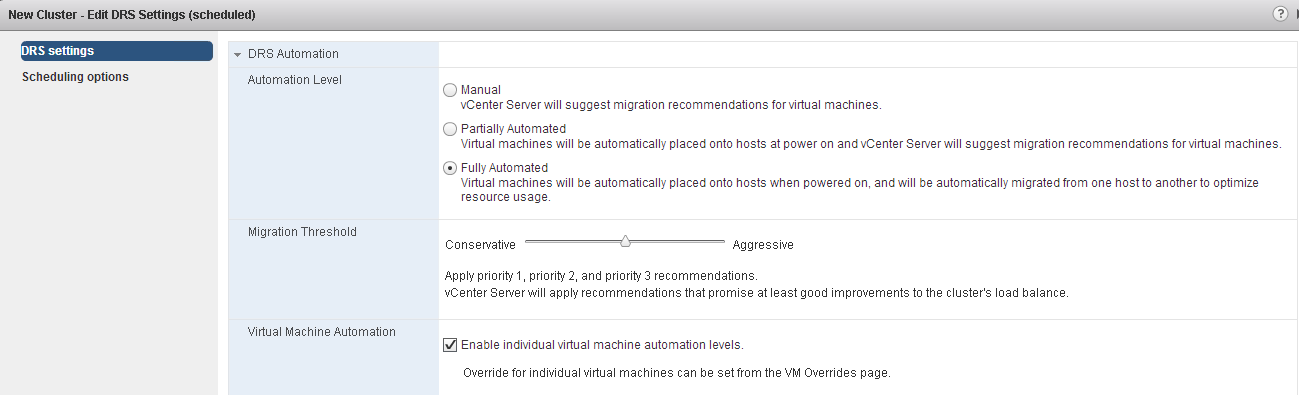
Once you click on Schedule DRS tab, we will get the UI page where we can configure DRS & DPM.

DRS configuration:You can set Automation level, migration threshold & VM automation level as per requirement as below

DRS configuration

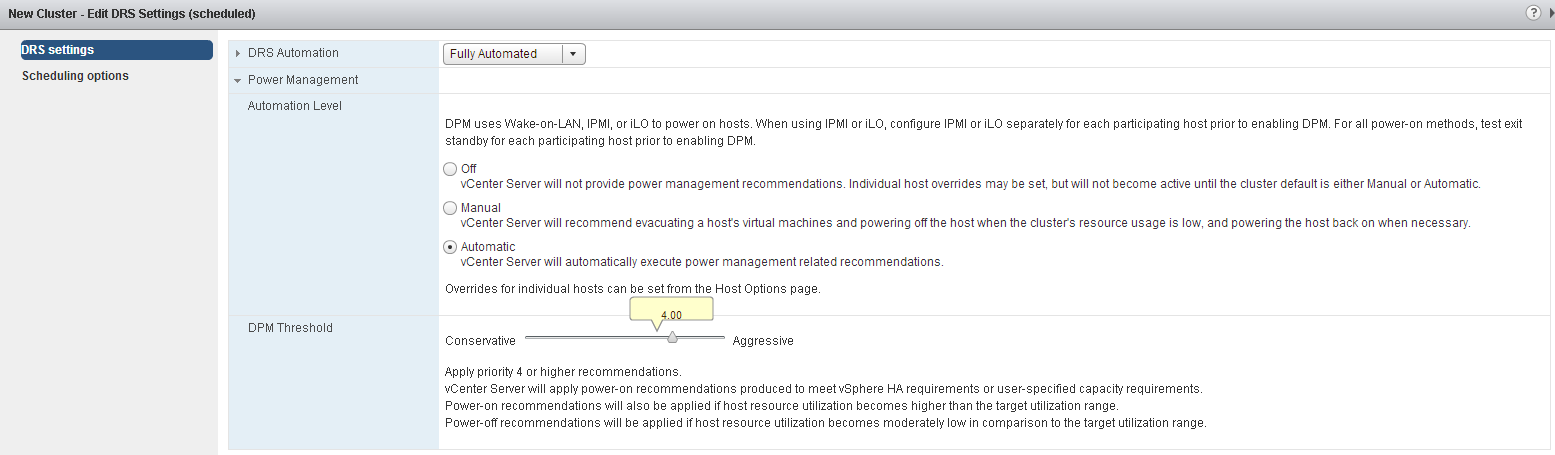
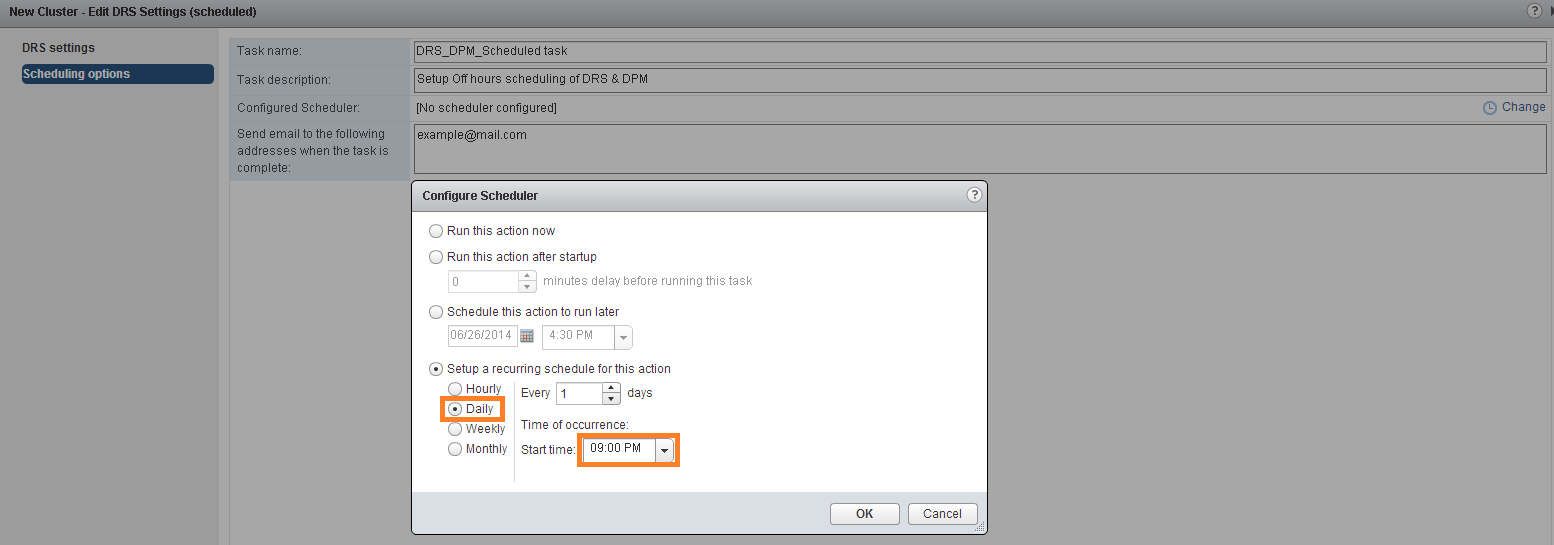
DPM configuration: In off hours now you can keep DPM in fully automated mode & make DPM threshold aggressive, these settings will lead DPM to put as many as hosts into standby mode & will generate power ON host recommendation only when it is absolutely required.  DPM_ConfigurationOnce the configuration is over as per the requirement, next important setting is to set time at which schedule needs to be executed to take configuration in effect. It is better if you choose schedule to execute on daily basis in off hours as shown in below UI, this will avoid schedule management efforts.Schedule settingsYou could see in above UI, you have various options to set the timings for schedule to be executed.

Note: Please note that you need to schedule one more scheduled tasks in order to change DRS/DPM settings before peak hours starts.

Here is one more useful blog post by “Frank” on DPM schedule tasks using desktop client.