If you want to manage VMware Infrastructure efficiently, it is must that we should leverage vSphere APIs & automate admin tasks wherever possible. When we start automating vSphere admin tasks, first question comes in mind that how to initialize connection with VMware vCenter Server or ESXi host using VI JAVA. Once we connect what is next? Next is how to navigate through the VMware ESXi host inventory or vCenter Server inventory & retrieve various inventory objects such as Datacenters, Clusters, Hosts, Virtual Machine etc. If you also have same queries then this tutorial is for you. Before getting into this tutorial in detail, please do make sure that you have already setup your Java Environment, if not, please refer my blog post on Getting Started with vSphere API. In part I of this tutorial, we will see how we can initialize the connection with VMware ESXi & vCenter. Let us start addressing first question
How to initialize the connection with VMware ESXi & vCenter Server.
vSphere API client application begins by connecting to a server & obtaining reference to “ServiceInstance”. ServiceInstance managed object is the singleton root object of the inventory on both vCenter and standalone ESXi host. In order to access VMware infrastructure objects such as Datacenters, Clusters, Hosts, Virtual Machine etc we first should create ServiceInstance managed object. Here we go.
[Java]
package com.vmware.vim25.mo.Samples.cluster;
import java.net.URL;
import com.vmware.vim25.mo.ServiceInstance;
public class VCESXInitializer {
public static void main(String[] args) throws Exception {
if (args.length != 3) {
System.out.println(“Usage: java SearchDatastore url ”
+ “username password”);
return;
}
ServiceInstance si = new ServiceInstance(new URL(args[0]), args[1],
args[2], true);
System.out.println(si);
}
}
[/Java]
In above snippet, we need to pass 3 parameters from eclipse as shown in below screen shot
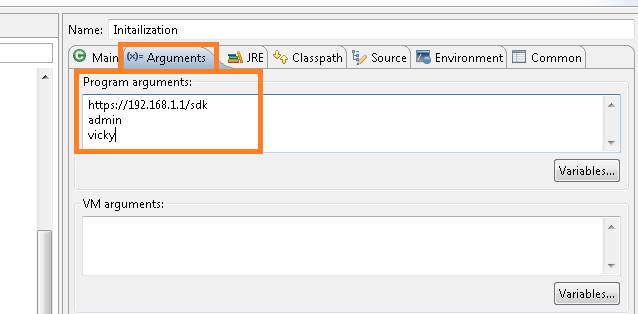
Note:You may be wondering on 4th parameter that we are passing in ServiceInstance, it is “IgnoreCert” boolean parameter, at the moment, we are just passing “TRUE”. I will write other blog post on when to care about SSL certificates while initializing connection. However note that even if we pass TRUE, all the communication with server is encrypted.
Alternatively we can create ServiceInstance object the way shown below & use it wherever required.
[java]
package com.vmware.vim25.mo.Samples.cluster;
import java.net.MalformedURLException;
import java.net.URL;
import java.rmi.RemoteException;
import com.vmware.vim25.mo.ServiceInstance;
public class VCESXInitializer {
public ServiceInstance initialization() throws RemoteException,
MalformedURLException {
ServiceInstance si = new ServiceInstance(new URL(
"https://192.168.1.1/sdk"), "username", "password", true);
return si;
}
}
[/java]
Note:IP address that we PASS as parameter can be of ESXi host or vCenter server, if you want to deal with just standalone ESXi host, then just pass ESXi IP address, otherwise, pass vCenter Server IP.
Creating ServiceInstance object is just 1 liner code, is not it too simple? Once we get ServiceInstance Object, we can access/navigate to all the VMware ESXi or vCenter Server objects.
Please stay tuned for my next tutorial on navigating various VMware Infrastructure objects such as Datacenter, Hosts, Resource pools, Virtual Machines etc.
To learn more on ServiceInstance managed object & lot: Refer: ServiceInstance Managed object API reference

Vikas Shitole is a Senior Tech Lead at VMware by Broadcom, VCF division, India, where he leads system test efforts—including scale, stress, and resiliency testing—and drives product quality across VMware Cloud Foundation (VCF), Broadcom’s flagship private cloud platform. He is an AI and Kubernetes enthusiast, and is passionate about VMware customers and automation around vSphere and VCF. Vikas has been honoured as a vExpert for 13 consecutive years (2014–2026) for his sustained technical contributions and community leadership. He is the author of two VMware Flings, holds multiple industry certifications including VCF admin 9.0, and is one of the top contributors to the VMware API Sample Exchange, where his automation scripts have been downloaded over 50,000 times. Vikas has shared his expertise as a speaker at international conferences such as VMworld Europe and VMworld USA, and was selected as an official VMworld 2018 blogger. He also served as lead technical reviewer for the Packt-published books vSphere Design and VMware Virtual SAN Essentials. Beyond tech, Vikas is a dedicated cricketer, cycling enthusiast, and a lifelong learner in fitness and nutrition, with the personal goal of completing an Ironman 70.3