All posts by Vikas Shitole

About Vikas Shitole

Vikas Shitole is a Senior Tech Lead at VMware by Broadcom, VCF division, India, where he leads system test efforts—including scale, stress, and resiliency testing—and drives product quality across VMware Cloud Foundation (VCF), Broadcom’s flagship private cloud platform. He is an AI and Kubernetes enthusiast, and is passionate about VMware customers and automation around vSphere and VCF. Vikas has been honoured as a vExpert for 13 consecutive years (2014–2026) for his sustained technical contributions and community leadership. He is the author of two VMware Flings, holds multiple industry certifications including VCF admin 9.0, and is one of the top contributors to the VMware API Sample Exchange, where his automation scripts have been downloaded over 50,000 times. Vikas has shared his expertise as a speaker at international conferences such as VMworld Europe and VMworld USA, and was selected as an official VMworld 2018 blogger. He also served as lead technical reviewer for the Packt-published books vSphere Design and VMware Virtual SAN Essentials. Beyond tech, Vikas is a dedicated cricketer, cycling enthusiast, and a lifelong learner in fitness and nutrition, with the personal goal of completing an Ironman 70.3

DRS rules PART II: How to create VM-VM affinity rules using vSphere API.

In my last post we learned how to create VM-Host DRS affinity rules using vSphere API. Now today in PART II, we will see how to create VM-VM affinity rules using vSphere API. Before jumping on API coding, I would like to list out what VM-VM affinity rules are there and when we should use these rules.

What are the DRS VM-VM rules we can create on ESXi host cluster.

1. VM-VM affinity rule: This rule will keep the 1 or more VMs together on a host. i.e. DRS will make sure these VMs are running together on the same host all the time. Note that, this rule is soft rule, it is mean that, DRS can violate this rule if required in order to balance the cpu/memory load on the cluster. However, DRS will try its best to resolve this rule violation in next DRS invocation(Default DRS invocation is 5 mins).

Use cases:
1. If there is a group of VMs in DRS cluster those communicate frequently with each other, it would make sense to keep these VMs together on the same host to save some network bandwidth & increase the performance. If we keep such VMs on separate hosts, network traffic should exit from external physical network & will impact network latency.
2. If there is group of VMs in DRS cluster with same GuestOS, Apps or user data, we can keep these VMs together on same host to take advantage of Transparent Page Sharing (TPS) memory reclamation technique, so that host memory will be efficiently shared wherever there is opportunity.
Both of above use-cases can be satisfied by using VM-VM affinity rule

2. VM-VM anti-affinity rule: This rule is exactly opposite to above rule. Here this rule will keep 2 or more VMs away from each other. As per this rule, all the VMs involved in this rule should run on separate hosts. Again this rule is soft rule and DRS can violate this rule if required.
Use case:
If you want to make 2 critical VMs highly available, it makes sense to configure VM-VM anti-affinity rule on these 2 critical VMs. If one host goes down, second VM will be still running.

I strongly suggest you to read my blog post is HA aware of DRS rules in order to understand impact of above DRS rules on vSphere HA.

Note: All DRS rules are very popular among VMware admin but it is important to note that, if there are multiple rules configured on DRS cluster, it can impose constraint on DRS load balancing ability as DRS has to think on satisfying configured rules on cluster. It reduces DRS migration options. Hence please make use of these rules if absolutely required.

Creating these rules using vSphere API
Now with above basic fundamentals on DRS rules, we are ready to deal with creating these rules using vSphere APIs. I assume now you are familiar with vSphere API reference, go through below pointed data-object in detail so that you will understand code yourself. (Click on image to enlarge)

VMVMrules Dataobject
Refer: ClusterRuleInfo data object API reference

Below program creates both VM-VM affinity rule and VM-VM anti-affinity rule
[java]
package com.vmware.vijava;
import java.net.MalformedURLException;
import java.net.URL;
import java.rmi.RemoteException;
import com.vmware.vim25.ArrayUpdateOperation;
import com.vmware.vim25.ClusterAffinityRuleSpec;
import com.vmware.vim25.ClusterAntiAffinityRuleSpec;
import com.vmware.vim25.ClusterConfigSpec;
import com.vmware.vim25.ClusterRuleSpec;
import com.vmware.vim25.InvalidProperty;
import com.vmware.vim25.ManagedObjectReference;
import com.vmware.vim25.RuntimeFault;
import com.vmware.vim25.mo.ClusterComputeResource;
import com.vmware.vim25.mo.Folder;
import com.vmware.vim25.mo.InventoryNavigator;
import com.vmware.vim25.mo.ServiceInstance;
import com.vmware.vim25.mo.VirtualMachine;
import com.vmware.vim25.mo.util.MorUtil;

public class DRSVMVMRules {

public static void main(String[] args) throws InvalidProperty,
RuntimeFault, RemoteException, MalformedURLException {
ServiceInstance si = new ServiceInstance(new URL(args[0]), args[1],
args[2], true); // Pass 3 argument as vCenterIP/username/password
String ClusterName = "BLR-NTP"; // Cluster Name
String affineVM1 = "CentOS6_x64_2GB_1"; // First VM for affinity rule
String affineVM2 = "CentOS6_x64_2GB_2"; // Second VM for affinity rule
String anti_affineVM1 = "CentOS6_x64_2GB_3"; // First VM for anti-affinity rule
String anti_affineVM2 = "CentOS6_x64_2GB_4"; // Second VM for anti-affinity rule
Folder rootFolder = si.getRootFolder();

ClusterComputeResource cluster = null;
cluster = (ClusterComputeResource) new InventoryNavigator(rootFolder)
.searchManagedEntity("ClusterComputeResource", ClusterName);
ManagedObjectReference ClusterMor = cluster.getMOR();
ClusterComputeResource ccr = (ClusterComputeResource) MorUtil
.createExactManagedEntity(si.getServerConnection(), ClusterMor);

// VM-VM affinity rule configuration
ClusterConfigSpec ccs = new ClusterConfigSpec();
ClusterAffinityRuleSpec cars = null;
VirtualMachine vm1 = (VirtualMachine) new InventoryNavigator(rootFolder)
.searchManagedEntity("VirtualMachine", affineVM1);
VirtualMachine vm2 = (VirtualMachine) new InventoryNavigator(rootFolder)
.searchManagedEntity("VirtualMachine", affineVM2);
ManagedObjectReference vmMor1 = vm1.getMOR();
ManagedObjectReference vmMor2 = vm2.getMOR();
ManagedObjectReference[] vmMors1 = new ManagedObjectReference[] {
vmMor1, vmMor2 };
cars = new ClusterAffinityRuleSpec();
cars.setName("VM-VM Affinity Rule");
cars.setEnabled(true);
cars.setVm(vmMors1);
ClusterRuleSpec crs1 = new ClusterRuleSpec();
crs1.setOperation(ArrayUpdateOperation.add);
crs1.setInfo(cars);

// VM-VM Anti-affinity rule configuration
ClusterAntiAffinityRuleSpec caars = null;
VirtualMachine vm3 = (VirtualMachine) new InventoryNavigator(rootFolder)
.searchManagedEntity("VirtualMachine", anti_affineVM1);
VirtualMachine vm4 = (VirtualMachine) new InventoryNavigator(rootFolder)
.searchManagedEntity("VirtualMachine", anti_affineVM2);
ManagedObjectReference vmMor3 = vm3.getMOR();
ManagedObjectReference vmMor4 = vm4.getMOR();
ManagedObjectReference[] vmMors2 = new ManagedObjectReference[] {
vmMor3, vmMor4 };
caars = new ClusterAntiAffinityRuleSpec();
caars.setName("VM-VM Anti-Affinity Rule");
caars.setEnabled(true);
caars.setVm(vmMors2);
ClusterRuleSpec crs2 = new ClusterRuleSpec();
crs2.setOperation(ArrayUpdateOperation.add);
crs2.setInfo(caars);

// Passing the rule spec
ccs.setRulesSpec(new ClusterRuleSpec[] { crs1, crs2 });
// Reconfigure the cluster
ccr.reconfigureCluster_Task(ccs, true);
System.out.println("Rules are created with no issues:");

}
}
[/java]

Code itself is self explanatory, just map the code with data-objects in vSphere API reference. Note that for the sake of simplicity, I have hard-coded VM/Cluster name , do make changes according to your environment. Please do leave the comment if you have any doubt.

Below is the VI client view of created VM-VM DRS rules using above code.
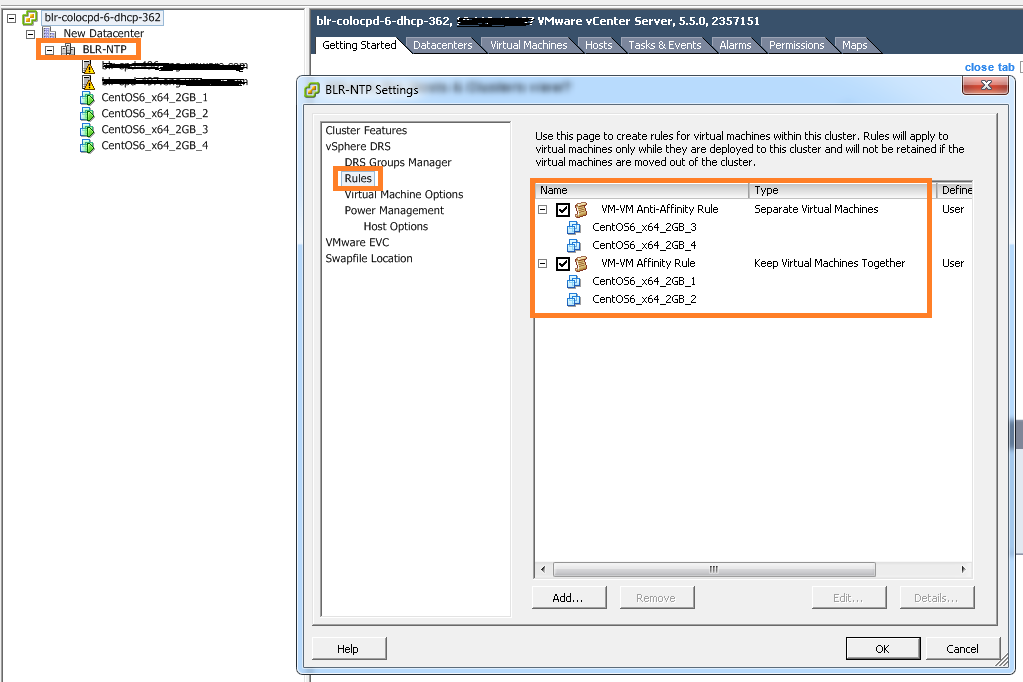
VM-VM Rules

If you have still not setup your VI JAVA Eclipse environment:Getting started tutorial
Important tutorials to start with: Part I & Part II

DRS rules PART I: How to create VM-Host affinity rules using vSphere API

On high level there are 2 types of DRS rules, one is VM-VM affinity rules and other is VM-Host affinity rules. Today in Part I, I will brief on what are the VM-Host affinity rules DRS has & what are the use cases where VM-Host rules can be used. However more focus would be on how to create VM-Host rules on ESXi cluster using vSphere API. In general, VM-Host rules will allow us to run particular group of VMs on specific group of ESXi hosts or away from specific group of ESXi hosts.

Update: Part II is published as well on creation of VM-VM affinity rules using vSphere API

What are the DRS VM-Host rules we can create on ESXi host cluster.
1. VM-Host must affinity rule : It is mandatory rule where specific group of VMs must run on specific group of hosts.
2. VM-Host must anti-affinity rule : It is mandatory rule where specific group of VMs must not run on specific group of hosts.
3. VM-Host should affinity rule : It is soft rule where specific group of VMs should run on specific group of hosts. DRS or user can violate this rule whenever required. But DRS will make best effort to correct the violation in the next DRS invocation.
4. VM-Host should anti-affinity rule : It is soft rule where specific group of VMs should not run on specific group of hosts. DRS or user can violate this rule whenever required. But DRS will make best effort to correct the violation in the next DRS invocation.

What are the use cases where we can use these rules
1. There are some products their licenses are based on ESXi host CPUs, it is mean that you need to apply licenses on these ESXi host to run the VMs. Classic example is Oracle licensing for databases. In this case, we can configure VM-Host must affinity rule so that oracle DB VMs will only run on set of hosts with oracle license.
2. VM host anti-affinity rule can be used to increase the availability of the VM. i.e. Running some critical VMs on set of hosts with different power supplies than rest of the host in the cluster so that even when there is power failure, some critical VMs can be still running on set of host with different power supplies.
I strongly suggest you to read my blog post is vSphere HA aware of DRS rules in order to understand impact of the DRS rules on vSphere HA.

Now it is time to look into creating these rules using vSphere APIs. Before jumping on developing code, It would be great if you get familiar with ClusterConfigSpecEx data object required for creating VM-Host rules. Specifically focus on data object properties high-lighted in below screenshot.
RuleSpec_GroupSpec

Below code is for creating VM-Host must affinity rule, I will explain how to leverage this code to create other 3 rules. It is really very simple.
[java]
package com.vmware.vijava;
import java.net.URL;
import com.vmware.vim25.ArrayUpdateOperation;
import com.vmware.vim25.ClusterConfigSpecEx;
import com.vmware.vim25.ClusterGroupInfo;
import com.vmware.vim25.ClusterGroupSpec;
import com.vmware.vim25.ClusterHostGroup;
import com.vmware.vim25.ClusterRuleSpec;
import com.vmware.vim25.ClusterVmGroup;
import com.vmware.vim25.ClusterVmHostRuleInfo;
import com.vmware.vim25.ManagedObjectReference;
import com.vmware.vim25.mo.ClusterComputeResource;
import com.vmware.vim25.mo.Folder;
import com.vmware.vim25.mo.HostSystem;
import com.vmware.vim25.mo.InventoryNavigator;
import com.vmware.vim25.mo.ServiceInstance;
import com.vmware.vim25.mo.VirtualMachine;
import com.vmware.vim25.mo.util.MorUtil;

public class VMHOSTrule {

public static void main(String[] args) throws Exception {
if (args.length != 3) {
System.out.println("Usage: java SearchDatastore [url] "
+ "[username] [password]");
return;
}

ServiceInstance si = new ServiceInstance(new URL(args[0]), args[1],
args[2], true);
/*
* you need to pass 3 parameters 1. https://x.y.z.r/sdk 2. username 3.
* password. Plz connect to vCenter Server
*/
String vmGroupName = "vmGroup_1";
String hostGroupName = "HostGroup_1";
Folder rootFolder = si.getRootFolder();

ClusterComputeResource clu = null;

clu = (ClusterComputeResource) new InventoryNavigator(rootFolder)
.searchManagedEntity("ClusterComputeResource", "India_Cluster");
ManagedObjectReference ClusterMor = clu.getMOR();

HostSystem host1 = (HostSystem) new InventoryNavigator(rootFolder)
.searchManagedEntity("HostSystem", "10.10.1.1");
HostSystem host2 = (HostSystem) new InventoryNavigator(rootFolder)
.searchManagedEntity("HostSystem", "10.10.1.2");
ManagedObjectReference hostMor1 = host1.getMOR();
ManagedObjectReference hostMor2 = host2.getMOR();
VirtualMachine vm1 = (VirtualMachine) new InventoryNavigator(rootFolder)
.searchManagedEntity("VirtualMachine", "CentOS6_x64_2GB_1");
VirtualMachine vm2 = (VirtualMachine) new InventoryNavigator(rootFolder)
.searchManagedEntity("VirtualMachine", "CentOS6_x64_2GB_2");
ManagedObjectReference vmMor1 = vm1.getMOR();
ManagedObjectReference vmMor2 = vm2.getMOR();
ClusterComputeResource ccr = (ClusterComputeResource) MorUtil
.createExactManagedEntity(si.getServerConnection(), ClusterMor);
ManagedObjectReference[] vmMors = new ManagedObjectReference[] {
vmMor1, vmMor2 };
ManagedObjectReference[] hostMors = new ManagedObjectReference[] {
hostMor1, hostMor2 };

ClusterGroupInfo vmGroup = new ClusterVmGroup();
((ClusterVmGroup) vmGroup).setVm(vmMors);
vmGroup.setUserCreated(true);
vmGroup.setName(vmGroupName);

ClusterGroupInfo hostGroup = new ClusterHostGroup();
((ClusterHostGroup) hostGroup).setHost(hostMors);
hostGroup.setUserCreated(true);
hostGroup.setName(hostGroupName);

ClusterVmHostRuleInfo vmHostAffRule = new ClusterVmHostRuleInfo();
vmHostAffRule.setEnabled(new Boolean(true));
vmHostAffRule.setName("VMHOSTAffinityRule");
vmHostAffRule.setAffineHostGroupName("HostGrp_1");
vmHostAffRule.setVmGroupName("VMGrp_1");
vmHostAffRule.setMandatory(true);
ClusterGroupSpec groupSpec[] = new ClusterGroupSpec[2];
groupSpec[0] = new ClusterGroupSpec();
groupSpec[0].setInfo(vmGroup);
groupSpec[0].setOperation(ArrayUpdateOperation.add);
groupSpec[0].setRemoveKey(null);
groupSpec[1] = new ClusterGroupSpec();
groupSpec[1].setInfo(hostGroup);
groupSpec[1].setOperation(ArrayUpdateOperation.add);
groupSpec[1].setRemoveKey(null);
/* RulesSpec for the rule populated here */
ClusterRuleSpec ruleSpec[] = new ClusterRuleSpec[1];

ruleSpec[0] = new ClusterRuleSpec();
ruleSpec[0].setInfo(vmHostAffRule);
ruleSpec[0].setOperation(ArrayUpdateOperation.add);
ruleSpec[0].setRemoveKey(null);
ClusterConfigSpecEx ccs = new ClusterConfigSpecEx();
ccs.setRulesSpec(ruleSpec);
ccs.setGroupSpec(groupSpec);

ccr.reconfigureComputeResource_Task(ccs, true);
System.out.println("VM Host Rule created successfully");

}

}

[/java]
Line 22-29: Refer my this blog post on ServiceInstance data object to understand these lines.
Line 41-54: Refer my this blog post on Inventory Navigator to understand these lines.
Line 64-72: We are populating VMGroup i.e. Set of VMs of those will be part of rule. & HostGroup i.e. set of hosts those will be part of rule. These groups will be pinned with GroupSpec in line 80-88.
Line 74-78: Creation of ClusterVmHostRuleInfo data object which helps to identify which host group and VM Group is associated with this rule as there can be several other host and VM groups associated with other rules already exists or planned to configure. Note that line 77 is responsible in deciding whether rule is affinity or anti affinity.
Line 80-88: Here we are populating GroupSpec required for creating VM & Host group on cluster based on the line 64-72.
Line 90-95: Here we are populating RuleSpec based on line 74-78.
Line 96-98: Populating ClusterConfigSpecEx data object with RuleSpec and GroupSpec which will be passed to reconfigureComputeResource_Task method which actually re-configures cluster with created VM-Host must affinity rule.

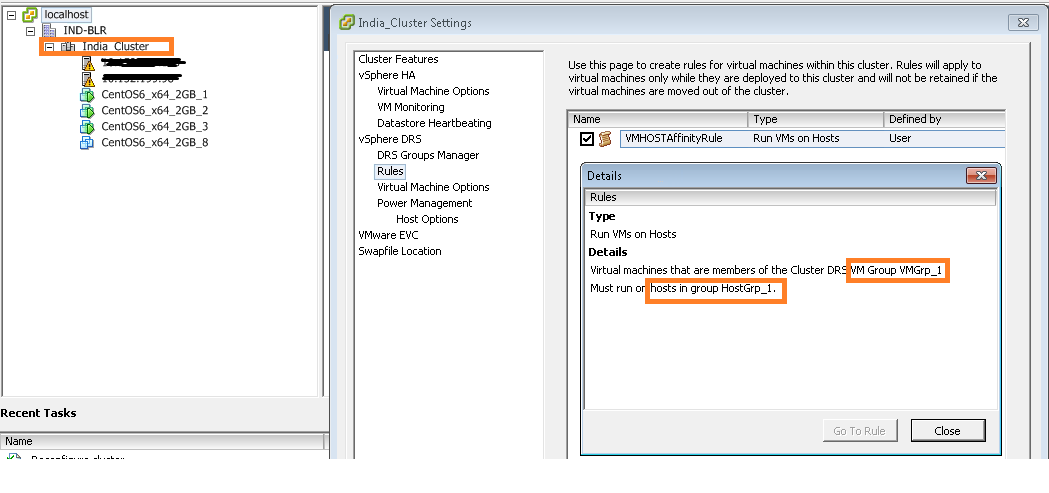
Here is the created VM-Host rule view from vSphere Client.
VM Host Rule

Noteworthy points:
1. For the sake of simplicity we have hard-coded some IPs, cluster, host & VMs names. Please do make changes if you are using this in production environment.
2. In order to create anti-affinity rule, you will just need to replace line 77 to vmHostAffRule.setAntiAffineHostGroupName(“HostGrp_1”); is it not too simple?.
3.In order to make this rule soft, just replace line 79 to vmHostAffRule.setMandatory(false); Note that default rule created is soft rule(i.e. If we do not set the property).

I hope you enjoyed this post, please take a look at Part II on VM-VM affinity rules creation.

Learn more on VM-Host rules here.
If you have still not setup your Eclipse environment:Getting started tutorial

vSphere HA VM protection when VM restart priority and VM monitoring are disabled

Sometime back I got a question on VMTN & also one of friends had same doubt. Hence I thought it is worth to have one small post on this. Question was: Even when VM restart priority and VM monitoring settings are disabled for a particular VM in HA enabled cluster, why vCenter Server reports that VM as HA protected?
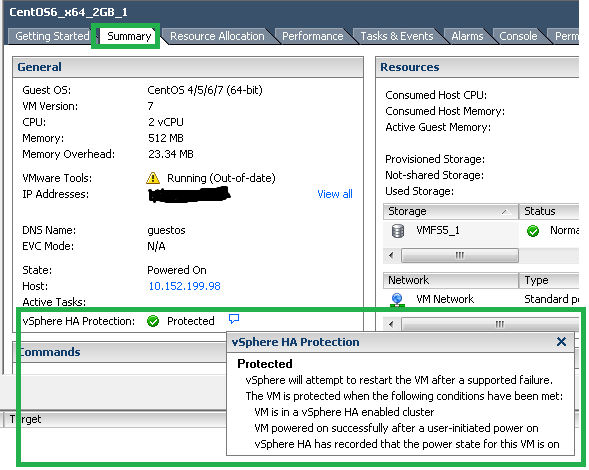
First of all, I would suggest you to look into below screenshot taken from VI client VM summary tab.
HA protected state

According to the VM summary, below condition should meet in order vCenter to report VM as HA protected.
– VM is in a vSphere HA enabled Cluster.
– VM powered on successfully after a user-initiated power on.
– vSphere HA has recorded the power state for this VM is on.

Note that vSphere HA maintains one file called “Protectedlist” for all the VMs in HA enabled cluster in order to identify which VMs are protected. Below is sequence of steps takes place when we power on the VM in HA cluster.
1. When we power on VM from vCenter, vCenter informs ESXi host to power on the VM.
2. When VM is powered on, host informs vCenter that VM is powered ON.
3. vCenter then contacts vSphere HA master for making powered ON VM protected.
4. HA master makes entry into “ProtectedList” file which exhibits that Master is now responsible to restart the VM when there is failure.
5. Finally HA master informs vCenter that I have added the entry into “ProtectedList” file & then vCenter reports VM as HA protected in VI client as we see in above screenshot.

Original question “When VM restart priority & VM Monitoring are disabled, why does vCenter report as HA protected?” is still unanswered. Here is the answer:
Note that By design, “VM restart priority” and “VM monitoring” settings are orthogonal to vSphere HA protection. vSphere HA protection state has nothing to with restart priority and VM monitoring settings, no matter these settings are enabled or disabled. Now one more question arises i.e. is it possible that HA removes VM from protectedList when we disable either or both settings (i.e. VM restart priority & VM monitoring)? Diplomatic answer is :It depends. We will see sequence of actions that HA takes on VM protected state when we disable either or both of these settings in case of failure.

1. if VM restart priority is disabled & VM monitoring is enabled:
-Host is up and VM is up, vSphere HA will keep VM in protected list.
-When ESXi host fails, VM can not be restarted on other available host. Even If failed host comes back, still VM will not be restarted, it will be powered OFF and now vSphere HA will remove that VM from protected list.
-When Guest OS fails (ex. BSOD), HA will reset that Guest on the same host and HA continue to keep in protected list. It shows that VM monitoring is orthogonal to restart priority as well.

2. if VM restart priority is disabled & VM monitoring is also disabled:
-Host is up and VM is up, vSphere HA will keep in protected list.
-When ESXi host fails, VM can not be restarted on other available host. Even If failed host comes back, still VM will not be restarted, it will be powered OFF and now vSphere HA will remove that VM from protected list.
-When Guest OS fails, HA can not restart that Guest OS on the same host but as VM itself does not have any issue (i.e. VM is ON but you can not access Guest), HA continue to keep that VM in protected list.

3.if VM restart prioriy is enabled & VM monitoring is disabled:
-Host is up and VM is up, vSphere HA will keep in protected list.
-When ESXi host fails, VM will be restarted on other available host, After restart, VM will be powered ON and HA continue to keep that VM in protected list
-When Guest OS fails, HA can not restart that Guest on the same host but as VM itself does not have any issue (VM is ON but you can not access Guest), HA continue to keep that VM in protected list.

There are 3 state of the VM from HA perspective, today’s post was focused on Protected VM state, there are 2 more i.e. unprotected and N/A, I will write another post later on additional two VM HA state.

Learn more on vSphere HA here

I hope you enjoyed this post. Please let me know if you have any additional doubts.

Tutorial PART II: How to access/navigate vCenter server or ESXi host Inventory using vSphere API

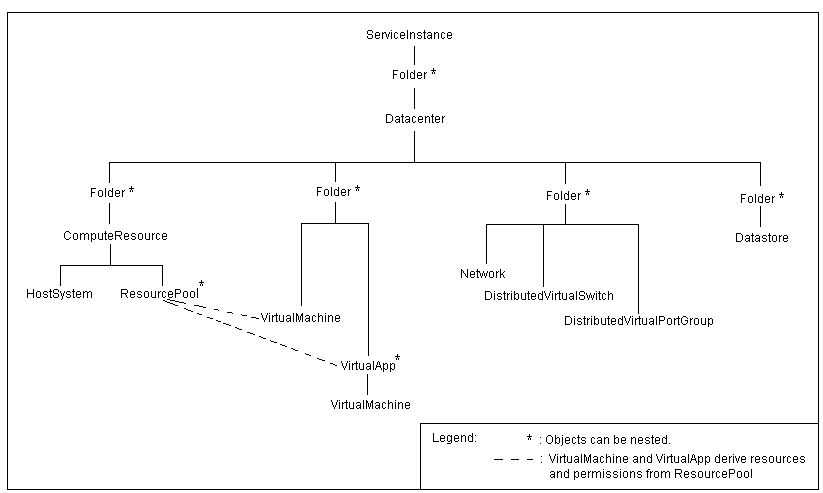
Before going to start this tutorial on how to access/navigate your vCenter server or ESXi inventory, lets see how do managed objects vCenter & ESXi hierarchy looks like.

Organization of managed objects in the vCenter inventory.
vCenter Managed object hireachy

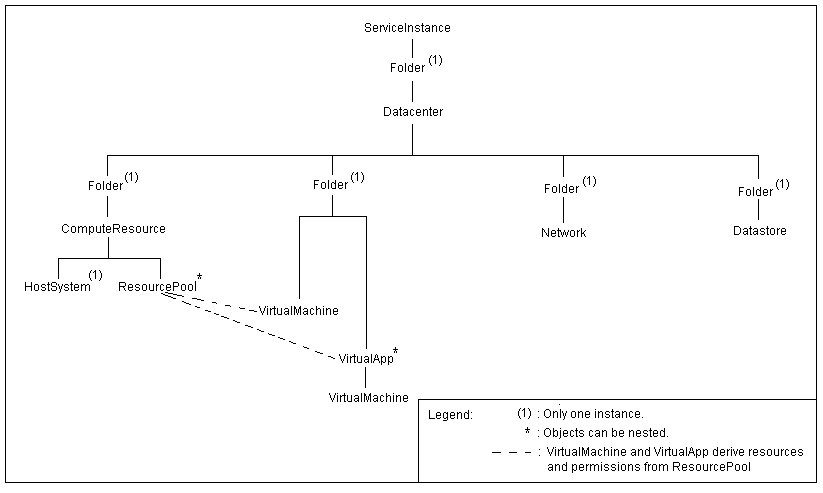
Organization of managed objects in the ESXi host inventory
ESXi Managed object hireachy

The host agent i.e. ESXi hierarchy has the same general form as the vCenter hierarchy, but most of the objects are limited to one instance. As you could see in both of these screenshots, ServiceInstance managed object is on top, hence first managed object we should create in our application is ServiceInstance. We have seen how to create ServiceInstance object in my Part I Tutorial on how to initialize connection with ESXi or vCenter. Now in part II, we will look into how to navigate/access your vCenter or ESXi inventory. Here we go.

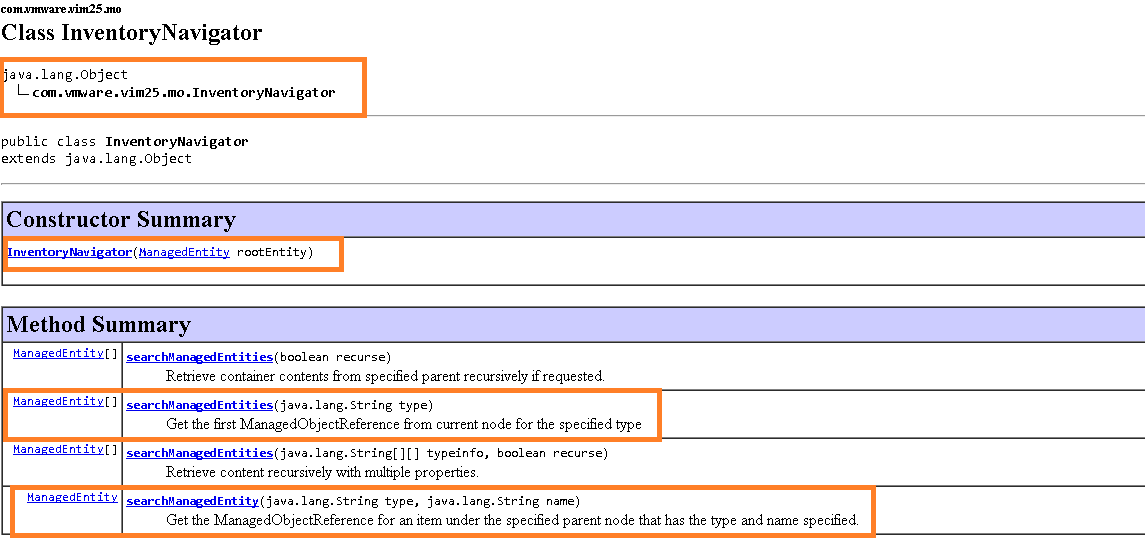
We can access/navigate all managed entities by leveraging “InventoryNavigator” class from VI JAVA. As part of this tutorial, we are interested in one constructor & two methods offered by this class. Please refer highlighted sections from below Javadoc screenshot.

Javadoc
Javadoc

Let us start accessing major managed objects in order to demonstrate the use of InventoryNavigator class from VI JAVA.

1.Datacenter: The Datacenter managed object is container object for ESXi hosts, VMs, networks & datastores.

[java]
package com.vmware.vijava;
import java.net.MalformedURLException;
import java.net.URL;
import java.rmi.RemoteException;
import com.vmware.vim25.InvalidProperty;
import com.vmware.vim25.RuntimeFault;
import com.vmware.vim25.mo.Datacenter;
import com.vmware.vim25.mo.Folder;
import com.vmware.vim25.mo.InventoryNavigator;
import com.vmware.vim25.mo.ManagedEntity;
import com.vmware.vim25.mo.ServiceInstance;
public class VCESXInventoryNavigator {
public static void main(String[] args) throws InvalidProperty,
RuntimeFault, RemoteException, MalformedURLException {
ServiceInstance si = new ServiceInstance(new URL("https://192.168.1.1/sdk"), "root", "vmw", true);
System.out.println(si);
String dcName = "IND-BLR";
Folder rootFolder = si.getRootFolder();
Datacenter datacenter = null;
datacenter = (Datacenter) new InventoryNavigator(rootFolder).searchManagedEntity("Datacenter", dcName);
System.out.println("Data center Name::" + datacenter.getName());
ManagedEntity[] dcenters = new InventoryNavigator(rootFolder).searchManagedEntities("Datacenter");
System.out.println("Number of Datacenters in vCenter::" + dcenters.length);
}
}
[/java]

Line 15: It is ServiceInstance object creation which is top object in hierarchy. We learned this object in PART I of this tutorial
Line 18: This is the object creation for rootFolder, which would be passed as parameter in InventoryNavigator class constructor, refer JAVADOC screenshot posted above.
Line 20: Here we are accessing single datacenter managed entity object by passing existing vCenter datacenter name in searchManagedEntity() method of InventoryNavigator class. Once we get this object, we can access any other entities that come under datacenter such as hosts,VMs, datastores, networks etc.
Line 22: Here we get array of managed entity objects of all the datacenters available in vCenter Server. This gives us ability to play with all the objects across vCenter Server.
Learn more about Datacenter Managed object here

Similar to accessing datacenter managed entities the way we did above, below all snippets will give you idea on using searchManagedEntity() & searchManagedEntities() methods for accessing hosts, clusters, datastores from single ESXi or across vCenter Server.

2. HostSystem: The HostSystem managed object type provides access to a virtualization host platform i.e. ESXi

[java]
package com.vmware.vijava;
import java.net.MalformedURLException;
import java.net.URL;
import java.rmi.RemoteException;
import com.vmware.vim25.InvalidProperty;
import com.vmware.vim25.RuntimeFault;
import com.vmware.vim25.mo.Folder;
import com.vmware.vim25.mo.HostSystem;
import com.vmware.vim25.mo.InventoryNavigator;
import com.vmware.vim25.mo.ManagedEntity;
import com.vmware.vim25.mo.ServiceInstance;
public class VCESXInventoryNavigator {
public static void main(String[] args) throws InvalidProperty,
RuntimeFault, RemoteException, MalformedURLException {
ServiceInstance si = new ServiceInstance(new URL("https://192.168.1.1/sdk"), "root", "vmw", true);
System.out.println(si);
String hostName = "10.192.34.2";
Folder rootFolder = si.getRootFolder();
HostSystem host = null;
host = (HostSystem) new InventoryNavigator(rootFolder).searchManagedEntity("HostSystem", hostName);
System.out.println("Host Name::" + host.getName());
ManagedEntity[] hosts = new InventoryNavigator(rootFolder).searchManagedEntities("HostSystem");
System.out.println("Number of hosts in vCenter ::" + hosts.length);
}
}
[/java]
Learn more about HostSystem Managed object here

3.ClusterComputeResource: This data object aggregates HostSystem objects into a single compute resource.

[java]
package com.vmware.vijava;
import java.net.MalformedURLException;
import java.net.URL;
import java.rmi.RemoteException;
import com.vmware.vim25.InvalidProperty;
import com.vmware.vim25.RuntimeFault;
import com.vmware.vim25.mo.ClusterComputeResource;
import com.vmware.vim25.mo.Folder;
import com.vmware.vim25.mo.InventoryNavigator;
import com.vmware.vim25.mo.ManagedEntity;
import com.vmware.vim25.mo.ServiceInstance;

public class VCESXInventoryNavigator {
public static void main(String[] args) throws InvalidProperty,
RuntimeFault, RemoteException, MalformedURLException {
ServiceInstance si = new ServiceInstance(new URL("https://192.168.1.1/sdk"), "root", "vmw", true);
System.out.println(si);
String hostName = "BLR-NTP";
Folder rootFolder = si.getRootFolder();
ClusterComputeResource cluster = null;
cluster = (ClusterComputeResource) new InventoryNavigator(rootFolder)
.searchManagedEntity("ClusterComputeResource", hostName);
System.out.println("Cluster Name::" + cluster.getName());
ManagedEntity[] clusters = new InventoryNavigator(rootFolder)
.searchManagedEntities("ClusterComputeResource");
System.out.println("Number of clusters in vCenter ::" + clusters.length);
}
}

[/java]
Learn more about ClusterComputeResource managed object here

4. Datastore: The Datastore managed object represents storage location for VMs.

[java]
package com.vmware.vijava;
import java.net.MalformedURLException;
import java.net.URL;
import java.rmi.RemoteException;
import com.vmware.vim25.InvalidProperty;
import com.vmware.vim25.RuntimeFault;
import com.vmware.vim25.mo.Datastore;
import com.vmware.vim25.mo.Folder;
import com.vmware.vim25.mo.InventoryNavigator;
import com.vmware.vim25.mo.ManagedEntity;
import com.vmware.vim25.mo.ServiceInstance;
public class VCESXInventoryNavigator {
public static void main(String[] args) throws InvalidProperty,
RuntimeFault, RemoteException, MalformedURLException {
ServiceInstance si = new ServiceInstance(new URL("https://192.168.1.1/sdk"), "root", "vmw", true);
System.out.println(si);
String DS = "VMFS_3";
Folder rootFolder = si.getRootFolder();
Datastore datastore = null;
datastore = (Datastore) new InventoryNavigator(rootFolder).searchManagedEntity("Datastore", DS);
System.out.println("Datastore Name::" + datastore.getName());
ManagedEntity[] datastores = new InventoryNavigator(rootFolder).searchManagedEntities("Datastore");
System.out.println("Number of datastores in vCenter ::"+ datastores.length);
}
}

[/java]

Learn more about Datastore data object here

In the same way you can navigate/access to many other managed objects & play around it.

Noteworthy points:
1. Note that “Datacenter”, “ClusterComputeResource” are vCenter inventory objects. Hence it makes sense to initialize connection with vCenter Server. At the same time, “HostSystem” & “Datastore” are applicable to both ESXi host or vCenter server. Overall, initialize connection with either server as applicable and play around it.
2. Due to above reason, InventoryNavigator class methods may work on ESXi but not on vCenter & some may work fine on vCenter but not on ESXi host.

I hope you enjoyed this tutorial, please provide your feedback & stay tuned for future blog posts on vSphere API.

References:
1. Getting started with vSphere API using VI JAVA
2. Tutorial Part I: Initialize connection with vCenter Server/ESXi
3.vSphere API reference

Tutorial PART-I :How to initialize connection with vCenter server or ESXi host using vSphere API

If you want to manage VMware Infrastructure efficiently, it is must that we should leverage vSphere APIs & automate admin tasks wherever possible.  When we start automating vSphere admin tasks, first question comes in mind that how to initialize connection with VMware vCenter Server or ESXi host using VI JAVA. Once we connect what is next? Next is how to navigate through the VMware ESXi host inventory or vCenter Server inventory & retrieve various inventory objects such as Datacenters, Clusters, Hosts, Virtual Machine etc. If you also have same queries then this tutorial is for you. Before getting into this tutorial in detail, please do make sure that you have already setup your Java Environment, if not, please refer my blog post on Getting Started with vSphere API. In part I of this tutorial, we will see how we can initialize the connection with VMware ESXi & vCenter. Let us start addressing first question

How to initialize the connection with VMware ESXi & vCenter Server.
vSphere API client application begins by connecting to a server & obtaining reference to “ServiceInstance”. ServiceInstance managed object is the singleton root object of the inventory on both vCenter and standalone ESXi host. In order to access VMware infrastructure objects such as Datacenters, Clusters, Hosts, Virtual Machine etc we first should create ServiceInstance managed object. Here we go.

[Java]
package com.vmware.vim25.mo.Samples.cluster;
import java.net.URL;
import com.vmware.vim25.mo.ServiceInstance;
public class VCESXInitializer {
public static void main(String[] args) throws Exception {
if (args.length != 3) {
System.out.println(“Usage: java SearchDatastore url ”
+ “username password”);
return;
}
ServiceInstance si = new ServiceInstance(new URL(args[0]), args[1],
args[2], true);
System.out.println(si);
}
}
[/Java]

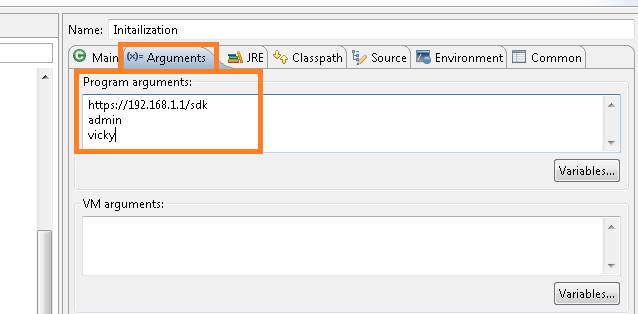
In above snippet, we need to pass 3 parameters from eclipse as shown in below screen shot
Program Argument
Note:You may be wondering on 4th parameter that we are passing in ServiceInstance, it is “IgnoreCert” boolean parameter, at the moment, we are just passing “TRUE”. I will write other blog post on when to care about SSL certificates while initializing connection. However note that even if we pass TRUE, all the communication with server is encrypted.

Alternatively we can create ServiceInstance object the way shown below & use it wherever required.

[java]
package com.vmware.vim25.mo.Samples.cluster;
import java.net.MalformedURLException;
import java.net.URL;
import java.rmi.RemoteException;
import com.vmware.vim25.mo.ServiceInstance;
public class VCESXInitializer {
public ServiceInstance initialization() throws RemoteException,
MalformedURLException {

ServiceInstance si = new ServiceInstance(new URL(
"https://192.168.1.1/sdk"), "username", "password", true);
return si;
}
}
[/java]
Note:IP address that we PASS as parameter can be of ESXi host or vCenter server, if you want to deal with just standalone ESXi host, then just pass ESXi IP address, otherwise, pass vCenter Server IP.
Creating ServiceInstance object is just 1 liner code, is not it too simple? Once we get ServiceInstance Object, we can access/navigate to all the VMware ESXi or vCenter Server objects.

Please stay tuned for my next tutorial on navigating various VMware Infrastructure objects such as Datacenter, Hosts, Resource pools, Virtual Machines etc.

To learn more on ServiceInstance managed object & lot: Refer: ServiceInstance Managed object API reference