All posts by Vikas Shitole

About Vikas Shitole

Vikas Shitole is a Senior Tech Lead at VMware by Broadcom, VCF division, India, where he leads system test efforts—including scale, stress, and resiliency testing—and drives product quality across VMware Cloud Foundation (VCF), Broadcom’s flagship private cloud platform. He is an AI and Kubernetes enthusiast, and is passionate about VMware customers and automation around vSphere and VCF. Vikas has been honoured as a vExpert for 13 consecutive years (2014–2026) for his sustained technical contributions and community leadership. He is the author of two VMware Flings, holds multiple industry certifications including VCF admin 9.0, and is one of the top contributors to the VMware API Sample Exchange, where his automation scripts have been downloaded over 50,000 times. Vikas has shared his expertise as a speaker at international conferences such as VMworld Europe and VMworld USA, and was selected as an official VMworld 2018 blogger. He also served as lead technical reviewer for the Packt-published books vSphere Design and VMware Virtual SAN Essentials. Beyond tech, Vikas is a dedicated cricketer, cycling enthusiast, and a lifelong learner in fitness and nutrition, with the personal goal of completing an Ironman 70.3

Script to Configure vSphere Supervisor Cluster using REST APIs

Last week I introduced you to vSphere Supervisor cluster APIs and also had a post on how to use DCLI for managing vSphere Supervisor cluster. In this post, I am going to show you how to enable/configure vSphere Supervisor cluster and also create namespace on the top of vSphere Supervisor cluster.
These key APIs are demonstrated using couple of python scripts. This time I thought let me try little different style of writing. I am sure you will enjoy learning.

1. Enable/configure vSphere Supervisor cluster :

What/Where/HowLink/Info
Where to refer REST
API documentation?
Official API documentation
or H5C –> Developer Center –> API Explorer
How do I land from VCF 4.0 on to vSphere for configuring this key workflow? Refer this cool short video
VCF 4.0 SDDC manager by Cormac
How do I create base setup for
labs, learning purpose?
Refer this cool deployment script
by William
My python script to configure Supervisor cluster on base setup configure_supervisor_cluster.py script.
Used python library “requests” to call APIs. We can use other “vSphere Automation SDKs” as well

or

Automating supervisor cluster workflows using Java SDK
Enable vSphere Supervisor cluster API POST https://{server}/api/vcenter/namespace-management/clusters/{cluster} ?action=enable
Complete API Spec/payload for above POST call API Spec
Enable API Spec/Payload I passed in my scriptGithub link for spec
you can use the same for postman call
How did I fetched inputs needed to be passed into POST Call? Refer line 139 through 178 in script
Sample runShown below
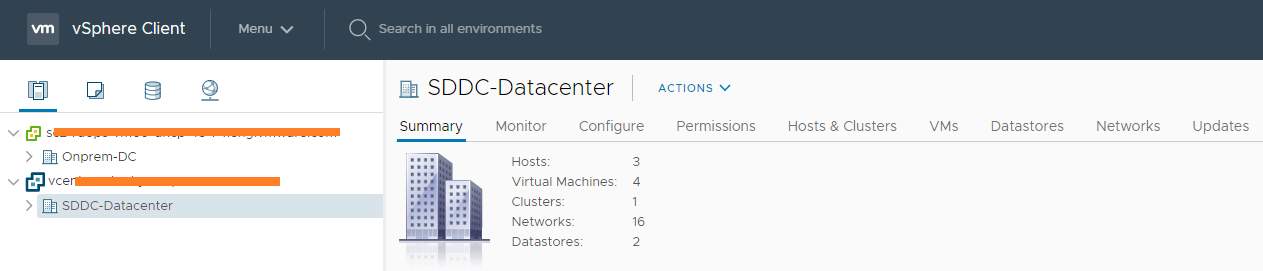
How it looks in UI before & after ?Shown below

How to run script :
C:\vThinkBeyondVM\vcpy>python configure_supervisor_cluster.py -s “10.x.x.x” -u “Administrator@vsphere.local” -cl “WCP-cluster-1” -mnw “VM Network” -sip “10.x.x.x” -sm “255.255.x.x” -gw “10.x.x.x” -dns “10.x.x.x” -ntp “10.x.x.x” -sp “k8s-gc-policy” -egress “10.x.x.x” -ingress “10.x.x.x”

Password will be asked on CLI. You might wonder, am I not passing VDS and Edge cluster? please refer the line 161 through 170. REST APIs allowed me to use some trick.

Which UI workflow is automated?
This python script automates below UI worklow, where user will configure workload network, management network, storage etc.


How it looks from UI
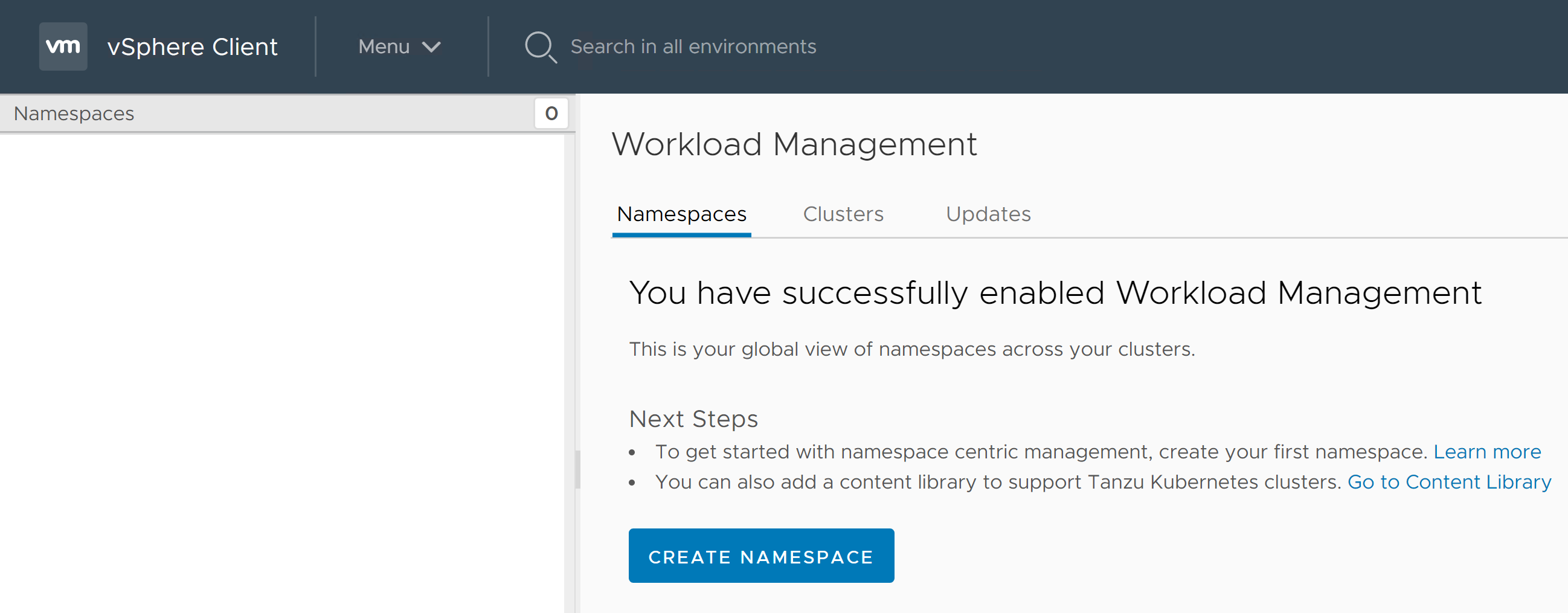
once Super visor cluster is enabled, this is how it looks (H5C > Menu > Workload Management)
2. Creating your first namespace using script

Create namespace URL POST https://{server}/api/vcenter/namespaces/instances
API payload/specpayload
Python scriptcreate_namespace.py
How to runShown below
How it looks from UIShown below

How to run script:
C:\vThinkBeyondVM\vcpy>python create_namespace.py -s 10.x.x.x -u Administrator@vsphere.local -cl WCP-cluster-1 -role EDIT -st USER -subject Administrator -domain vsphere.local -sp k8s-gc-policy -ns my-ns-2

How it looks from UI ?
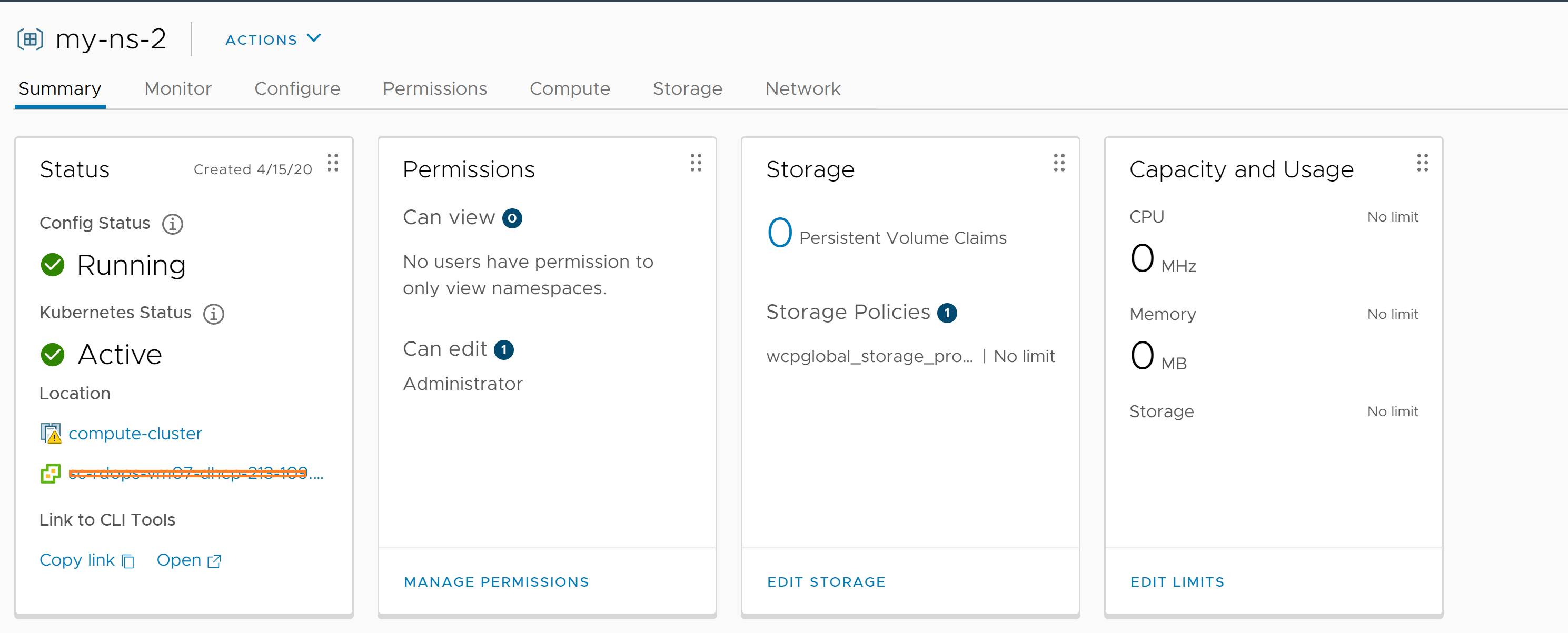
I hope you enjoyed learning. Please stay tuned for upcoming posts around vSphere with K8s and other vSphere 7.0 functionality. Let me know if you have any queries, feedback.

Further reading:
1. REST API documentation
2. How to get vSphere with Kubernetes?
3. Introduction to manage vSphere Supervisor Cluster using API
4. Automating supervisor cluster workflows using Java SDK
5. vSphere with Kubernetes 101 is here
6. Official documentation for vSphere with Kubernetes is here

vMotion and Clone using REST APIs with vSphere 7.0

Couple of weeks back vSphere 7.0 released & if you ask me, it is a massive release with several cool features and capabilities including “vSphere with Kubernetes”. I was going through all the REST APIs introduced as part of multiple features shipped in this release and I see that this is the first release, where REST APIs are hands down dominating traditional SOAP based APIs. New capabilities have not only been exposed through REST APIs but also some of the older capabilities have provided REST API support as well. In this series of posts, I would like to introduce you these REST APIs as I did for vSphere Supervisor Cluster last week. In this post, I will touch upon new APIs introduced as part of “Virtual Machine” Management & demonstrate them using Postman client and Python.

Where do I get REST API documentation? This is available as part of H5C API Explorer itself since vSphere 6.5: H5C >> Menu >> Developer center >> API explorer or you can look documentation at VMware {code} site as well.

Since vSphere 6.5, when it comes to REST APIs with respect to VM life cycle, only minimal support was available i.e. Get, Create (POST call) and Delete VMs. With vSphere 7.0, I see there is huge progress made with respect to supporting key capabilities such as relocate, normal clone, instant clone & register VMs operations. Traditionally automating these VM life cycle ops have been challenging for several users using SOAP APIs, now with REST API support, it has drastically simpler to consume/automate these capabilities. Below is how its POST call URLs look like

Relocate ops:
POST https://{server}/rest/vcenter/vm/{vm}?action=relocate
POST https://{server}/rest/vcenter/vm/{vm}?vmw-task=true&action=relocate

Only difference between them is that 2nd API also returns task object, which will help user track the progress of the operation.

Clone ops:
POST https://{server}/rest/vcenter/vm?action=clone
POST https://{server}/rest/vcenter/vm?vmw-task=true&action=clone

Similar to relocate API, second API returns task object.

Instant clone ops:
POST https://{server}/rest/vcenter/vm?action=instant-clone

Register ops
POST https://{server}/rest/vcenter/vm?action=register
POST https://{server}/rest/vcenter/vm/{vm}?action=unregister


Note that there is no change to existing SOAP APIs for all the existing capabilities, it should continue to work fine without any impact

Let us now understand one of the APIs in more detail. Without a doubt, it should be all time famous capability i.e. vMotion (relocate).

POST https://{server}/rest/vcenter/vm/{vm}?action=relocate

Below is how payload for this API look like

{
    "spec" : {
        "disks" : [
            {
                "value" : {
                    "datastore" : "datastore_moid"
                },
                "key" : "disk key"
            }
        ],
        "placement" : {
            "cluster" : "cluster_moid",
            "folder" : "folder_moid",
            "datastore" : "datastore_moid",
            "host" : "host_moid",
            "resource_pool" : "resourcepool_moid"
        }
    }
}


let us understand each of the parameter being passed in brief. For detailed documentation, please refer official documentation from API Explorer or from vmware {code} portal.

disks []: This spec has 2 values such as datastore and key as follows, it is required field to pass details for all the VM disks.

datastore : required: This parameter under “disks[]” should be the destination datastore for the VM disks. This should be datastore_moid and moid found using existing REST API:
GET https://{server}/rest/vcenter/datastore
sample value : “datastore-21”

key: required: this must be the disk key(s) for the VM to be migrated and it can be found using existing REST API. sample value : “2000”
GET https://{server}/rest/vcenter/vm/{vm}/hardware/disk

placement : destination spec

cluster: this should be cluster moid. This can be specified if we would like DRS to find the right host for placement. This can be optional param. moid can be found using API: sample value : “domain-c9”
GET https://{server}/rest/vcenter/cluster

folder: destination VM folder. This is optional param. moid can be found using API. sample value : “group-v4”
GET https://{server}/rest/vcenter/folder

datastore: This is under placement_spec: This is required if you want relocate VM configuration folders/files to destination. The “datastore” property briefed before above is for VM disks.

host: destination host. It is optional if cluster or resource pool is passed. sample value : “host-32”
moid can be found using API: GET https://{server}/rest/vcenter/host

resource_pool: destination resource pool. This is not required if host or cluster is specified. sample value : “resgroup-34”
moid can be found using API: GET https://{server}/rest/vcenter/resource-pool

Note that there are couple of noteworthy points wrt relocate and clone REST APIs. As of vSphere 7.0, it does not give an option to specify destination network & it does not support cross vCenter migration/clone as well . I hope in future releases, both of these key aspects will be supported through REST APIs

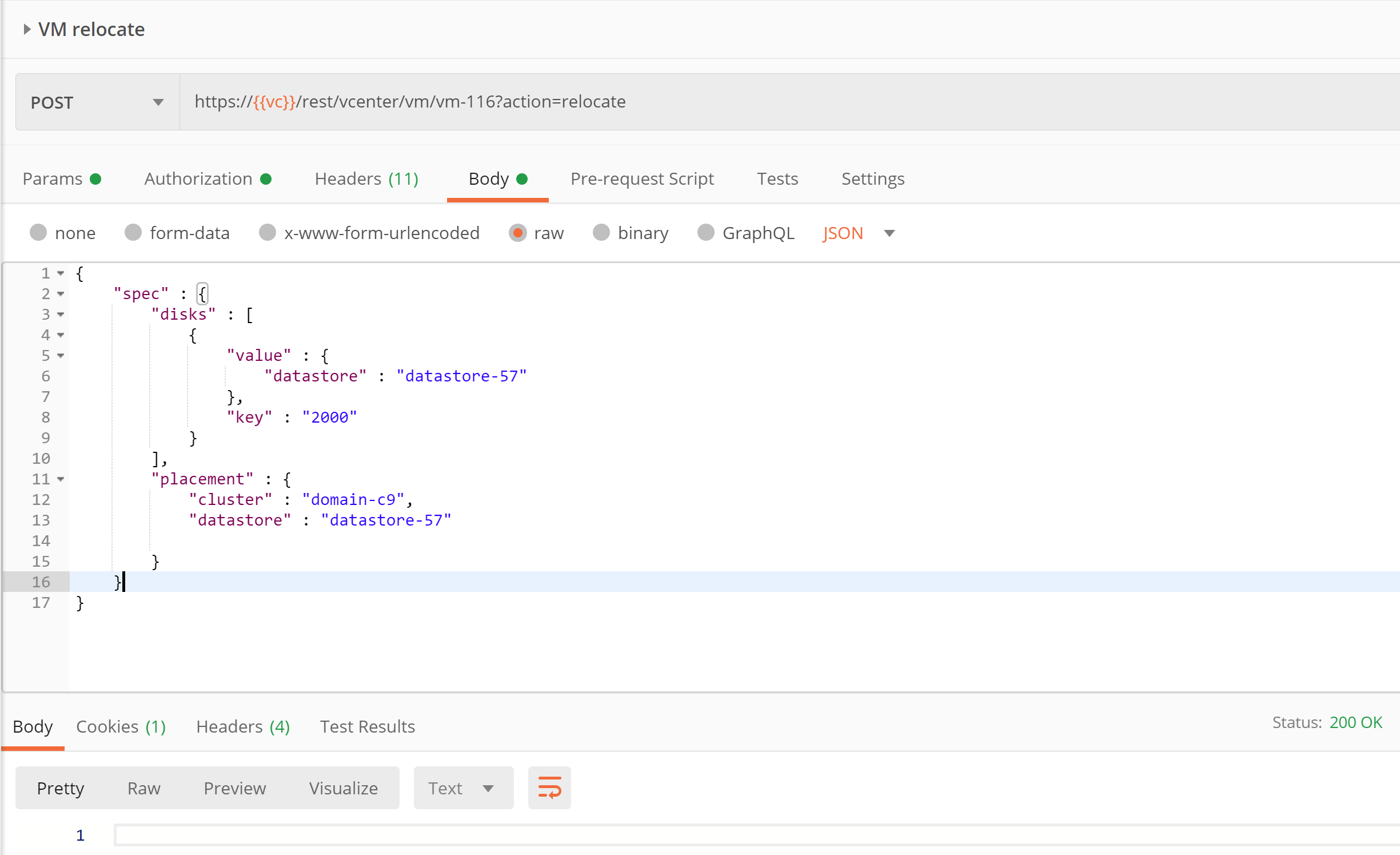
Let us invoke this API. I did it using both postman REST client and Python.

Postman way:

Note: In my case, I am relocating the VM from one cluster to other DRS enabled cluster. If you do not have DRS enabled cluster, you can go with passing destination host instead. I passed just enough params as shown below in Postman client but you may pass as per your requirement.

Here is the payload passed for easy copy paste.

{
    “spec” : {
        “disks” : [
            {
                “value” : {
                    “datastore” : “datastore-57”
                },
                “key” : “2000”
            }
        ],
        “placement” : {
            “cluster” : “domain-c9”,
            “datastore” : “datastore-57”
        }
    }
}

Python way:

Here is the equivalent python script for the same on my github repo. Below is how you would execute this python script


You can see API returned 200 ok response. how cool is that!

I hope you enjoyed this post. Please stay tuned for next post in this REST API series.

References:
– How to get started guide on REST APIs using Postman and python
– Introduction to vSphere Supervisor cluster APIs


Introduction to managing vSphere Supervisor Cluster using DCLI

My last post was about introduction to vSphere Supervisor Cluster Kubernetes REST APIs, where I briefed about key constructs such as “vSphere Supervisor Cluster” and “Tanzu Kubernetes cluster” but major focus was to introduce REST APIs around it and how to execute these APIs using H5C built-in API Explorer. As per me, it is must to read that post before you proceed. This post is about how to manage vSphere Supervisor Cluster using DCLI (Datacenter CLI). As you might already know that DCLI is a CLI exclusively for REST APIs and it supports vSphere Automation APIs (REST APIs for vSphere), VMware cloud on AWS and even NSX as well. Beauty of the DCLI is that it comes by-default as part of VCSA installation though we can install it in other Guest OSes also.

As I mentioned in the last post , “vSphere Supervisor Cluster” REST APIs are exposed by vCenter server i.e. every DCLI command we execute would be executed against vCenter server, where vSphere Supervisor cluster is configured or going to be configured. Let’s dive into it. In my case, I am going to access DCLI that comes automatically with VCSA.

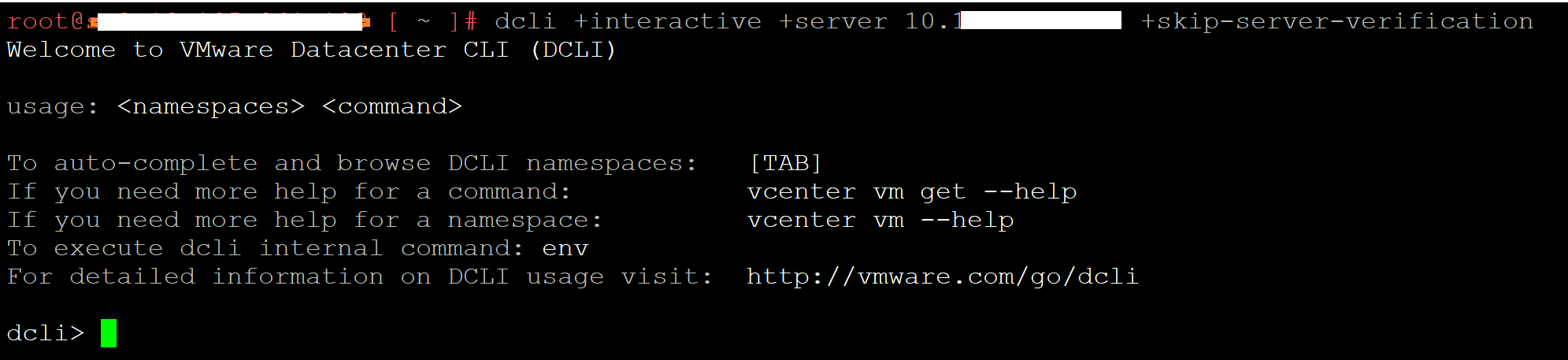
First step is to SSH VCSA 7.0 and run below command

dcli +interactive +server 10.20.30.40 +skip-server-verification

We need to pass vCenter server IP as a server. I will be running DCLI in interactive mode so that we get automatic help on available options with press of space or it gets showed as you type. This is very useful if you do not know where to start for new APIs as this.


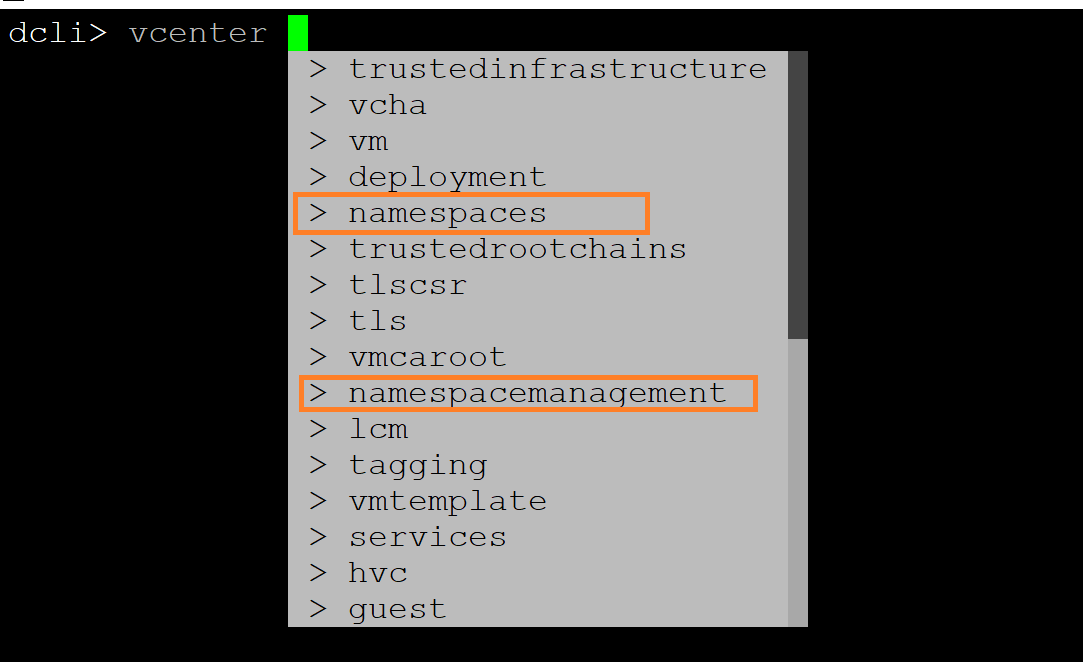
We are now in DCLI console. As I showed in my last post, these REST APIs are identified as “namespace management” & “namespaces”. Since these are “vcenter” APIs, when we just type “vcenter” and press “space”, you will get auto-populated list of options available as shown below, is not that cool ?

As in my last post, let’s check the compatibility of the cluster to confirm whether key requirements are met or not on given cluster

dcli> vcenter namespacemanagement clustercompatibility list

You can see cluster “domain-c9” (its moid) is compatible but cluster “cluster-c19” does not meet any basic requirements.

Below are few more basic commands (mostly GET calls)

Command #1: Disabling “vSphere with K8s” on given cluster

dcli> vcenter namespacemanagement clusters disable --cluster <cluster moid>

cluster moid/identifier looks like “domain-cx”. You can get it from UI (click on cluster and just check URL in browser or REST API/SOAP/MOB can help as well)

Command #2: Know compatible VDS on given cluster

dcli> vcenter namespacemanagement distributedswitchcompatibility list --cluster domain-c9

Command #3: Get compatible NSX-T edge cluster on given cluster and VDS

dcli> vcenter namespacemanagement edgeclustercompatibility list --cluster domain-c9 --distributed-switch "50 13 e2 3b 7d 5e 59 4b-63 1c c5 d9 ab 25 cd 7e"

VDS uuid you get from command #2 above.

Command #4: Get list of namespaces available

dcli> vcenter namespaces instances list

Command #5: Get available Kubernetes versions

dcli> vcenter namespacemanagement clusteravailableversions list
or
dcli> vcenter namespacemanagement software clusters get --cluster <cluster-identifier/moid>
or
dcli> vcenter namespacemanagement software clusters list

Command #6: Know what are sizes and resources requirements (TINY, SMALL, MEDIUM, LARGE )

dcli> vcenter namespacemanagement clustersizeinfo get

I hope this article was good head start for you on how to manage vSphere Supervisor cluster using DCLI. There are more advanced operations like enable, update, create (POST calls) etc that I will have deep dive into my future posts. Please stay tuned.

Further reading:
1. REST API documentation and my new post on automating Supervisor cluster configuration or Automating supervisor cluster workflows using Java SDK
2. How to get vSphere with Kubernetes?
3. vSphere with Kubernetes 101 is here
4. Introduction to vSphere Supervisor Cluster REST APIs
5. Official documentation for vSphere with Kubernetes is here


vSphere with Kubernetes: Introduction to vSphere Supervisor cluster REST APIs

vSphere 7.0 is now generally available and without a doubt “vSphere with Kubernetes” (former project pacific) is biggest highlights of the release. I think, this will have similar or even bigger impact on IT landscape since the launch of ESXi or vMotion in the past. Coolest thing is that VMs and containers can co-exist and no tools to manage them are changing. I am personally very happy that vSphere is now just not about VMs but also containers & beyond (read “vThinkBeyondVM”) as well.

Note: As you already might know “vSphere with Kubernetes” is available through VMware Cloud Foundation(VCF). I highly recommend you to read this quick post on how to get “vSphere with Kubernetes”? Post is written by none other than Kit Colbert . Very straight and simplified post if you ask me.

Before I discuss about REST APIs, I would like to provide brief about 2 important constructs below i.e. ” Supervisor cluster” and “Tanzu Kubernetes Cluster” (aka Guest cluster). Please refer vSphere with Kubernetes 101 white paper for more details.

Supervisor cluster : It is a special kind of Kubernetes cluster, where ESXi hosts inside vSphere Cluster become worker nodes and K8s Control VMs/Master VMs will run on the top same vSphere cluster. In this cluster, user creates a namespace and triggers “vSphere Pods” to run container workloads using same “kubectl” CLI. (vSphere admin manages it)

Here is a blog post demonstrating how to automate Supervisor cluster configuration

Tanzu Kubernetes Cluster” (aka Guest cluster): This is upstream-compliant Kubernetes cluster, which runs on the top of “Supervisor cluster” under the “namespace” created in Supervisor layer. This cluster uses open source Cluster API for life-cycle management (Devloper/DevOps manages it from familiar kubectl itself)


As usual I enjoy exploring new APIs got introduced as part of new vSphere release . In this post, my focus is on REST APIs exposed to manage life-cycle of ” Supervisor cluster”. As I run through vCenter API explorer (H5C -> Menu -> Devloper center -> API Explorer), I see this release has more REST APIs compared to SOAP APIs unlike any earlier vSphere releases. You can refer REST API documentation here as well. In this post, I will introduce you to new APIs got exposed as part of Supervisor cluster. I am pleased to see that 100% of the APIs are REST based. How cool is that !

First things to note that “API-endpoint” to call these APIs is “vCenter server”. i.e. we will be calling Supervisor cluster APIs against vCenter server.

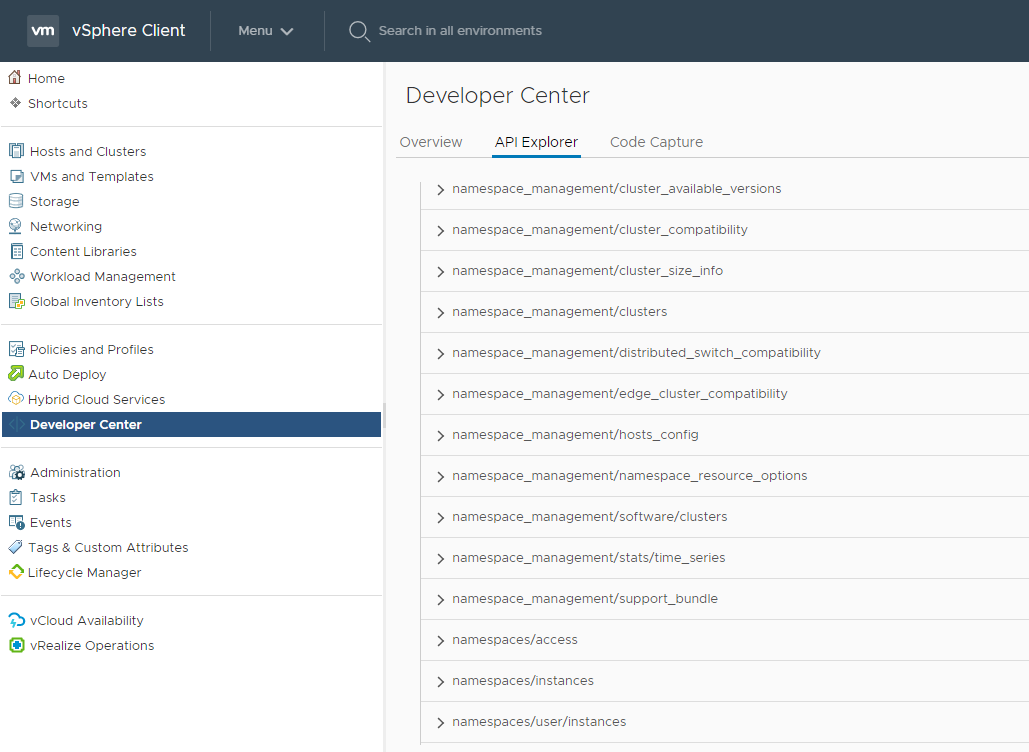
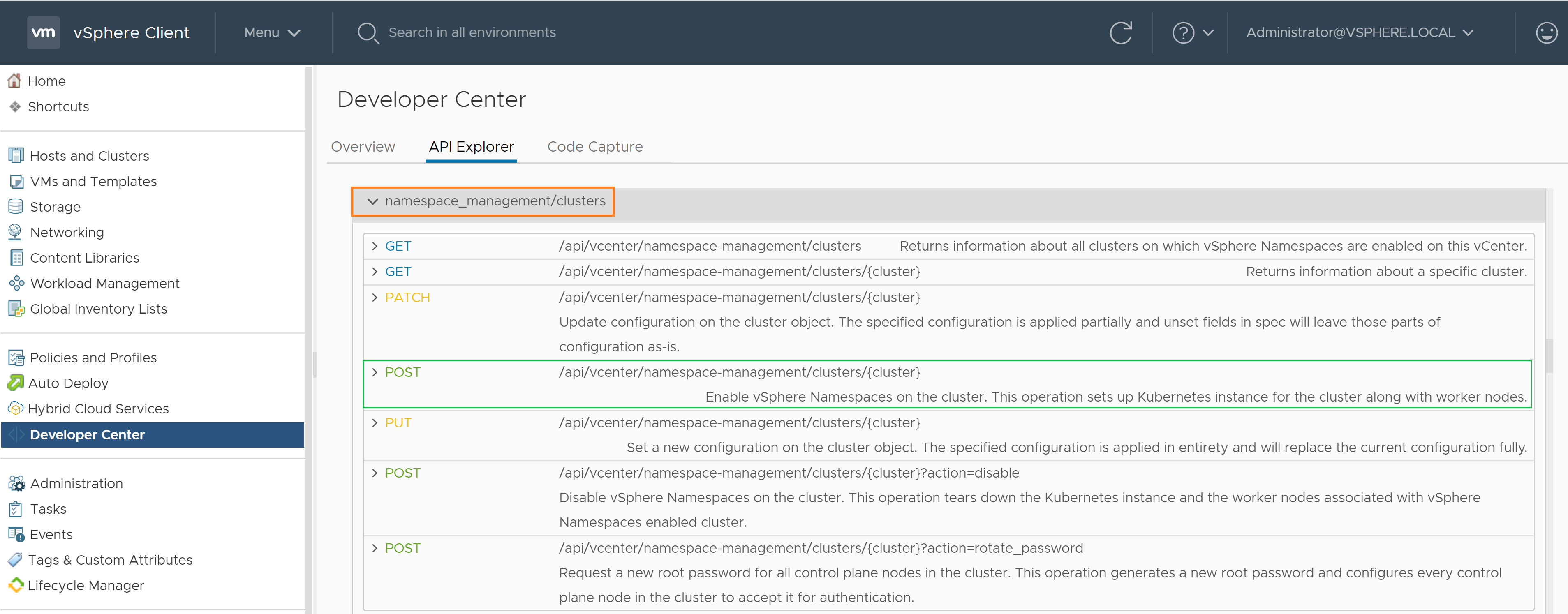
Lets take look at below screenshot for how these APIs look like.


As you can see these APIs are identified under name “namespace_management” and “namespaces”
namespace_management : APIs under this section help manage all the aspect of managing “Supervisor cluster”.
namespaces : APIs under this section help manage “namespaces” created on the top of Supervisor cluster. Tanzu Kubernetes clusters are also created under namespaces created in Supervisor layer.

Most critical APIs are under “namespace_management/clusters ” section, where key APIs like enable/disable/update vSphere supervisor cluster are available. Below is how “enable” call looks like. i.e. configuring “Supervisor cluster”.
POST call
https://{server}/api/vcenter/namespace-management/clusters/{cluster}
server : vCenter IP/FQDN and cluster:cluster MOID

Same above operations can be done from H5C UI ( Menu –> “Workload Management” )
I hope, at this stage you got basic idea on where to start exploring these APIs. In my next couple of posts, I will have deep dive into critical APIs to manage “Supervisor cluster” on given cluster i.e. “enable/disable/update” Ops. For now lets invoke one of the basic API calls to see something cool in action.

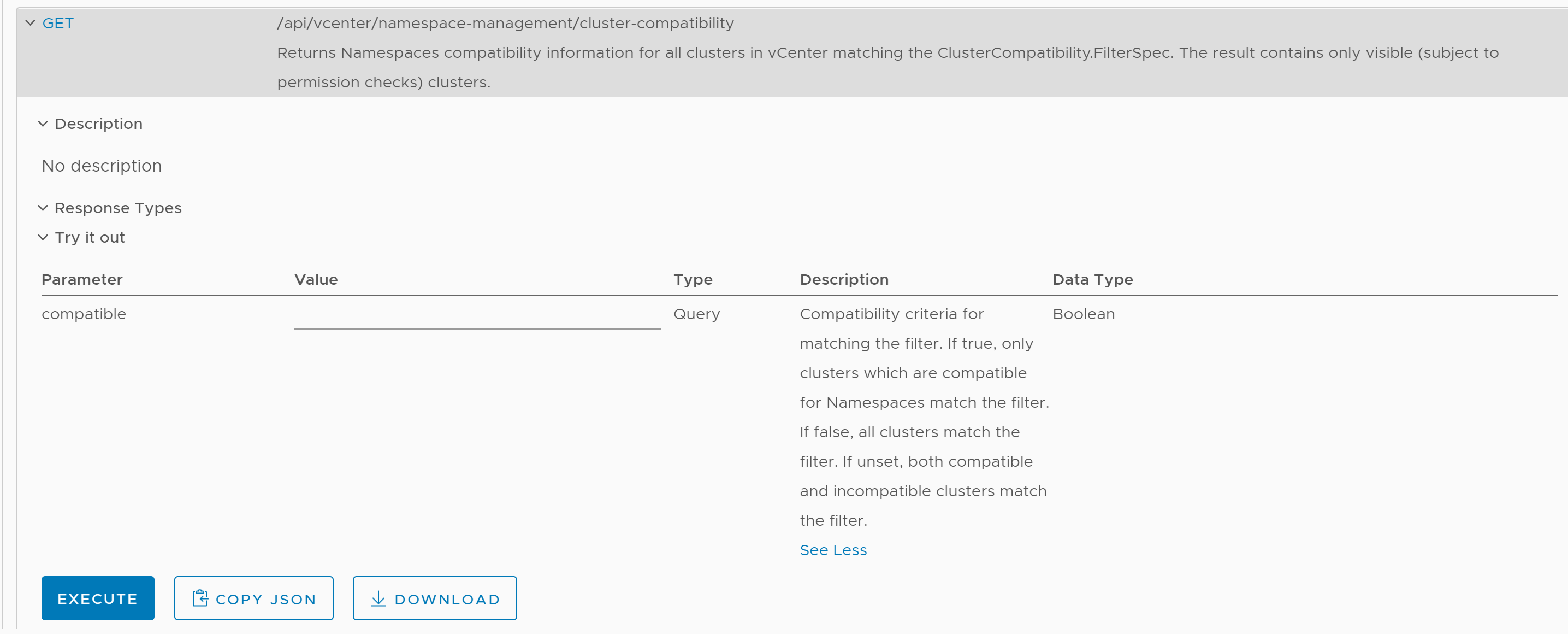
In my lab environment, I have 2 clusters in my vCenter server (in VCF term, 1 workload domain with 2 clusters), where “Supervisor cluster” is enabled on one and not enabled on second cluster. I chose to invoke an API, which gives us information on whether clusters in my vCenter inventory are compatible for enabling Supervisor cluster or not. As you know from my earlier posts this or this, this must be a GET call as follows


https://{server}/api/vcenter/namespace-management/cluster-compatibility


This is how you invoke it quickly from native API Explorer from within vSphere client (H5C)

https://vthinkbeyondvm.com/wp-content/uploads/2020/04/Cluster-compat.png

Below is what I got the response, pasted as it is

Response

[vcenter.namespace_management.cluster_compatibility.summary   {

},vcenter.namespace_management.cluster_compatibility.summary   {

  • “cluster”: “domain-c9”,
  • “compatible”: “true”,
  • “incompatibility_reasons”: [ ][]

},]

As you see, my first cluster (moid: domain-c19) is not compatible and API gives us nice info on what are the basic requirements not met such as HA is not enabled, DRS is either not enabled or not in fully automated mode and new NSX-T VDS (aka conversed VDS) is not configured as well. How cool is that! As expected second cluster (moid: domain-c19) is perfectly fine as Supervisor cluster is already enabled there.

I hope you enjoyed my first post on this amazing innovation. Here is my new post on how to manage Supervisor cluster using DCLI. Please stay tuned for my detailed post on its cool functional aspects. Also, here is the official documentation on “vSphere with K8s” for your further learning. I enjoyed providing my candid feedback on various aspect of this documentation last month, I am sure you will love reading it.

Once again I would like to remind you that “vSphere with Kubernetes” is available through VCF and once you have VCF workload domain ready, you would be re-directed to vCenter H5C to proceed for further ops on managing/enabling vSphere with Kubernetes.

Further reading:
1. REST API documentation & my new post on automating Supervisor cluster configuration or Automating supervisor cluster workflows using Java SDK
2. How to get vSphere with Kubernetes?
3. vSphere with Kubernetes 101 is here
4. Introduction to manage vSphere Supervisor Cluster
5. Official documentation for vSphere with Kubernetes is here


Hybrid Linked Mode (HLM) with vCenter Cloud Gateway using REST API

In my first post on HLM configuration using API, I explained how to configure HLM using API through Cloud VC. If you haven’t still read that post, I would highly recommend you do. In this post I am going to touch upon how to configure HLM using API but from vCenter cloud gateway appliance (VCGA).

Setting up HLM from vCenter cloud gateway is three step process


1. Deploying vCenter cloud gateway appliance using official documentation

2. Making sure prerequisite for linking with Cloud Gateway Appliance are met

3. Configuring HLM from UI or using API. In our case, we would do from API

As I mentioned in my last post, API itself does not change, it is just that API end-point will be vCenter cloud gateway appliance and input parameters we pass will be changed. Lets take a look.

POST: https://<VCG IP>/rest/hvc/links

VCG IP is the IP address of the deployed vCenter cloud gateway appliance

Below is the JSON payload this API takes in . Note thumprint is optional param

{
“spec”: {
“port”: “443”,
“domain_name”: “vmc.local”,
“username”: “cloudadmin@vmc.local”,
“ssl_thumbprint”: “E9:BD:29:9F:D6:15:4F:B7:C8:90:2C:19:03:61:HB:7A:AD:FB:B1:1E”,
“admin_groups”: [
” yourcloudadmingroup@yourdomain.local “
],
“password”: “VMware123!”,
“psc_hostname”: “Cloud PSC IP or FQDN”
}
}

Let us go over each parameter passed

port: 443 is default  port for communication between VCG and Cloud VC (can be custom port also)

domain_name: Cloud VC PSC default SSO domain (its vmc.local)

username, password, psc_hostname: Cloud VC PSC credentials (PSC is always embedded in case of VMware cloud on AWS deployment)

ssl_thumbprint : Note that this parameter is optional, it will work fine even if you do not pass this param or if you pass value as blank. If you want to pass, this is Cloud PSC SSL thumbprint, you can get it using one of the ways posted here . I am going to write a post on how to get vCenter/PSC thumbprint using API itself, please stay tuned.

admin_groups: here you specify cloud administrator group(s).  Before configuring HLM linking , identity source must be configured on Onprem and cloud admin group(s) must be given global permissions. Note that identity source need not be configured on Cloud VC, refer this KB

Note: Above API can be called from H5C API-explorer or Postman/any REST client or python script as specified below

I used the same python script used for HLM linking with Cloud VC but using VCG IP as end-point & passing inputs as described above. I see it was successful as expected & I was able to see both VCs together when logged in as user from cloudadmin group configured at HLM linking.