Category Archives: Vmware private AI and IaaS platform

Blog posts on VMware vSphere Kubernetes Service (VKS) and Private AI foundation

vSphere HA VM protection when VM restart priority and VM monitoring are disabled

Sometime back I got a question on VMTN & also one of friends had same doubt. Hence I thought it is worth to have one small post on this. Question was: Even when VM restart priority and VM monitoring settings are disabled for a particular VM in HA enabled cluster, why vCenter Server reports that VM as HA protected?
First of all, I would suggest you to look into below screenshot taken from VI client VM summary tab.
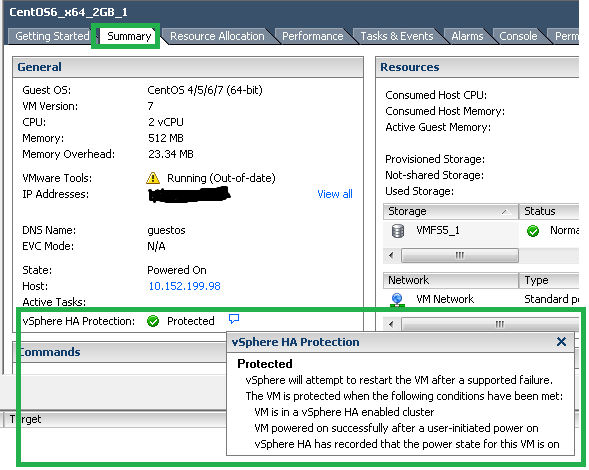
HA protected state

According to the VM summary, below condition should meet in order vCenter to report VM as HA protected.
– VM is in a vSphere HA enabled Cluster.
– VM powered on successfully after a user-initiated power on.
– vSphere HA has recorded the power state for this VM is on.

Note that vSphere HA maintains one file called “Protectedlist” for all the VMs in HA enabled cluster in order to identify which VMs are protected. Below is sequence of steps takes place when we power on the VM in HA cluster.
1. When we power on VM from vCenter, vCenter informs ESXi host to power on the VM.
2. When VM is powered on, host informs vCenter that VM is powered ON.
3. vCenter then contacts vSphere HA master for making powered ON VM protected.
4. HA master makes entry into “ProtectedList” file which exhibits that Master is now responsible to restart the VM when there is failure.
5. Finally HA master informs vCenter that I have added the entry into “ProtectedList” file & then vCenter reports VM as HA protected in VI client as we see in above screenshot.

Original question “When VM restart priority & VM Monitoring are disabled, why does vCenter report as HA protected?” is still unanswered. Here is the answer:
Note that By design, “VM restart priority” and “VM monitoring” settings are orthogonal to vSphere HA protection. vSphere HA protection state has nothing to with restart priority and VM monitoring settings, no matter these settings are enabled or disabled. Now one more question arises i.e. is it possible that HA removes VM from protectedList when we disable either or both settings (i.e. VM restart priority & VM monitoring)? Diplomatic answer is :It depends. We will see sequence of actions that HA takes on VM protected state when we disable either or both of these settings in case of failure.

1. if VM restart priority is disabled & VM monitoring is enabled:
-Host is up and VM is up, vSphere HA will keep VM in protected list.
-When ESXi host fails, VM can not be restarted on other available host. Even If failed host comes back, still VM will not be restarted, it will be powered OFF and now vSphere HA will remove that VM from protected list.
-When Guest OS fails (ex. BSOD), HA will reset that Guest on the same host and HA continue to keep in protected list. It shows that VM monitoring is orthogonal to restart priority as well.

2. if VM restart priority is disabled & VM monitoring is also disabled:
-Host is up and VM is up, vSphere HA will keep in protected list.
-When ESXi host fails, VM can not be restarted on other available host. Even If failed host comes back, still VM will not be restarted, it will be powered OFF and now vSphere HA will remove that VM from protected list.
-When Guest OS fails, HA can not restart that Guest OS on the same host but as VM itself does not have any issue (i.e. VM is ON but you can not access Guest), HA continue to keep that VM in protected list.

3.if VM restart prioriy is enabled & VM monitoring is disabled:
-Host is up and VM is up, vSphere HA will keep in protected list.
-When ESXi host fails, VM will be restarted on other available host, After restart, VM will be powered ON and HA continue to keep that VM in protected list
-When Guest OS fails, HA can not restart that Guest on the same host but as VM itself does not have any issue (VM is ON but you can not access Guest), HA continue to keep that VM in protected list.

There are 3 state of the VM from HA perspective, today’s post was focused on Protected VM state, there are 2 more i.e. unprotected and N/A, I will write another post later on additional two VM HA state.

Learn more on vSphere HA here

I hope you enjoyed this post. Please let me know if you have any additional doubts.

VMware released Bash code injection Vulnerability Express Patches for vCenter Server Virtual Appliance

VMware has just released Express patches on Bash code injection Vulnerability aka “ShellShock” for most of the VMware products. However, this post is focused on express patches @vCenter Server Virtual Appliance.

Note:Please do read KBs referred below carefully  corresponding to each express patch release which addresses  bash vulnerability. Also note that Bash code injection vulnerability does NOT affect Windows based vCenter server.

Express patch is released on each release lines i.e. 5.0.x, 5.1.x, 5.5.x

If you are running vCenter Server Appliance 5.0.x, vCenter Server Appliance 5.0 U3b addresses Bash vulnerability:
KB:vCenter Server Appliance 5.0 U3b KB

Download from here:vCenter server appliance 5.0 U3b (Scroll down to 5.0 U3b)

If you are running vCenter Server Appliance 5.1.x, vCenter Server Appliance 5.1 U2b addresses Bash vulnerability:
KB:vCenter Server Appliance 5.1 U2b KB

Download from here:vCenter Server Appliance 5.1 u2b (Scroll down to 5.1 U2b)

If you are running vCenter Server Appliance 5.5.x, vCenter Server Appliance 5.5 U2b addresses Bash vulnerability:
KB: vCenter Server Appliance 5.5 U2a KB

Download from here:vCenter Server Appliance 5.5 U2a (Scroll down to 5.5 U2a)

VMware KB on Bash bug assessment :VMware KB on Bash Code Injection Assessment

VMware Security Advisory on Bash bug :VMware Security Advisory (Here you can also get patch details @ other VMware products)

How to quickly reproduce this bug (before applying the patch):

1. Login /SSH to the vCenter server virtual appliance  through Putty.

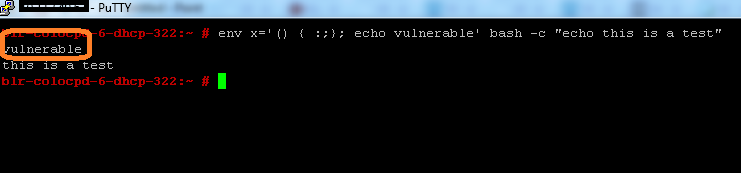
2. Run this bash script :”env x='() { :;}; echo vulnerable’ bash -c “echo this is test”. It should display output as follows :

Repro

You could see both “vulnerable & “this is test” are displayed as output.

How to quickly verify this bug (after applying the patch):

1.  Login /SSH to the vCenter server virtual appliance  through Putty.

2. Run same bash script :”env x='() { :;}; echo vulnerable’ bash -c “echo this is test”.It should display output as follows :Verification

You could see only “this is test” is displayed as output.  “vulnerable” should not be displayed with patch.

Learn more about Bash code injection:The Bash bug Explained


Great News for VMware users: vSphere 5.5 U2 C# client can edit VMs with Virtual HW Version 10

Since the vSphere 5.5 got released, all VMware users were facing one major pain point i.e. Editing VM settings for VMs with HW version 10 using C# client. This was one of the hot topics on VMTN community as well. Feedback from VMware users was really spot on & it forced VMware to seriously take this issue forward.  Yesterday vSphere 5.5 Update 2 got released & this pain point is addressed in vSphere 5.5 Update 2 C# client. (aka VI/Desktop/Thick client)

With older C# client when you try to edit VM with HW version 10 using VI client, it was prompting to use web client & was blocking users to manage VMs using VI client.

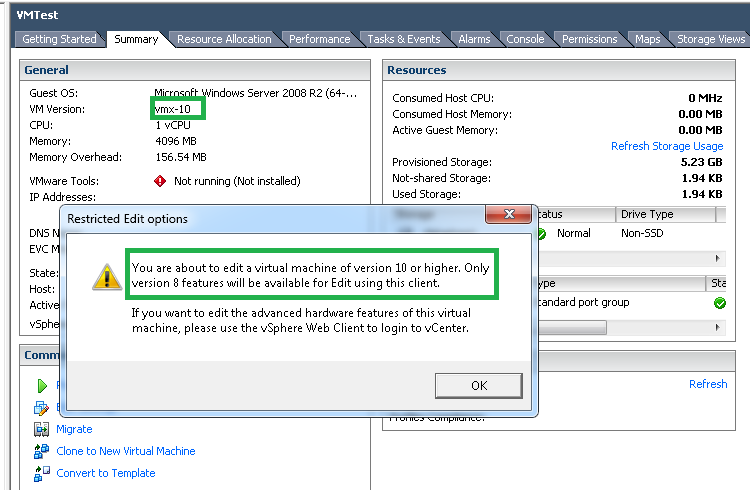
Now with vSphere 55 U2 VI client, when you try to edit VM with HW version 10 (Right click VM >> Edit settings), it shows below warning message

Edit settings_1

Above message shows that you only can edit features up to HW version 8 & to edit all new features you will have to use web client or you will have to edit new features by using vSphere APIs (VI Java, PowerCLI etc.).

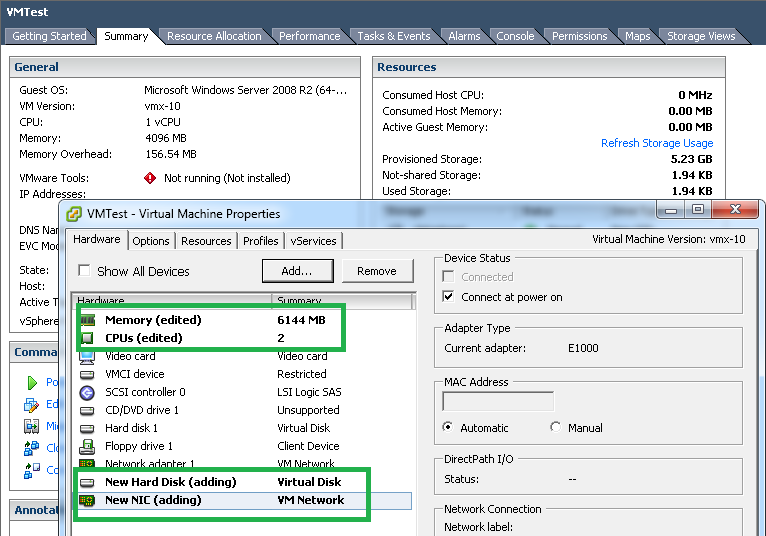
I just tried editing memory, cpu, network & disks as shown in below screenshot. It worked fine for me.Edit seetings_2

What are the pain points addressed by vSphere 5.5 U2 C# Client?

1. You can edit basic functionality of the HW version 10 VM using latest VI client  if vCenter server itself is down. When vCenter is down, web client would be down too.

2.  There are many customers with small VMware environment those do not want to spend additional cost on vCenter licenses just for web client. Now with this fix, they can use latest HW version & edit basic functionality of the VM as well using VI client by directly connecting to the ESXi host.

In order to leverage this VI client functionally immediately, you just need to upgrade older C# client to latest, you need not to upgrade all vCenter components immediately. You can plan upgrading other vCenter components as per your company policy/schedule.

Not sure whether new features will be supported on VI client in future releases, hope for the best BUT at the moment, I liked step in right direction by VMware on this issue. I am really happy, are you ?

Download latest C# client from here:vSphere 55 U2 C# Client

Want to delete VMDK file containing sensitive data?

Couple of times, query was asked on VMTN “how to delete the content of VMDK file or what is the best practice to delete VMDK file securely so that it will be more difficult to recover the same content again. In the purview of the same, I thought it is worth to write blog post which explains E2E steps for the same.

This can be easily achieved using “vmkfstools” : It is vSphere CLI for managing VMware volumes . (Learn more about vmkfstools here). Here we go.

1. Power off or shutdown the VM.

2. Record the name of the “datastore” in which VMDK file to be deleted is available.

3.  SSH (through putty) to ESXi host where VM is available.

VMDK content deletion

4. Go to the directory where VMDK file available. i.e. “/vmfs/volumes/<data_store recorded=”” in=”” 1st=”” step=””>/#” . We need to zero out entire content of VMDK to be deleted.

5. run this command : /vmfs/volumes/<data_store recorded=”” in=”” 1st=”” step=””>/#vmkfstools -w <vmdk_file_name.vmdk>

6. Zeroing will start, once the zeroing is done, you can delete the VMDK straightway from VI client >>datastore OR by using vmkfstools itself with “-U” option. (Refer: Above screen for all the steps, I have deleted VMDK using vmkfstools itself)

Now, it will be very difficult to reconstruct the content of the VMDK from physical disk. is not it simple? Note that, this is a best practice to delete the VMDK file when VMDK content has sensitive/confidential data. If the VMDK content is not sensitive, deleting the VMDK directly would be sufficient.


Schedule DRS & DPM in Off-Hours by using vSphere Web Client

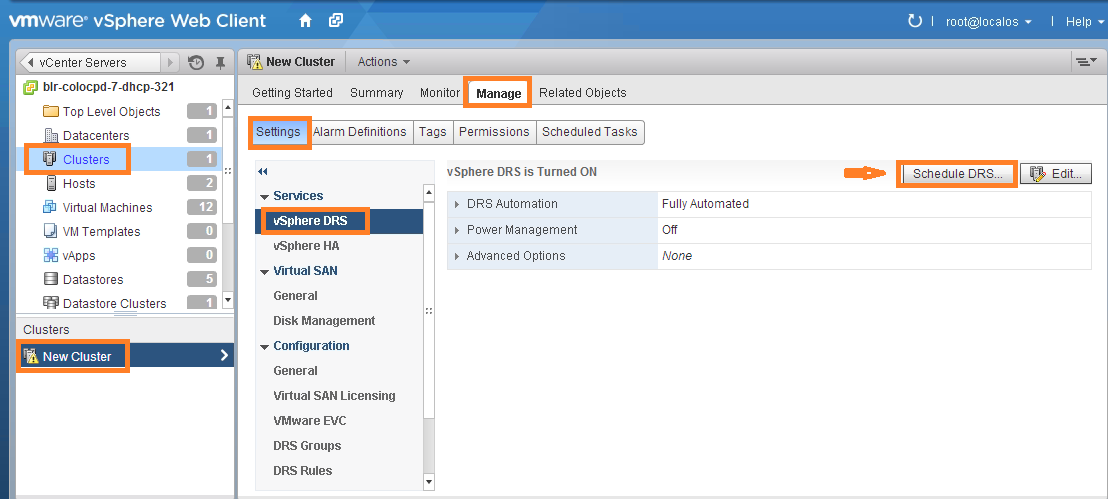
In desktop client (aka VI client) we do not have option to schedule DRS, also scheduling DPM in desktop client we have only option i.e. ON or OFF DPM through “Change cluster power settings” scheduled task.  Recently I was exploring DRS & DPM scheduled task web client workflows & I should say DRS/DPM scheduled task web client workflow has been enhanced greatly. Now we can schedule a task for both DRS & DPM not only just to set ON or OFF but also to configure its automation level & threshold.  This is going to simplify admin efforts in maintaining DRS & DPM.  Is not it great? As everybody probably knows basics of DRS & DPM so I am not going to explain how DRS & DPM works. This post is about how to configure DRS/DPM scheduled tasks by using web client, as DPM is part of DRS, we can configure both DRS & DPM scheduled task in single window pane. Here is where you can get DRS schedule configuration tab.

DRS schedule configuration tab

Once you click on Schedule DRS tab, we will get the UI page where we can configure DRS & DPM.

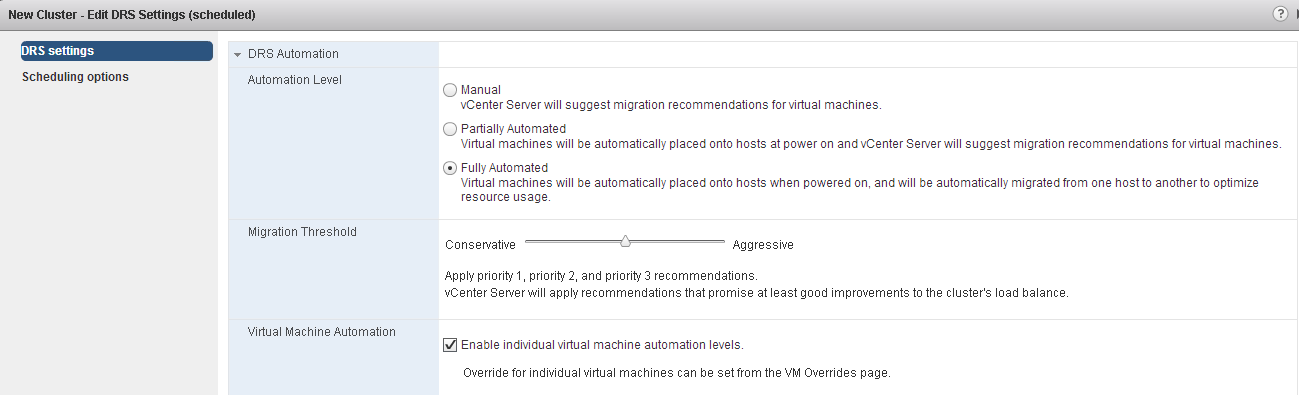
DRS configuration:You can set Automation level, migration threshold & VM automation level as per requirement as below

DRS configuration

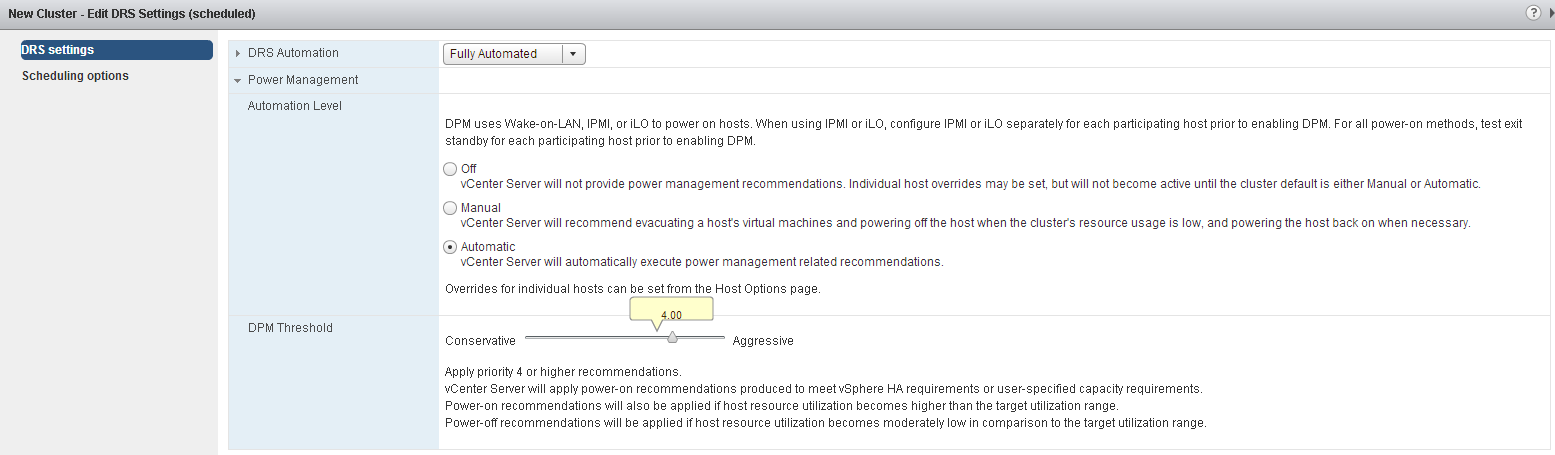
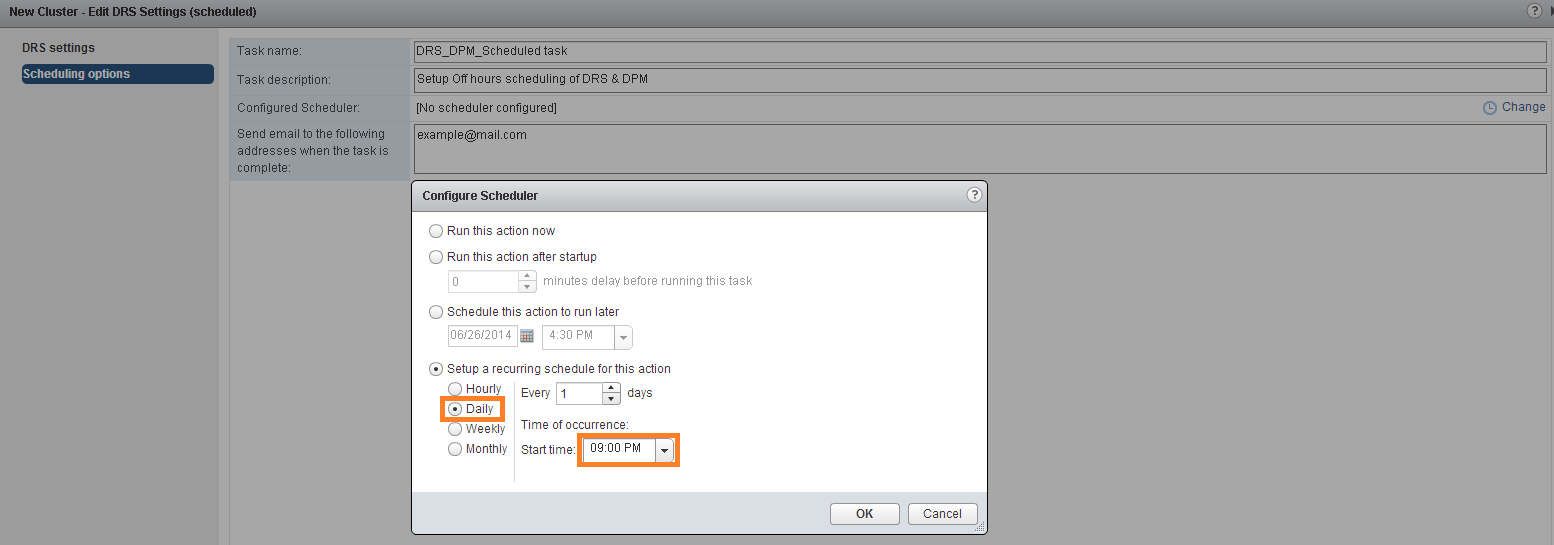
DPM configuration: In off hours now you can keep DPM in fully automated mode & make DPM threshold aggressive, these settings will lead DPM to put as many as hosts into standby mode & will generate power ON host recommendation only when it is absolutely required.  DPM_ConfigurationOnce the configuration is over as per the requirement, next important setting is to set time at which schedule needs to be executed to take configuration in effect. It is better if you choose schedule to execute on daily basis in off hours as shown in below UI, this will avoid schedule management efforts.Schedule settingsYou could see in above UI, you have various options to set the timings for schedule to be executed.

Note: Please note that you need to schedule one more scheduled tasks in order to change DRS/DPM settings before peak hours starts.

Here is one more useful blog post by “Frank” on DPM schedule tasks using desktop client.