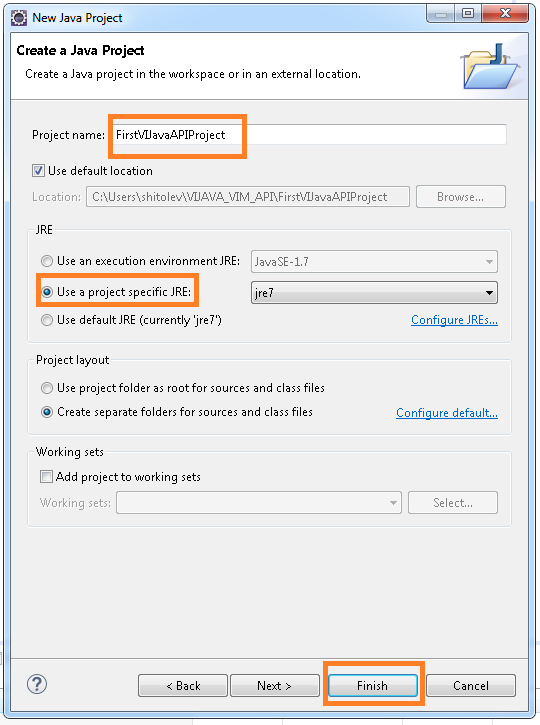
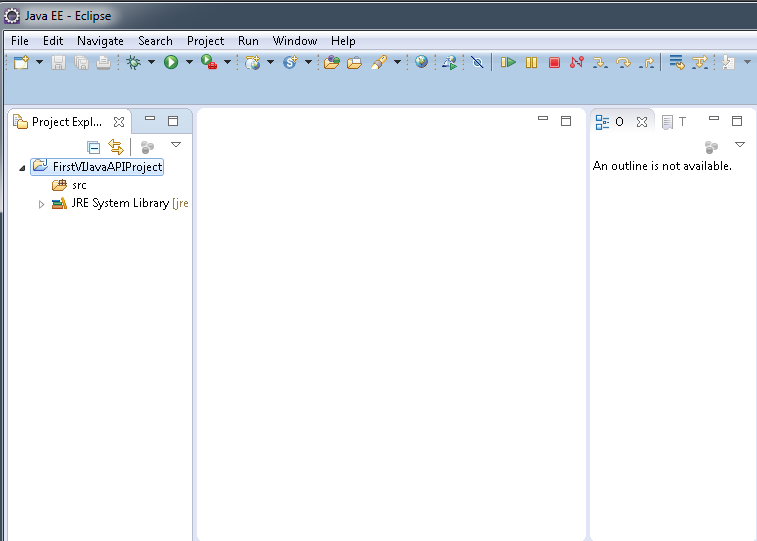
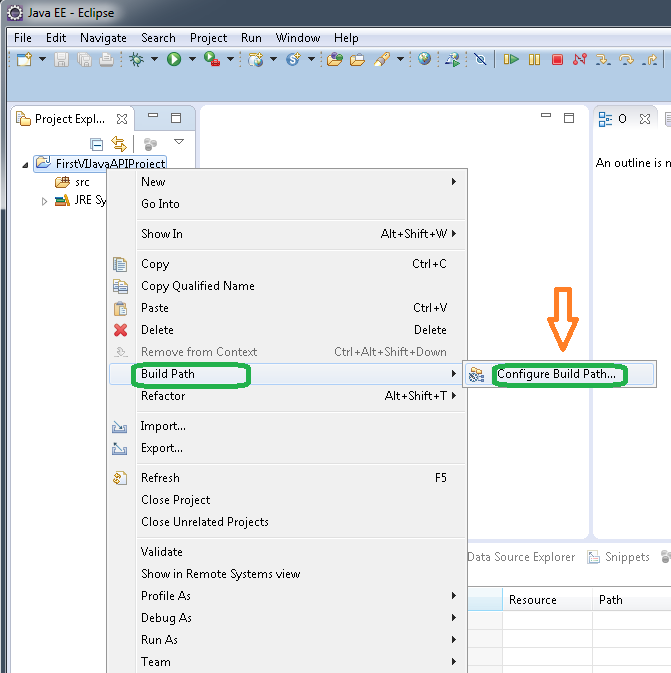
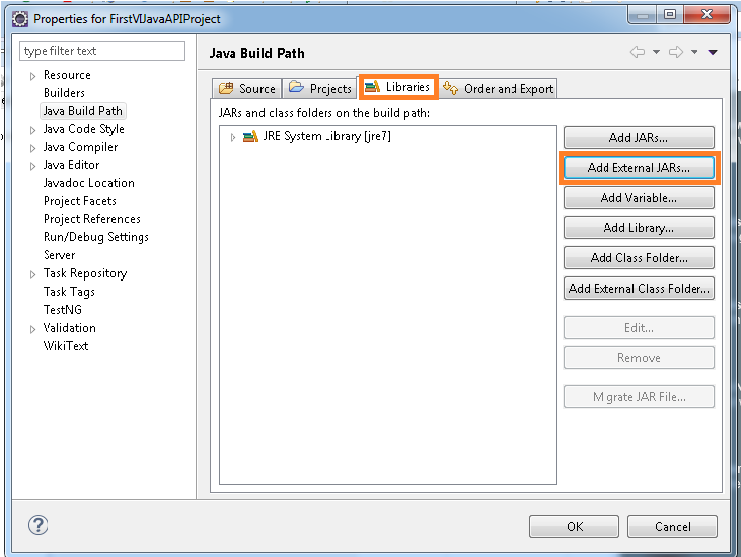
Before going to start this tutorial on how to access/navigate your vCenter server or ESXi inventory, lets see how do managed objects vCenter & ESXi hierarchy looks like.
Organization of managed objects in the vCenter inventory.
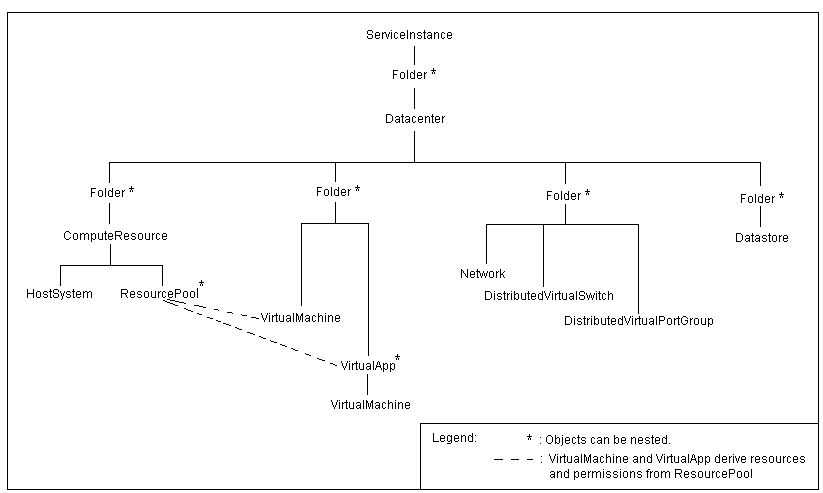
Organization of managed objects in the ESXi host inventory
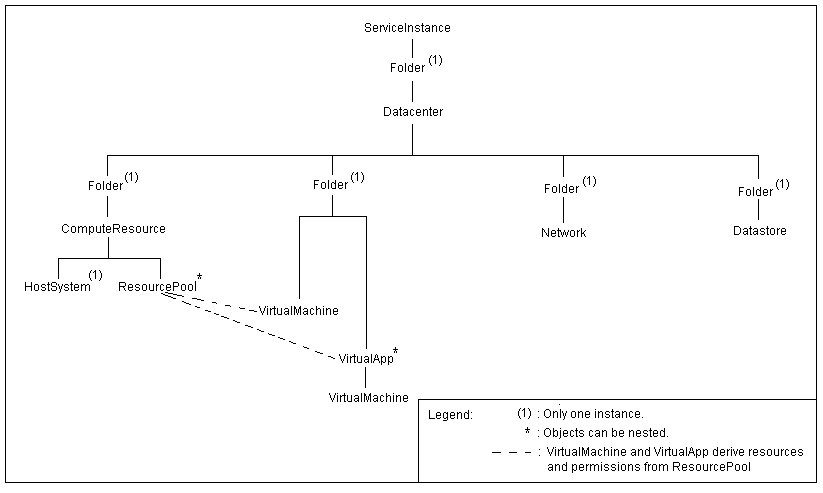
The host agent i.e. ESXi hierarchy has the same general form as the vCenter hierarchy, but most of the objects are limited to one instance. As you could see in both of these screenshots, ServiceInstance managed object is on top, hence first managed object we should create in our application is ServiceInstance. We have seen how to create ServiceInstance object in my Part I Tutorial on how to initialize connection with ESXi or vCenter. Now in part II, we will look into how to navigate/access your vCenter or ESXi inventory. Here we go.
We can access/navigate all managed entities by leveraging “InventoryNavigator” class from VI JAVA. As part of this tutorial, we are interested in one constructor & two methods offered by this class. Please refer highlighted sections from below Javadoc screenshot.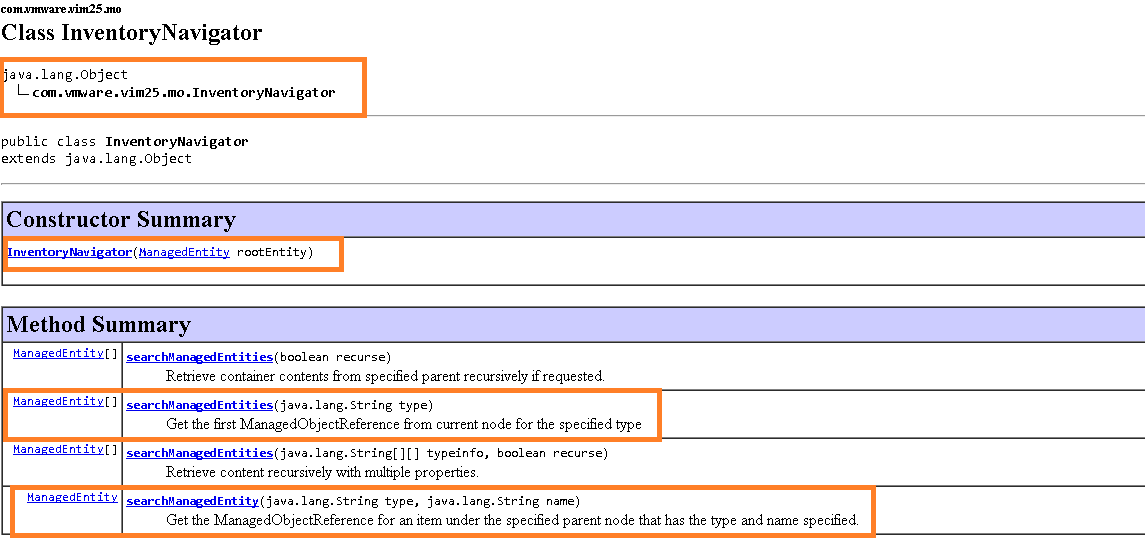
Let us start accessing major managed objects in order to demonstrate the use of InventoryNavigator class from VI JAVA.
1.Datacenter: The Datacenter managed object is container object for ESXi hosts, VMs, networks & datastores.
[java]
package com.vmware.vijava;
import java.net.MalformedURLException;
import java.net.URL;
import java.rmi.RemoteException;
import com.vmware.vim25.InvalidProperty;
import com.vmware.vim25.RuntimeFault;
import com.vmware.vim25.mo.Datacenter;
import com.vmware.vim25.mo.Folder;
import com.vmware.vim25.mo.InventoryNavigator;
import com.vmware.vim25.mo.ManagedEntity;
import com.vmware.vim25.mo.ServiceInstance;
public class VCESXInventoryNavigator {
public static void main(String[] args) throws InvalidProperty,
RuntimeFault, RemoteException, MalformedURLException {
ServiceInstance si = new ServiceInstance(new URL("https://192.168.1.1/sdk"), "root", "vmw", true);
System.out.println(si);
String dcName = "IND-BLR";
Folder rootFolder = si.getRootFolder();
Datacenter datacenter = null;
datacenter = (Datacenter) new InventoryNavigator(rootFolder).searchManagedEntity("Datacenter", dcName);
System.out.println("Data center Name::" + datacenter.getName());
ManagedEntity[] dcenters = new InventoryNavigator(rootFolder).searchManagedEntities("Datacenter");
System.out.println("Number of Datacenters in vCenter::" + dcenters.length);
}
}
[/java]
Line 15: It is ServiceInstance object creation which is top object in hierarchy. We learned this object in PART I of this tutorial
Line 18: This is the object creation for rootFolder, which would be passed as parameter in InventoryNavigator class constructor, refer JAVADOC screenshot posted above.
Line 20: Here we are accessing single datacenter managed entity object by passing existing vCenter datacenter name in searchManagedEntity() method of InventoryNavigator class. Once we get this object, we can access any other entities that come under datacenter such as hosts,VMs, datastores, networks etc.
Line 22: Here we get array of managed entity objects of all the datacenters available in vCenter Server. This gives us ability to play with all the objects across vCenter Server.
Learn more about Datacenter Managed object here
Similar to accessing datacenter managed entities the way we did above, below all snippets will give you idea on using searchManagedEntity() & searchManagedEntities() methods for accessing hosts, clusters, datastores from single ESXi or across vCenter Server.
2. HostSystem: The HostSystem managed object type provides access to a virtualization host platform i.e. ESXi
[java]
package com.vmware.vijava;
import java.net.MalformedURLException;
import java.net.URL;
import java.rmi.RemoteException;
import com.vmware.vim25.InvalidProperty;
import com.vmware.vim25.RuntimeFault;
import com.vmware.vim25.mo.Folder;
import com.vmware.vim25.mo.HostSystem;
import com.vmware.vim25.mo.InventoryNavigator;
import com.vmware.vim25.mo.ManagedEntity;
import com.vmware.vim25.mo.ServiceInstance;
public class VCESXInventoryNavigator {
public static void main(String[] args) throws InvalidProperty,
RuntimeFault, RemoteException, MalformedURLException {
ServiceInstance si = new ServiceInstance(new URL("https://192.168.1.1/sdk"), "root", "vmw", true);
System.out.println(si);
String hostName = "10.192.34.2";
Folder rootFolder = si.getRootFolder();
HostSystem host = null;
host = (HostSystem) new InventoryNavigator(rootFolder).searchManagedEntity("HostSystem", hostName);
System.out.println("Host Name::" + host.getName());
ManagedEntity[] hosts = new InventoryNavigator(rootFolder).searchManagedEntities("HostSystem");
System.out.println("Number of hosts in vCenter ::" + hosts.length);
}
}
[/java]
Learn more about HostSystem Managed object here
3.ClusterComputeResource: This data object aggregates HostSystem objects into a single compute resource.
[java]
package com.vmware.vijava;
import java.net.MalformedURLException;
import java.net.URL;
import java.rmi.RemoteException;
import com.vmware.vim25.InvalidProperty;
import com.vmware.vim25.RuntimeFault;
import com.vmware.vim25.mo.ClusterComputeResource;
import com.vmware.vim25.mo.Folder;
import com.vmware.vim25.mo.InventoryNavigator;
import com.vmware.vim25.mo.ManagedEntity;
import com.vmware.vim25.mo.ServiceInstance;
public class VCESXInventoryNavigator {
public static void main(String[] args) throws InvalidProperty,
RuntimeFault, RemoteException, MalformedURLException {
ServiceInstance si = new ServiceInstance(new URL("https://192.168.1.1/sdk"), "root", "vmw", true);
System.out.println(si);
String hostName = "BLR-NTP";
Folder rootFolder = si.getRootFolder();
ClusterComputeResource cluster = null;
cluster = (ClusterComputeResource) new InventoryNavigator(rootFolder)
.searchManagedEntity("ClusterComputeResource", hostName);
System.out.println("Cluster Name::" + cluster.getName());
ManagedEntity[] clusters = new InventoryNavigator(rootFolder)
.searchManagedEntities("ClusterComputeResource");
System.out.println("Number of clusters in vCenter ::" + clusters.length);
}
}
[/java]
Learn more about ClusterComputeResource managed object here
4. Datastore: The Datastore managed object represents storage location for VMs.
[java]
package com.vmware.vijava;
import java.net.MalformedURLException;
import java.net.URL;
import java.rmi.RemoteException;
import com.vmware.vim25.InvalidProperty;
import com.vmware.vim25.RuntimeFault;
import com.vmware.vim25.mo.Datastore;
import com.vmware.vim25.mo.Folder;
import com.vmware.vim25.mo.InventoryNavigator;
import com.vmware.vim25.mo.ManagedEntity;
import com.vmware.vim25.mo.ServiceInstance;
public class VCESXInventoryNavigator {
public static void main(String[] args) throws InvalidProperty,
RuntimeFault, RemoteException, MalformedURLException {
ServiceInstance si = new ServiceInstance(new URL("https://192.168.1.1/sdk"), "root", "vmw", true);
System.out.println(si);
String DS = "VMFS_3";
Folder rootFolder = si.getRootFolder();
Datastore datastore = null;
datastore = (Datastore) new InventoryNavigator(rootFolder).searchManagedEntity("Datastore", DS);
System.out.println("Datastore Name::" + datastore.getName());
ManagedEntity[] datastores = new InventoryNavigator(rootFolder).searchManagedEntities("Datastore");
System.out.println("Number of datastores in vCenter ::"+ datastores.length);
}
}
[/java]
Learn more about Datastore data object here
In the same way you can navigate/access to many other managed objects & play around it.
Noteworthy points:
1. Note that “Datacenter”, “ClusterComputeResource” are vCenter inventory objects. Hence it makes sense to initialize connection with vCenter Server. At the same time, “HostSystem” & “Datastore” are applicable to both ESXi host or vCenter server. Overall, initialize connection with either server as applicable and play around it.
2. Due to above reason, InventoryNavigator class methods may work on ESXi but not on vCenter & some may work fine on vCenter but not on ESXi host.
I hope you enjoyed this tutorial, please provide your feedback & stay tuned for future blog posts on vSphere API.
References:
1. Getting started with vSphere API using VI JAVA
2. Tutorial Part I: Initialize connection with vCenter Server/ESXi
3.vSphere API reference

Vikas Shitole is a Senior Tech Lead at VMware by Broadcom, VCF division, India, where he leads system test efforts—including scale, stress, and resiliency testing—and drives product quality across VMware Cloud Foundation (VCF), Broadcom’s flagship private cloud platform. He is an AI and Kubernetes enthusiast, and is passionate about VMware customers and automation around vSphere and VCF. Vikas has been honoured as a vExpert for 13 consecutive years (2014–2026) for his sustained technical contributions and community leadership. He is the author of two VMware Flings, holds multiple industry certifications including VCF admin 9.0, and is one of the top contributors to the VMware API Sample Exchange, where his automation scripts have been downloaded over 50,000 times. Vikas has shared his expertise as a speaker at international conferences such as VMworld Europe and VMworld USA, and was selected as an official VMworld 2018 blogger. He also served as lead technical reviewer for the Packt-published books vSphere Design and VMware Virtual SAN Essentials. Beyond tech, Vikas is a dedicated cricketer, cycling enthusiast, and a lifelong learner in fitness and nutrition, with the personal goal of completing an Ironman 70.3