Category Archives: HOME

vSphere HA VM protection when VM restart priority and VM monitoring are disabled

Sometime back I got a question on VMTN & also one of friends had same doubt. Hence I thought it is worth to have one small post on this. Question was: Even when VM restart priority and VM monitoring settings are disabled for a particular VM in HA enabled cluster, why vCenter Server reports that VM as HA protected?
First of all, I would suggest you to look into below screenshot taken from VI client VM summary tab.
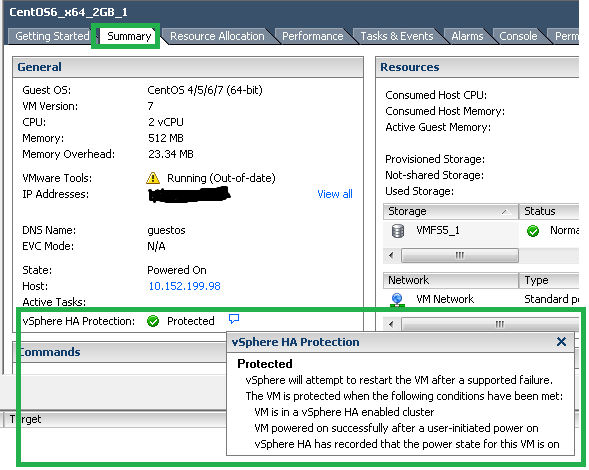
HA protected state

According to the VM summary, below condition should meet in order vCenter to report VM as HA protected.
– VM is in a vSphere HA enabled Cluster.
– VM powered on successfully after a user-initiated power on.
– vSphere HA has recorded the power state for this VM is on.

Note that vSphere HA maintains one file called “Protectedlist” for all the VMs in HA enabled cluster in order to identify which VMs are protected. Below is sequence of steps takes place when we power on the VM in HA cluster.
1. When we power on VM from vCenter, vCenter informs ESXi host to power on the VM.
2. When VM is powered on, host informs vCenter that VM is powered ON.
3. vCenter then contacts vSphere HA master for making powered ON VM protected.
4. HA master makes entry into “ProtectedList” file which exhibits that Master is now responsible to restart the VM when there is failure.
5. Finally HA master informs vCenter that I have added the entry into “ProtectedList” file & then vCenter reports VM as HA protected in VI client as we see in above screenshot.

Original question “When VM restart priority & VM Monitoring are disabled, why does vCenter report as HA protected?” is still unanswered. Here is the answer:
Note that By design, “VM restart priority” and “VM monitoring” settings are orthogonal to vSphere HA protection. vSphere HA protection state has nothing to with restart priority and VM monitoring settings, no matter these settings are enabled or disabled. Now one more question arises i.e. is it possible that HA removes VM from protectedList when we disable either or both settings (i.e. VM restart priority & VM monitoring)? Diplomatic answer is :It depends. We will see sequence of actions that HA takes on VM protected state when we disable either or both of these settings in case of failure.

1. if VM restart priority is disabled & VM monitoring is enabled:
-Host is up and VM is up, vSphere HA will keep VM in protected list.
-When ESXi host fails, VM can not be restarted on other available host. Even If failed host comes back, still VM will not be restarted, it will be powered OFF and now vSphere HA will remove that VM from protected list.
-When Guest OS fails (ex. BSOD), HA will reset that Guest on the same host and HA continue to keep in protected list. It shows that VM monitoring is orthogonal to restart priority as well.

2. if VM restart priority is disabled & VM monitoring is also disabled:
-Host is up and VM is up, vSphere HA will keep in protected list.
-When ESXi host fails, VM can not be restarted on other available host. Even If failed host comes back, still VM will not be restarted, it will be powered OFF and now vSphere HA will remove that VM from protected list.
-When Guest OS fails, HA can not restart that Guest OS on the same host but as VM itself does not have any issue (i.e. VM is ON but you can not access Guest), HA continue to keep that VM in protected list.

3.if VM restart prioriy is enabled & VM monitoring is disabled:
-Host is up and VM is up, vSphere HA will keep in protected list.
-When ESXi host fails, VM will be restarted on other available host, After restart, VM will be powered ON and HA continue to keep that VM in protected list
-When Guest OS fails, HA can not restart that Guest on the same host but as VM itself does not have any issue (VM is ON but you can not access Guest), HA continue to keep that VM in protected list.

There are 3 state of the VM from HA perspective, today’s post was focused on Protected VM state, there are 2 more i.e. unprotected and N/A, I will write another post later on additional two VM HA state.

Learn more on vSphere HA here

I hope you enjoyed this post. Please let me know if you have any additional doubts.

Tutorial PART II: How to access/navigate vCenter server or ESXi host Inventory using vSphere API

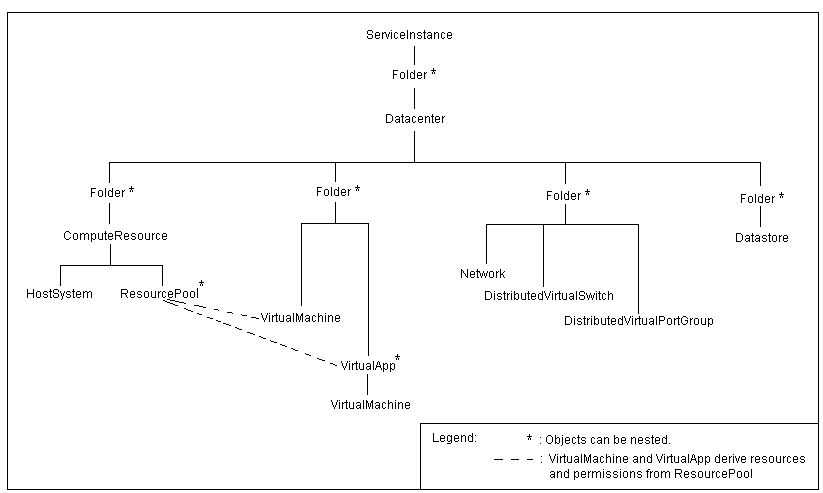
Before going to start this tutorial on how to access/navigate your vCenter server or ESXi inventory, lets see how do managed objects vCenter & ESXi hierarchy looks like.

Organization of managed objects in the vCenter inventory.
vCenter Managed object hireachy

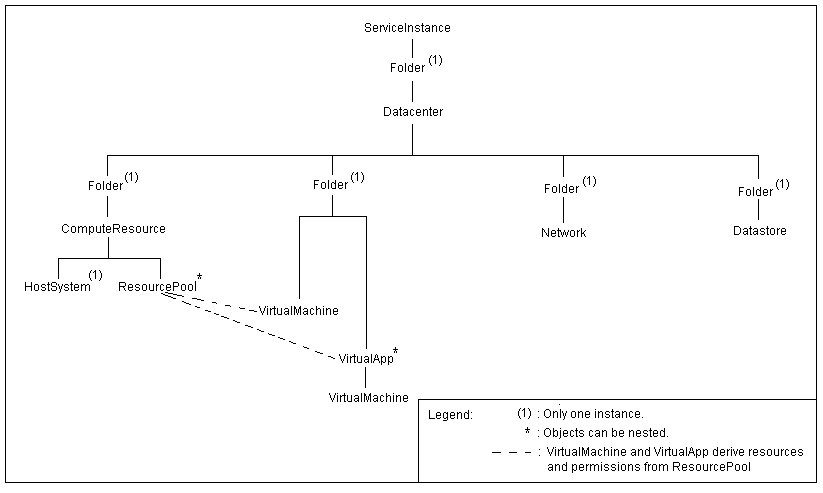
Organization of managed objects in the ESXi host inventory
ESXi Managed object hireachy

The host agent i.e. ESXi hierarchy has the same general form as the vCenter hierarchy, but most of the objects are limited to one instance. As you could see in both of these screenshots, ServiceInstance managed object is on top, hence first managed object we should create in our application is ServiceInstance. We have seen how to create ServiceInstance object in my Part I Tutorial on how to initialize connection with ESXi or vCenter. Now in part II, we will look into how to navigate/access your vCenter or ESXi inventory. Here we go.

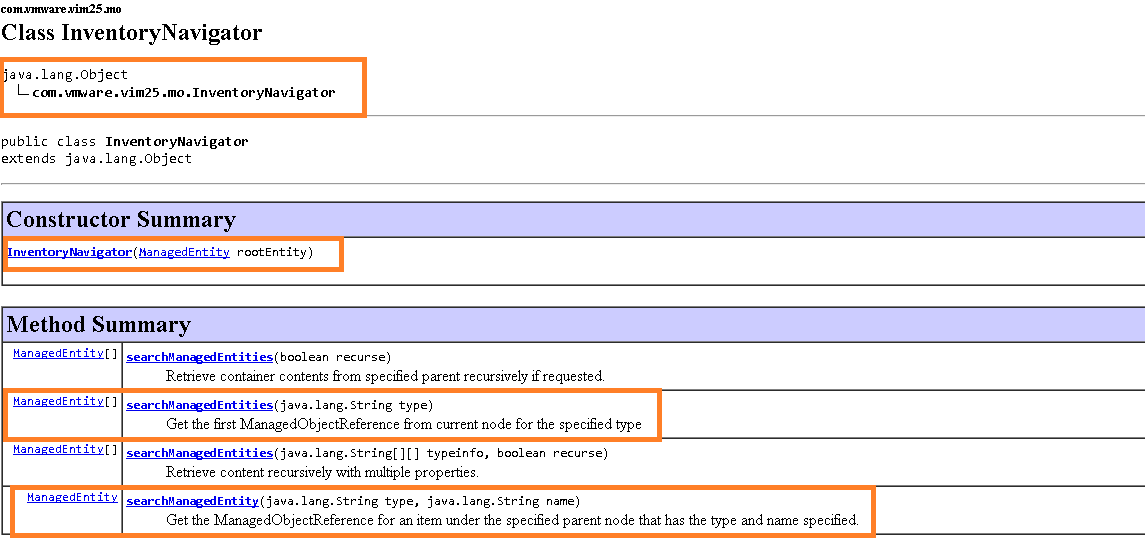
We can access/navigate all managed entities by leveraging “InventoryNavigator” class from VI JAVA. As part of this tutorial, we are interested in one constructor & two methods offered by this class. Please refer highlighted sections from below Javadoc screenshot.

Javadoc
Javadoc

Let us start accessing major managed objects in order to demonstrate the use of InventoryNavigator class from VI JAVA.

1.Datacenter: The Datacenter managed object is container object for ESXi hosts, VMs, networks & datastores.

[java]
package com.vmware.vijava;
import java.net.MalformedURLException;
import java.net.URL;
import java.rmi.RemoteException;
import com.vmware.vim25.InvalidProperty;
import com.vmware.vim25.RuntimeFault;
import com.vmware.vim25.mo.Datacenter;
import com.vmware.vim25.mo.Folder;
import com.vmware.vim25.mo.InventoryNavigator;
import com.vmware.vim25.mo.ManagedEntity;
import com.vmware.vim25.mo.ServiceInstance;
public class VCESXInventoryNavigator {
public static void main(String[] args) throws InvalidProperty,
RuntimeFault, RemoteException, MalformedURLException {
ServiceInstance si = new ServiceInstance(new URL("https://192.168.1.1/sdk"), "root", "vmw", true);
System.out.println(si);
String dcName = "IND-BLR";
Folder rootFolder = si.getRootFolder();
Datacenter datacenter = null;
datacenter = (Datacenter) new InventoryNavigator(rootFolder).searchManagedEntity("Datacenter", dcName);
System.out.println("Data center Name::" + datacenter.getName());
ManagedEntity[] dcenters = new InventoryNavigator(rootFolder).searchManagedEntities("Datacenter");
System.out.println("Number of Datacenters in vCenter::" + dcenters.length);
}
}
[/java]

Line 15: It is ServiceInstance object creation which is top object in hierarchy. We learned this object in PART I of this tutorial
Line 18: This is the object creation for rootFolder, which would be passed as parameter in InventoryNavigator class constructor, refer JAVADOC screenshot posted above.
Line 20: Here we are accessing single datacenter managed entity object by passing existing vCenter datacenter name in searchManagedEntity() method of InventoryNavigator class. Once we get this object, we can access any other entities that come under datacenter such as hosts,VMs, datastores, networks etc.
Line 22: Here we get array of managed entity objects of all the datacenters available in vCenter Server. This gives us ability to play with all the objects across vCenter Server.
Learn more about Datacenter Managed object here

Similar to accessing datacenter managed entities the way we did above, below all snippets will give you idea on using searchManagedEntity() & searchManagedEntities() methods for accessing hosts, clusters, datastores from single ESXi or across vCenter Server.

2. HostSystem: The HostSystem managed object type provides access to a virtualization host platform i.e. ESXi

[java]
package com.vmware.vijava;
import java.net.MalformedURLException;
import java.net.URL;
import java.rmi.RemoteException;
import com.vmware.vim25.InvalidProperty;
import com.vmware.vim25.RuntimeFault;
import com.vmware.vim25.mo.Folder;
import com.vmware.vim25.mo.HostSystem;
import com.vmware.vim25.mo.InventoryNavigator;
import com.vmware.vim25.mo.ManagedEntity;
import com.vmware.vim25.mo.ServiceInstance;
public class VCESXInventoryNavigator {
public static void main(String[] args) throws InvalidProperty,
RuntimeFault, RemoteException, MalformedURLException {
ServiceInstance si = new ServiceInstance(new URL("https://192.168.1.1/sdk"), "root", "vmw", true);
System.out.println(si);
String hostName = "10.192.34.2";
Folder rootFolder = si.getRootFolder();
HostSystem host = null;
host = (HostSystem) new InventoryNavigator(rootFolder).searchManagedEntity("HostSystem", hostName);
System.out.println("Host Name::" + host.getName());
ManagedEntity[] hosts = new InventoryNavigator(rootFolder).searchManagedEntities("HostSystem");
System.out.println("Number of hosts in vCenter ::" + hosts.length);
}
}
[/java]
Learn more about HostSystem Managed object here

3.ClusterComputeResource: This data object aggregates HostSystem objects into a single compute resource.

[java]
package com.vmware.vijava;
import java.net.MalformedURLException;
import java.net.URL;
import java.rmi.RemoteException;
import com.vmware.vim25.InvalidProperty;
import com.vmware.vim25.RuntimeFault;
import com.vmware.vim25.mo.ClusterComputeResource;
import com.vmware.vim25.mo.Folder;
import com.vmware.vim25.mo.InventoryNavigator;
import com.vmware.vim25.mo.ManagedEntity;
import com.vmware.vim25.mo.ServiceInstance;

public class VCESXInventoryNavigator {
public static void main(String[] args) throws InvalidProperty,
RuntimeFault, RemoteException, MalformedURLException {
ServiceInstance si = new ServiceInstance(new URL("https://192.168.1.1/sdk"), "root", "vmw", true);
System.out.println(si);
String hostName = "BLR-NTP";
Folder rootFolder = si.getRootFolder();
ClusterComputeResource cluster = null;
cluster = (ClusterComputeResource) new InventoryNavigator(rootFolder)
.searchManagedEntity("ClusterComputeResource", hostName);
System.out.println("Cluster Name::" + cluster.getName());
ManagedEntity[] clusters = new InventoryNavigator(rootFolder)
.searchManagedEntities("ClusterComputeResource");
System.out.println("Number of clusters in vCenter ::" + clusters.length);
}
}

[/java]
Learn more about ClusterComputeResource managed object here

4. Datastore: The Datastore managed object represents storage location for VMs.

[java]
package com.vmware.vijava;
import java.net.MalformedURLException;
import java.net.URL;
import java.rmi.RemoteException;
import com.vmware.vim25.InvalidProperty;
import com.vmware.vim25.RuntimeFault;
import com.vmware.vim25.mo.Datastore;
import com.vmware.vim25.mo.Folder;
import com.vmware.vim25.mo.InventoryNavigator;
import com.vmware.vim25.mo.ManagedEntity;
import com.vmware.vim25.mo.ServiceInstance;
public class VCESXInventoryNavigator {
public static void main(String[] args) throws InvalidProperty,
RuntimeFault, RemoteException, MalformedURLException {
ServiceInstance si = new ServiceInstance(new URL("https://192.168.1.1/sdk"), "root", "vmw", true);
System.out.println(si);
String DS = "VMFS_3";
Folder rootFolder = si.getRootFolder();
Datastore datastore = null;
datastore = (Datastore) new InventoryNavigator(rootFolder).searchManagedEntity("Datastore", DS);
System.out.println("Datastore Name::" + datastore.getName());
ManagedEntity[] datastores = new InventoryNavigator(rootFolder).searchManagedEntities("Datastore");
System.out.println("Number of datastores in vCenter ::"+ datastores.length);
}
}

[/java]

Learn more about Datastore data object here

In the same way you can navigate/access to many other managed objects & play around it.

Noteworthy points:
1. Note that “Datacenter”, “ClusterComputeResource” are vCenter inventory objects. Hence it makes sense to initialize connection with vCenter Server. At the same time, “HostSystem” & “Datastore” are applicable to both ESXi host or vCenter server. Overall, initialize connection with either server as applicable and play around it.
2. Due to above reason, InventoryNavigator class methods may work on ESXi but not on vCenter & some may work fine on vCenter but not on ESXi host.

I hope you enjoyed this tutorial, please provide your feedback & stay tuned for future blog posts on vSphere API.

References:
1. Getting started with vSphere API using VI JAVA
2. Tutorial Part I: Initialize connection with vCenter Server/ESXi
3.vSphere API reference

Tutorial PART-I :How to initialize connection with vCenter server or ESXi host using vSphere API

If you want to manage VMware Infrastructure efficiently, it is must that we should leverage vSphere APIs & automate admin tasks wherever possible.  When we start automating vSphere admin tasks, first question comes in mind that how to initialize connection with VMware vCenter Server or ESXi host using VI JAVA. Once we connect what is next? Next is how to navigate through the VMware ESXi host inventory or vCenter Server inventory & retrieve various inventory objects such as Datacenters, Clusters, Hosts, Virtual Machine etc. If you also have same queries then this tutorial is for you. Before getting into this tutorial in detail, please do make sure that you have already setup your Java Environment, if not, please refer my blog post on Getting Started with vSphere API. In part I of this tutorial, we will see how we can initialize the connection with VMware ESXi & vCenter. Let us start addressing first question

How to initialize the connection with VMware ESXi & vCenter Server.
vSphere API client application begins by connecting to a server & obtaining reference to “ServiceInstance”. ServiceInstance managed object is the singleton root object of the inventory on both vCenter and standalone ESXi host. In order to access VMware infrastructure objects such as Datacenters, Clusters, Hosts, Virtual Machine etc we first should create ServiceInstance managed object. Here we go.

[Java]
package com.vmware.vim25.mo.Samples.cluster;
import java.net.URL;
import com.vmware.vim25.mo.ServiceInstance;
public class VCESXInitializer {
public static void main(String[] args) throws Exception {
if (args.length != 3) {
System.out.println(“Usage: java SearchDatastore url ”
+ “username password”);
return;
}
ServiceInstance si = new ServiceInstance(new URL(args[0]), args[1],
args[2], true);
System.out.println(si);
}
}
[/Java]

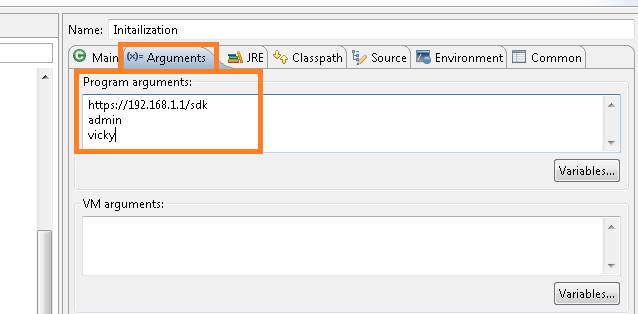
In above snippet, we need to pass 3 parameters from eclipse as shown in below screen shot
Program Argument
Note:You may be wondering on 4th parameter that we are passing in ServiceInstance, it is “IgnoreCert” boolean parameter, at the moment, we are just passing “TRUE”. I will write other blog post on when to care about SSL certificates while initializing connection. However note that even if we pass TRUE, all the communication with server is encrypted.

Alternatively we can create ServiceInstance object the way shown below & use it wherever required.

[java]
package com.vmware.vim25.mo.Samples.cluster;
import java.net.MalformedURLException;
import java.net.URL;
import java.rmi.RemoteException;
import com.vmware.vim25.mo.ServiceInstance;
public class VCESXInitializer {
public ServiceInstance initialization() throws RemoteException,
MalformedURLException {

ServiceInstance si = new ServiceInstance(new URL(
"https://192.168.1.1/sdk"), "username", "password", true);
return si;
}
}
[/java]
Note:IP address that we PASS as parameter can be of ESXi host or vCenter server, if you want to deal with just standalone ESXi host, then just pass ESXi IP address, otherwise, pass vCenter Server IP.
Creating ServiceInstance object is just 1 liner code, is not it too simple? Once we get ServiceInstance Object, we can access/navigate to all the VMware ESXi or vCenter Server objects.

Please stay tuned for my next tutorial on navigating various VMware Infrastructure objects such as Datacenter, Hosts, Resource pools, Virtual Machines etc.

To learn more on ServiceInstance managed object & lot: Refer: ServiceInstance Managed object API reference

How to get Datastore Summary for all data-stores connected to a ESXi host using vSphere API

This post is motivated by this VMTN thread , also I wanted to start with small tutorials on vSphere APIs using JAVA, I thought lets start with answering this query which can cover tutorial on DatastoreSummary data object as well. I hope you have already setup your eclipse environment by referring my  Getting started  blog post. Here we go.

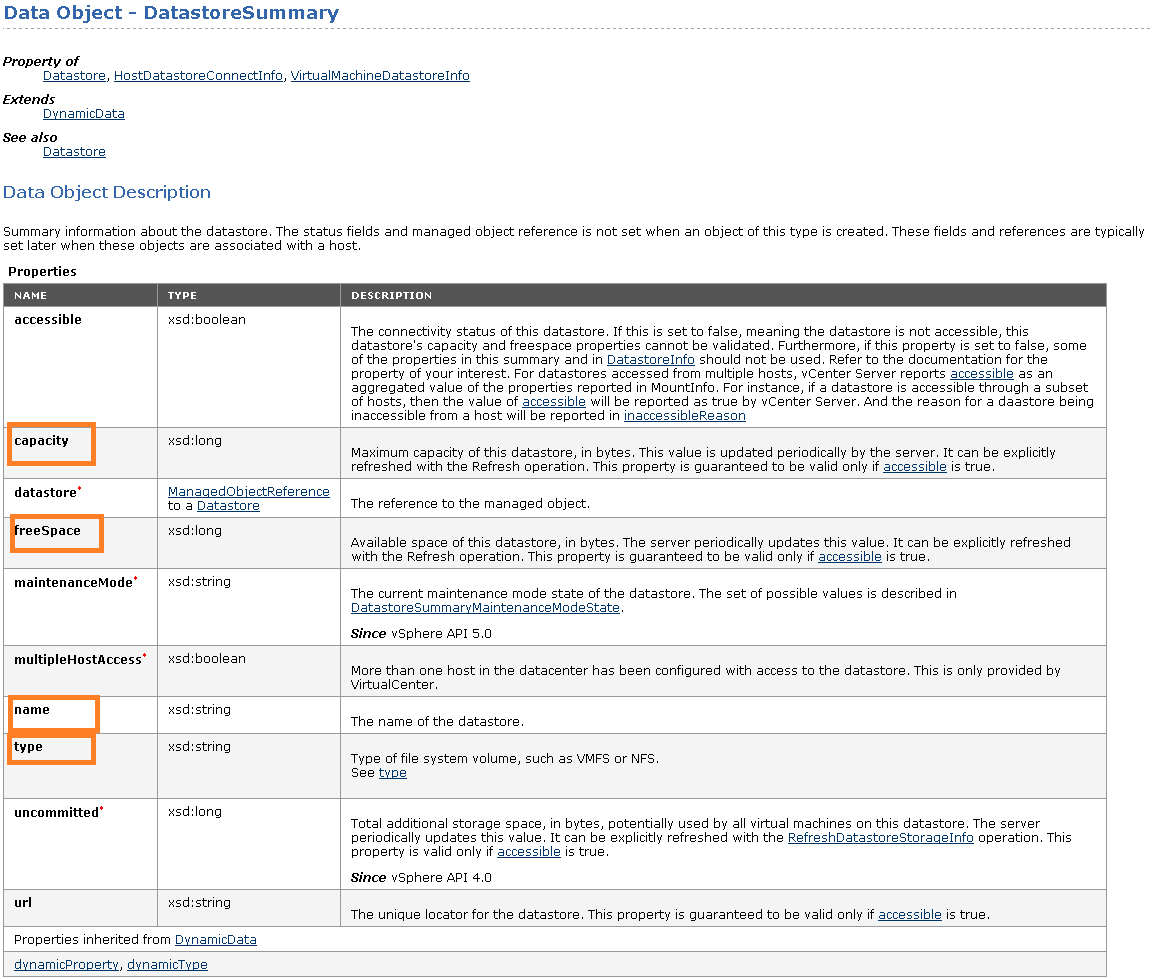
Query on VMTN was: How to get datastore type connected to ESXi programmatically using vSphere APIs. As datastore type is part of DatastoreSummary data object, lets see how to get datastore summary (Datastore Name, Datastore Type, Datastore Capacity, Datastore free capacity etc.)

DatastoreSummary Data Object Description:

Datastore Summary Data object description

Complete code :

[java]
package com.vmware.vim25.mo.Samples.cluster;
import java.net.URL;
import com.vmware.vim25.mo.Datastore;
import com.vmware.vim25.mo.Folder;
import com.vmware.vim25.mo.HostDatastoreBrowser;
import com.vmware.vim25.mo.HostSystem;
import com.vmware.vim25.mo.InventoryNavigator;
import com.vmware.vim25.mo.ServiceInstance;

public class DatastoreSummary {
public static void main(String[] args) throws Exception {
if (args.length != 3) {
System.out.println("Usage: java SearchDatastore "
+ "username password");
return;
}

/*
* you need to pass 3 parameters
* 1. https://ESXi_IP/sdk
* 2. username
* 3. password
*/
ServiceInstance si = new ServiceInstance(new URL(args[0]), args[1],
args[2], true);
String hostname = "XYZ.vmware.com"; //Pass the FQDN i.e. DNS name of the ESXi host, ESXi host IP will not work
Folder rootFolder = si.getRootFolder();
HostSystem host = null;

host = (HostSystem) new InventoryNavigator(rootFolder)
.searchManagedEntity("HostSystem", hostname);

if (host == null) {
System.out.println("Host not found");
si.getServerConnection().logout();
return;
}

HostDatastoreBrowser hdb = host.getDatastoreBrowser();

System.out.println("Datastore Summary connected to ESXi host");
System.out.println();
Datastore[] ds = hdb.getDatastores();

for (int i = 0; ds != null && i < ds.length; i++) {
System.out.println("DatastoreName:" + ds[i].getName() + " "
+ "DSType:" + ds[i].getSummary().getType() + " "
+ "TotalCapacity(in GB):"
+ (ds[i].getSummary().getCapacity()) / (1024 * 1024 * 1024)
+ " " + "FreeSpace (in GB): "
+ (ds[i].getSummary().getFreeSpace())
/ (1024 * 1024 * 1024) + " ");
System.out.println();

}
si.getServerConnection().logout();
}
}

[/java]

Program Output::


Datastore Summary connected to host

DatastoreName:Local Datastore DSType:VMFS TotalCapacity(in GB):131 FreeSpace (in GB): 130

DatastoreName:Shared DS_3 DSType:VMFS TotalCapacity(in GB):24 FreeSpace (in GB): 8

DatastoreName:Shared DS_1 DSType:VMFS TotalCapacity(in GB):49 FreeSpace (in GB): 8

DatastoreName:Shared DS_4 DSType:VMFS TotalCapacity(in GB):49 FreeSpace (in GB): 13

DatastoreName:Shared DS_2 DSType:VMFS TotalCapacity(in GB):49 FreeSpace (in GB): 15

Compare output with datastore summary from VI client
Datastore summary

You could see output is matching with screenshot from VI client, is not it cool?

Refer: vSphere API reference documentation I highly recommend you to spend some time on getting familiarize with vSPhere API reference.

Stay tuned for more specific/basic tutorials. please let me know if you want specific tutorial on vSphere API

VMware released Bash code injection Vulnerability Express Patches for vCenter Server Virtual Appliance

VMware has just released Express patches on Bash code injection Vulnerability aka “ShellShock” for most of the VMware products. However, this post is focused on express patches @vCenter Server Virtual Appliance.

Note:Please do read KBs referred below carefully  corresponding to each express patch release which addresses  bash vulnerability. Also note that Bash code injection vulnerability does NOT affect Windows based vCenter server.

Express patch is released on each release lines i.e. 5.0.x, 5.1.x, 5.5.x

If you are running vCenter Server Appliance 5.0.x, vCenter Server Appliance 5.0 U3b addresses Bash vulnerability:
KB:vCenter Server Appliance 5.0 U3b KB

Download from here:vCenter server appliance 5.0 U3b (Scroll down to 5.0 U3b)

If you are running vCenter Server Appliance 5.1.x, vCenter Server Appliance 5.1 U2b addresses Bash vulnerability:
KB:vCenter Server Appliance 5.1 U2b KB

Download from here:vCenter Server Appliance 5.1 u2b (Scroll down to 5.1 U2b)

If you are running vCenter Server Appliance 5.5.x, vCenter Server Appliance 5.5 U2b addresses Bash vulnerability:
KB: vCenter Server Appliance 5.5 U2a KB

Download from here:vCenter Server Appliance 5.5 U2a (Scroll down to 5.5 U2a)

VMware KB on Bash bug assessment :VMware KB on Bash Code Injection Assessment

VMware Security Advisory on Bash bug :VMware Security Advisory (Here you can also get patch details @ other VMware products)

How to quickly reproduce this bug (before applying the patch):

1. Login /SSH to the vCenter server virtual appliance  through Putty.

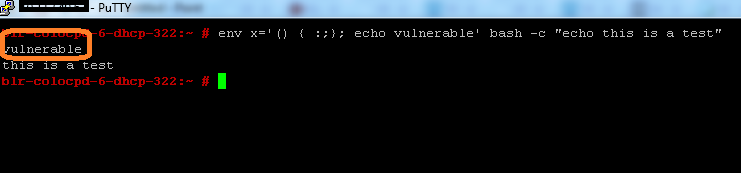
2. Run this bash script :”env x='() { :;}; echo vulnerable’ bash -c “echo this is test”. It should display output as follows :

Repro

You could see both “vulnerable & “this is test” are displayed as output.

How to quickly verify this bug (after applying the patch):

1.  Login /SSH to the vCenter server virtual appliance  through Putty.

2. Run same bash script :”env x='() { :;}; echo vulnerable’ bash -c “echo this is test”.It should display output as follows :Verification

You could see only “this is test” is displayed as output.  “vulnerable” should not be displayed with patch.

Learn more about Bash code injection:The Bash bug Explained