Category Archives: HOME

Crucial fixes on Storage DRS in VMware vCenter Server 5.5 U2 : Part-I

There are a couple of crucial bug fixes on Storage DRS (Storage Distributed Resource Scheduler) in vCenter Server 5.5 U2. I thought it is worth to have article on the same. Here we go on first fix.

Issue is as follows:

1. When Virtual Machine level backup is in progress, by design, backup vendors leverage 2 important VDDK( Virtual Disk Development Kit)  APIs in order to inform vCenter  managed host  about backup is in progress.

2. PrepareForAccess() VDDK API is used to disable storage vMotion operation on the VM to be backed & EndAccess() VDDK API is used to enable storage vMotion operation once the backup is over. Refer: VDDK APIs to disable_Enable storage vMotion

3. When VM is NOT managed by SDRS or when SDRS is disabled on VM to be backed, there was not any issue and vCenter was working as expected on disabling and enabling storage vMotion when VM level backup is in progress.

4. BUT when VM is managed by SDRS cluster & even though backup solution was successfully invoking PrepareForAccess() VDDK API to disable storage vMotion, SDRS was not honoring the disabled storage vMotion and it was automatically starting storage vMotion may be based on space/IO load , affinity rule constraints or Maintenance mode operations. Due to this, backup in progress for that VM was getting failed and orphaned virtual machine disks (VMDKs) were getting created in virtual machine folder. Note that SDRS will automatically apply the storage vMotion recommendations when set at Fully Automated mode.

5. Even manual storage vMotion was allowed for the VM to be backed up from VI client “Migrate” Option and Web client “Move to” Option. This was also leading to same issue.

Resolution :

When VM is managed by SDRS cluster, below are the scenarios in which VM can be storage vMotion to other datastore in SDRS cluster.

1. Manual storage migration scenario.

2. Enter SDRS maintenance mode scenario.

3. Scenario around initial placement.

4. All run time placement scenarios.

5. All scenarios around SDRS affinity/anti-affinity rules.

With the fix, in any of above scenarios , SDRS & you are NOT allowed to storage vMotion VM from a datastore to other datastore (inside or outside SDRS cluster) when backup is in progress. Now apart from backup, even though storage vMotion is disabled for some other purpose, SDRS& you are not allowed to storage vMotion the VM.

My testing:

Note: Instead of using actual backup solution, I directly used above specified VDDK APIs to disable/enable storage vMotion on the input VM as same APIs are being used by backup solutions.

  • I tested this fix and I could see fix is working perfectly fine with NO any issue. Here is where (refer below screen shot) you can verify whether storage vMotion is disabled or not using MOB i.e. Managed Object Browser. (Refer:How to navigate MOB)
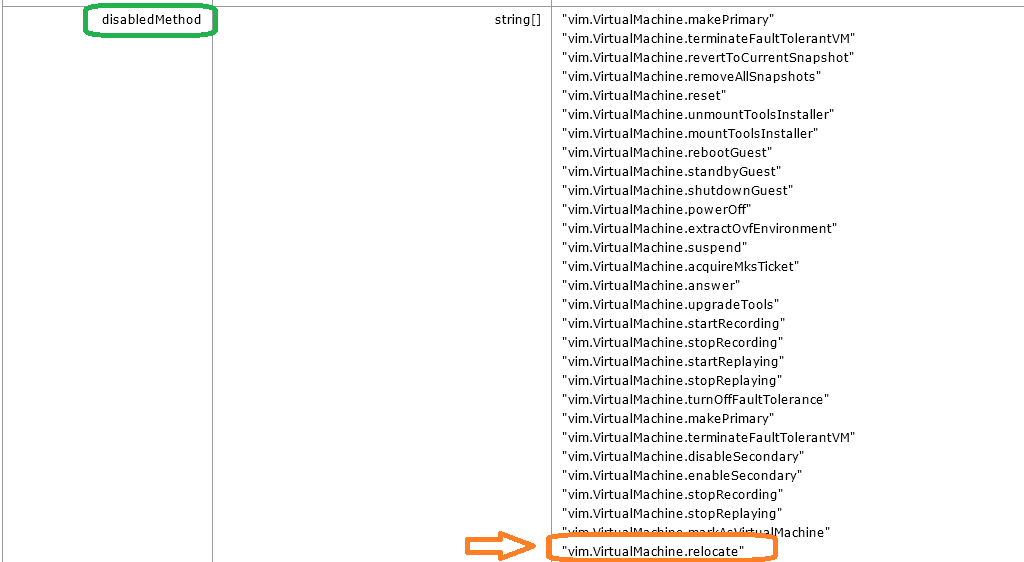
Disabled method from MOB

“vim.VirtualMachine.relocate” method is leveraged by storage vMotion.

  •   I tried putting datastore where VM is placed in maintenance mode (from SDRS cluster), I was not allowed to put DS in maintenance mode as expected. (Refer: below screenshot) SDRS maintenance mode
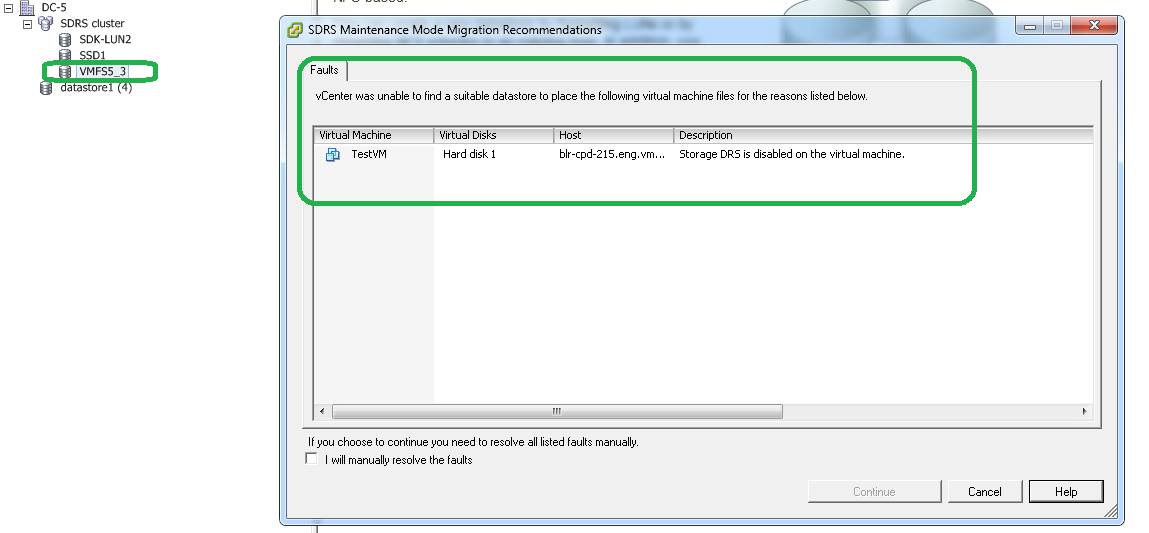
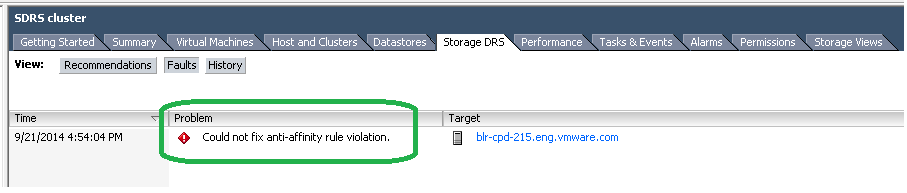
  • I added one more VMDK to the VM and created SDRS VMDK anti-affinity rule on VM which is being backed up. Ideally in order to satisfy  SDRS VMDK anti-affinity rule, one of VMDKs SDRS should storage vMotion to other datastore in SDRS cluster but SDRS throws fault as expected (refer: below screenshot)VMDK _Anti_affinity
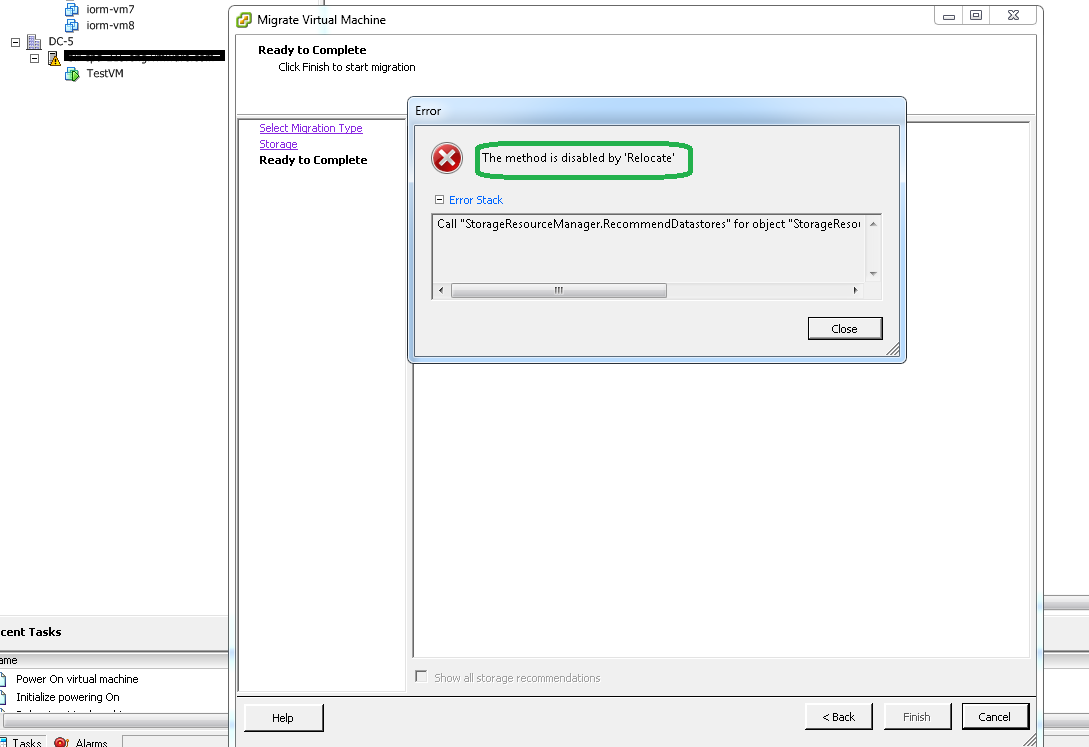
  • I tried manual storage vMotion of the VM to be backed up but my attempt failed as expected. (Refer: below screenshot)Manual Migration


If you want to avoid such issue in your environment, you will have to upgrade to vCenter server 5.5 U2 . Download :vCenter 5.5 U2

Great News for VMware users: vSphere 5.5 U2 C# client can edit VMs with Virtual HW Version 10

Since the vSphere 5.5 got released, all VMware users were facing one major pain point i.e. Editing VM settings for VMs with HW version 10 using C# client. This was one of the hot topics on VMTN community as well. Feedback from VMware users was really spot on & it forced VMware to seriously take this issue forward.  Yesterday vSphere 5.5 Update 2 got released & this pain point is addressed in vSphere 5.5 Update 2 C# client. (aka VI/Desktop/Thick client)

With older C# client when you try to edit VM with HW version 10 using VI client, it was prompting to use web client & was blocking users to manage VMs using VI client.

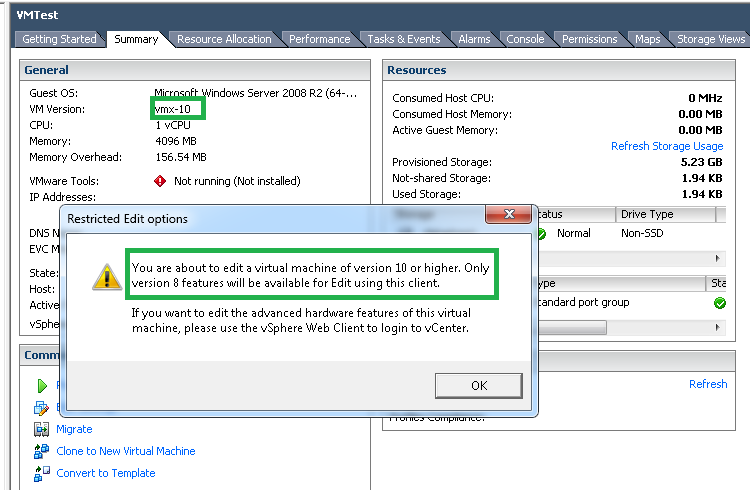
Now with vSphere 55 U2 VI client, when you try to edit VM with HW version 10 (Right click VM >> Edit settings), it shows below warning message

Edit settings_1

Above message shows that you only can edit features up to HW version 8 & to edit all new features you will have to use web client or you will have to edit new features by using vSphere APIs (VI Java, PowerCLI etc.).

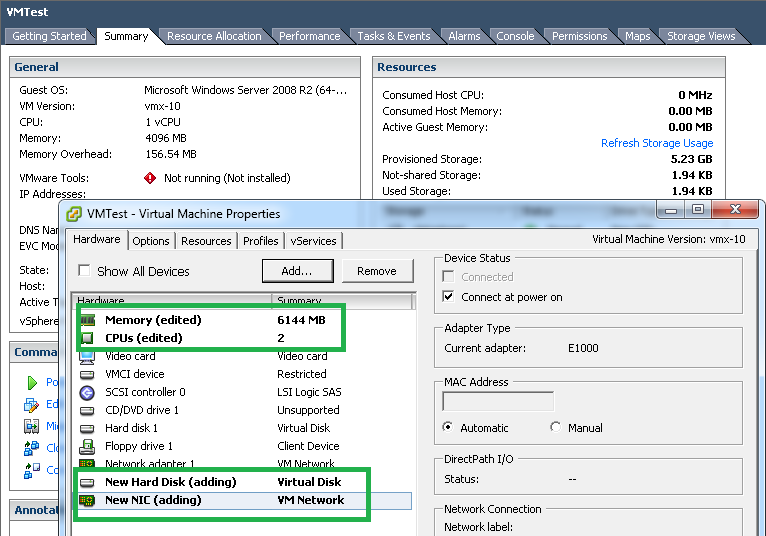
I just tried editing memory, cpu, network & disks as shown in below screenshot. It worked fine for me.Edit seetings_2

What are the pain points addressed by vSphere 5.5 U2 C# Client?

1. You can edit basic functionality of the HW version 10 VM using latest VI client  if vCenter server itself is down. When vCenter is down, web client would be down too.

2.  There are many customers with small VMware environment those do not want to spend additional cost on vCenter licenses just for web client. Now with this fix, they can use latest HW version & edit basic functionality of the VM as well using VI client by directly connecting to the ESXi host.

In order to leverage this VI client functionally immediately, you just need to upgrade older C# client to latest, you need not to upgrade all vCenter components immediately. You can plan upgrading other vCenter components as per your company policy/schedule.

Not sure whether new features will be supported on VI client in future releases, hope for the best BUT at the moment, I liked step in right direction by VMware on this issue. I am really happy, are you ?

Download latest C# client from here:vSphere 55 U2 C# Client

Getting started with vSphere API using VI Java

Recently I got introduced to VMware Infrastructure (aka vSphere) Java & I should say “VI Java is an incredible open source project  I have ever come across”. I am really humbled with the impact that Steve Jin’s contribution to the VMware community. I am sure this open source project is asset for thousands of VMware customers & partners. In the purview of the same, VI Java project inspired me to add “vSphere API” section in my blog. Under this section you can expect small utilities to manage your VMware environment which will be useful specially to most of the VMware administrators. Here we go with first post under “vSphere API” section. I am going to share how I got started with VI Java application development. i.e. Step by step tutorial on getting started with vSphere API using Java.

Update: VI Java project has now YAVI JAVA, please start using this guide to get started with YAVI JAVA instead of below steps. Since it supports vSphere 5.5 as well as vSphere 6.0 SDK, it is recommended to use YAVI JAVA. All the automation written using VI JAVA will work fine on YAVI JAVA.

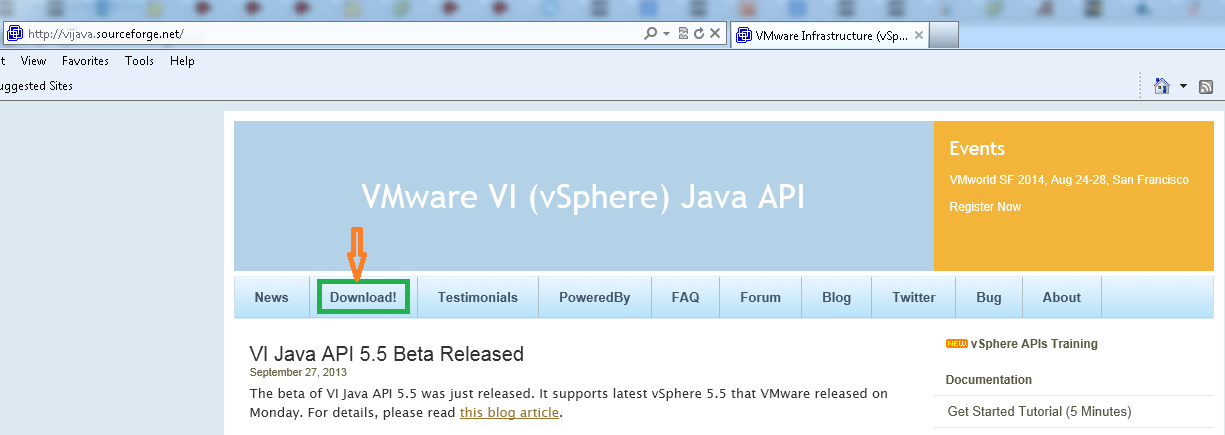
1. Goto VI java website Here. Click on “Download” tab on the top as shown in below screenshot.

VIJAVA_website_home_Page_1

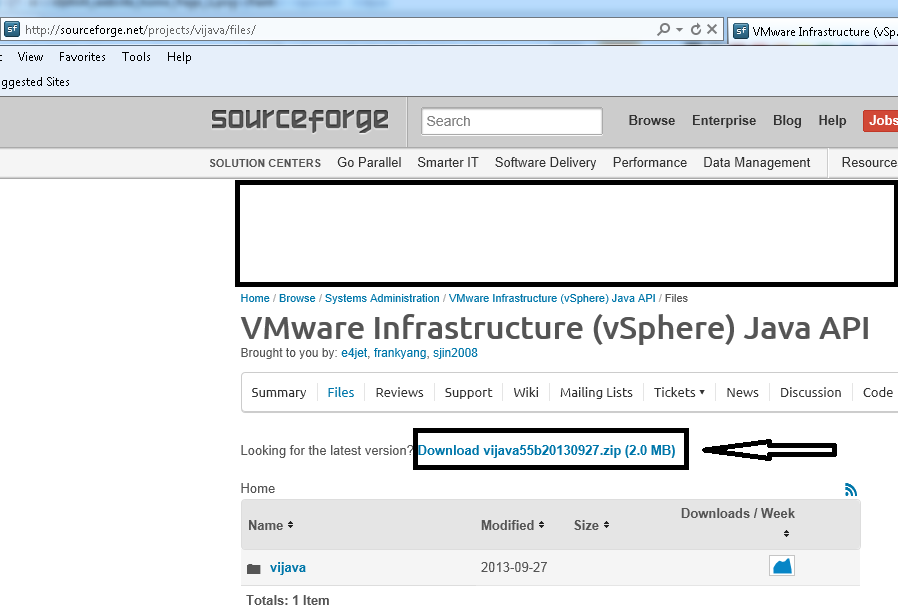
2. Click on the latest release as shown below. 

Download_2Note: For future releases Zip file name would be different. Just you need to download latest one

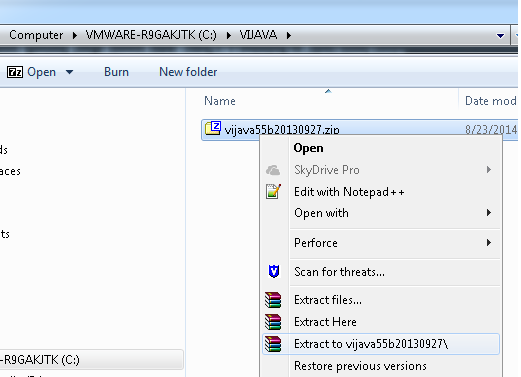
3.  Extract the downloaded file at any location of your choice.Extract ZIP_file

4. You should see below jar files inside extracted Zip file.

EXtracted_2files_4

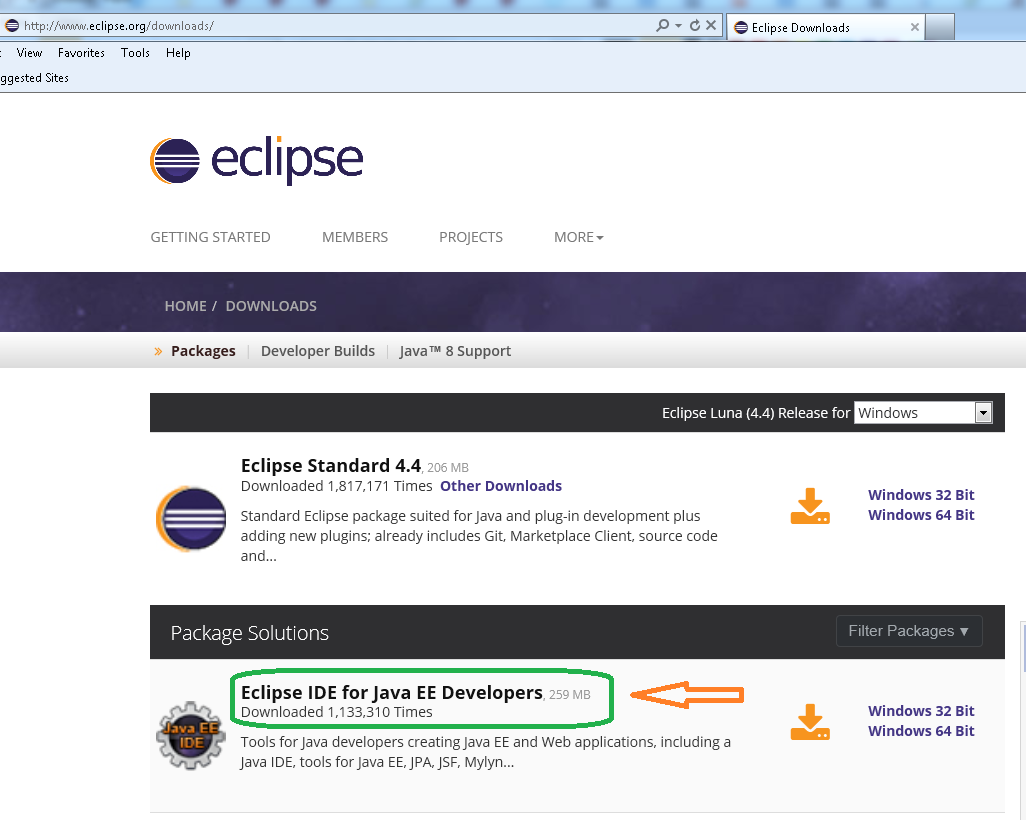
5. Now it is time to install Eclipse. Download eclipse from “https://www.eclipse.org/downloads” as shown below .Please make sure you have JDK/JRE 1.6 or higher

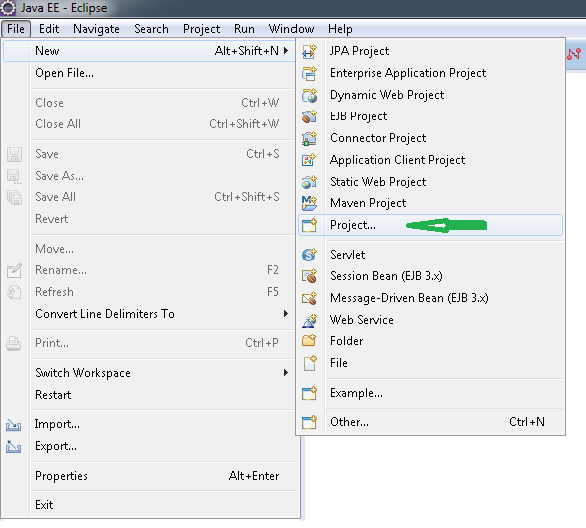
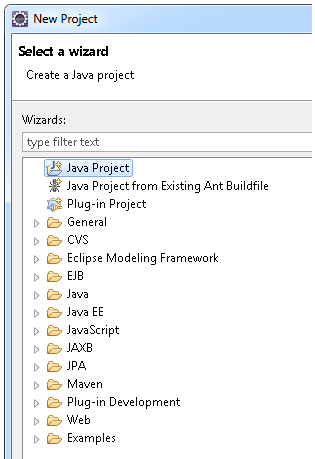
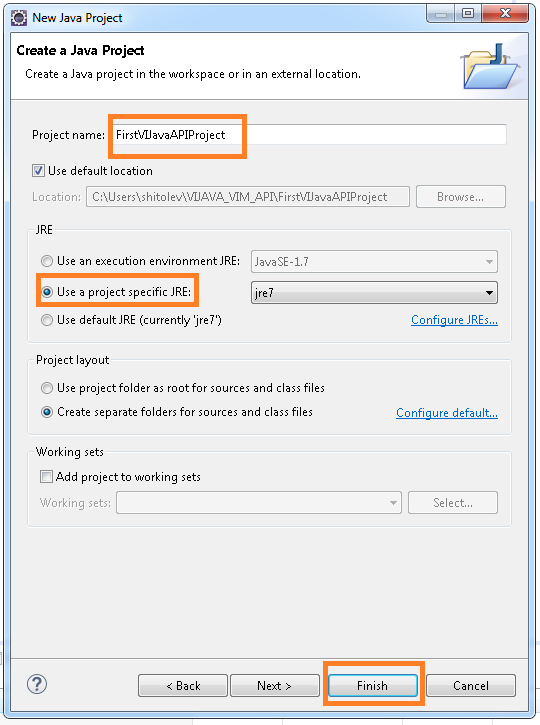
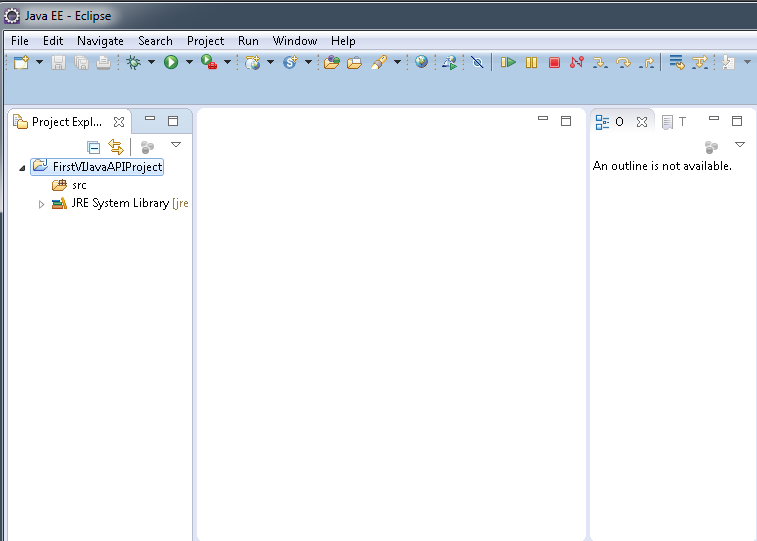
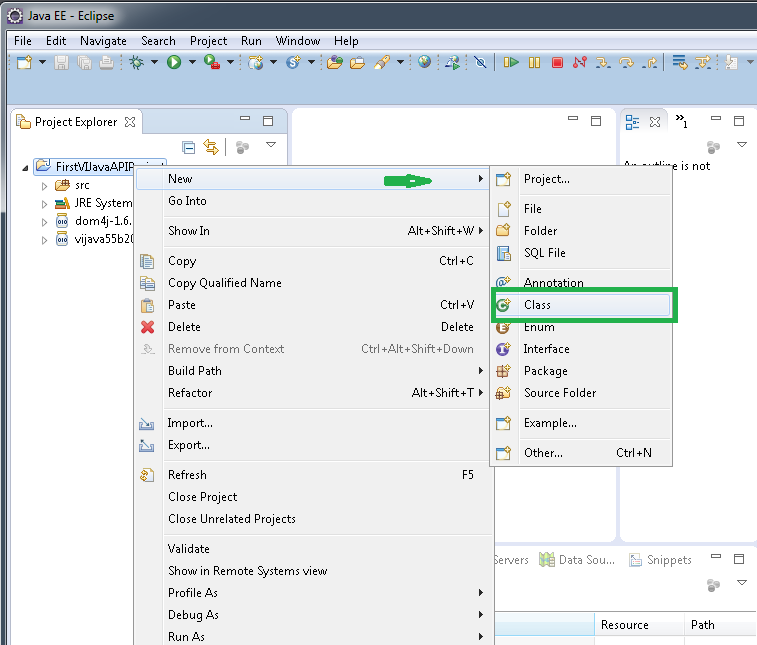
Eclipse download6. Create java project as shown below .

Create_Project_1Create_Project_2

Project_Create_3

Create_project_4

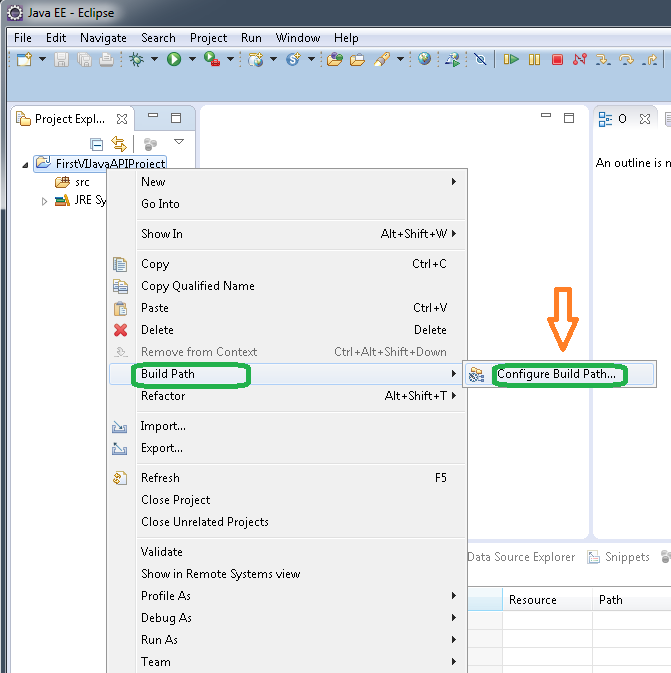
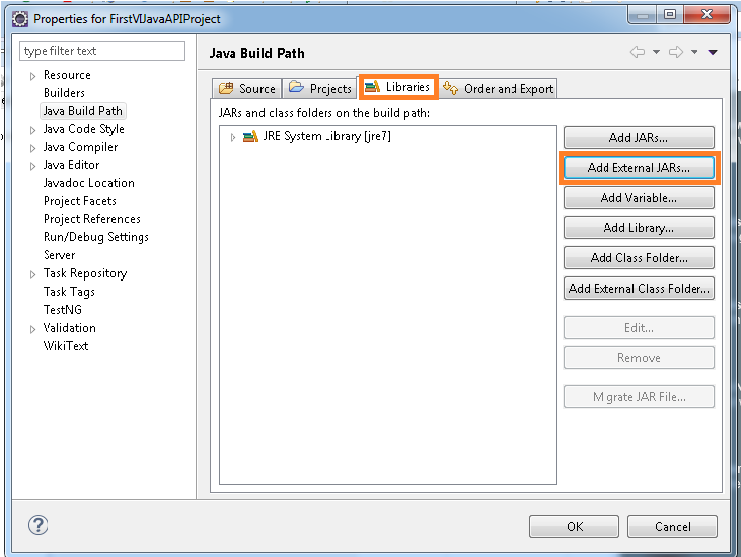
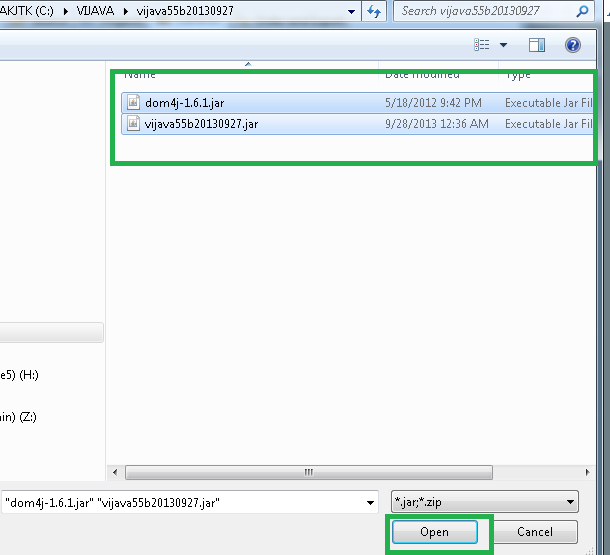
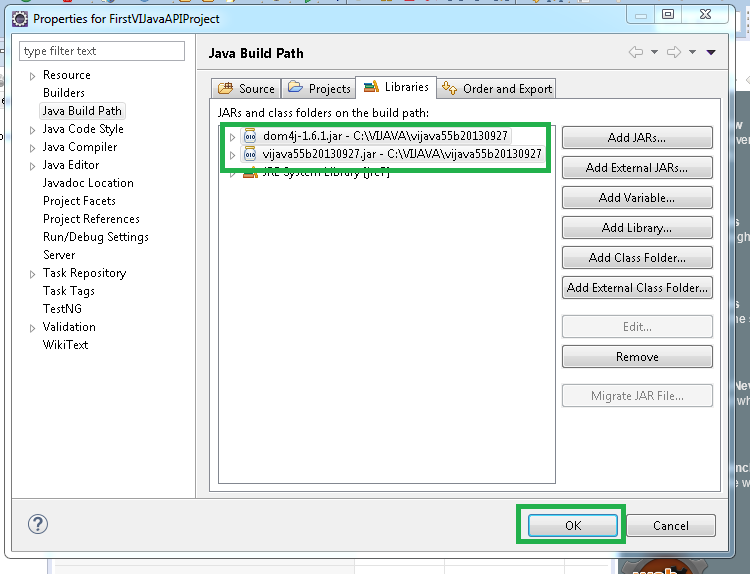
7. Configure the 2 jars files that were extracted above in step 5 as follows.

Create_project_5

Create_project_6

Create_project_7

Create_Project_8

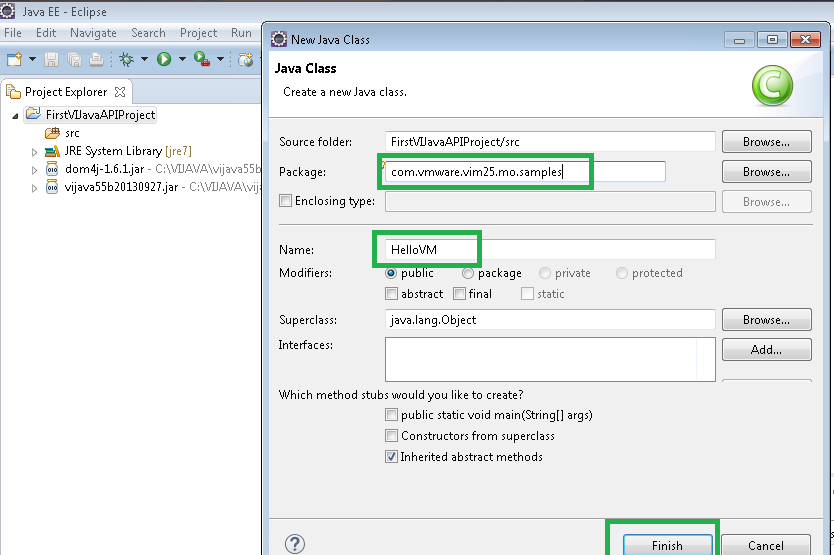
8. Create first java program “HelloVM.java” as follows: Download source code from here:HelloVM.java. (Source code originally written by Steve Jin). Add this source code in java class created below.

Create_project_9

Create_Project_10

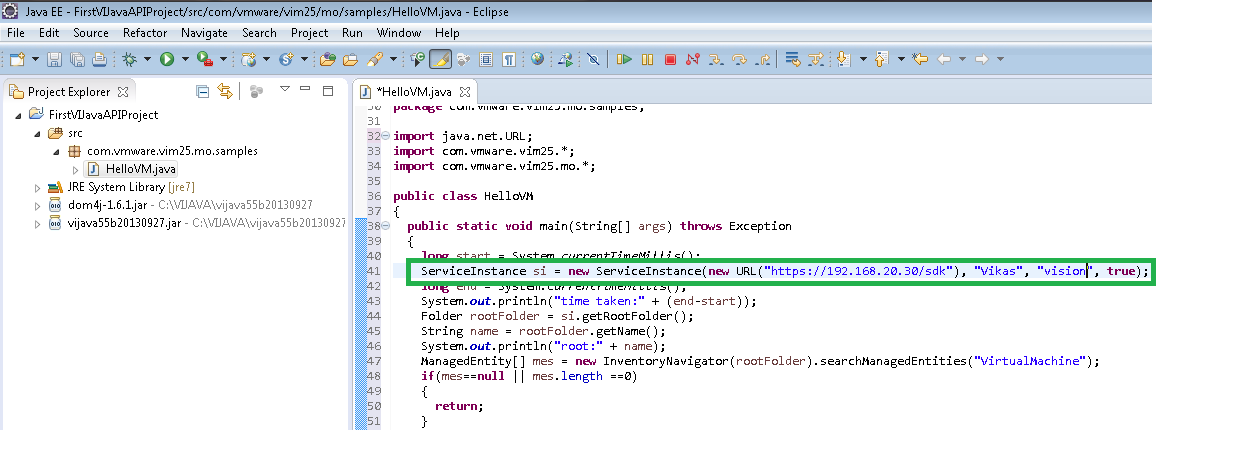
 9. You need to modify source code with vCenter IP, vCenter username & vCenter password as shown in below screenshot.

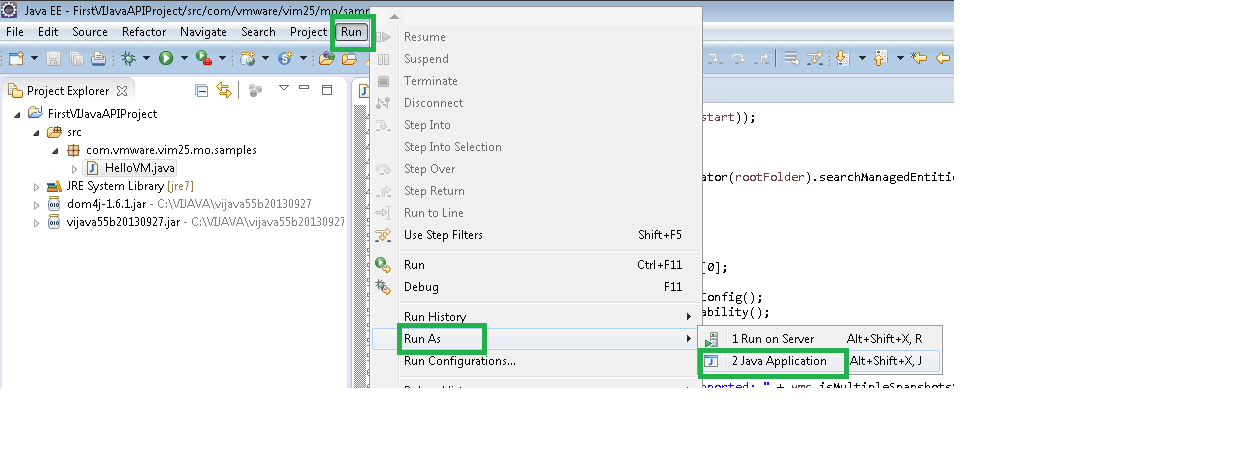
Create_project_1210. Run your first VI Java program as follows.

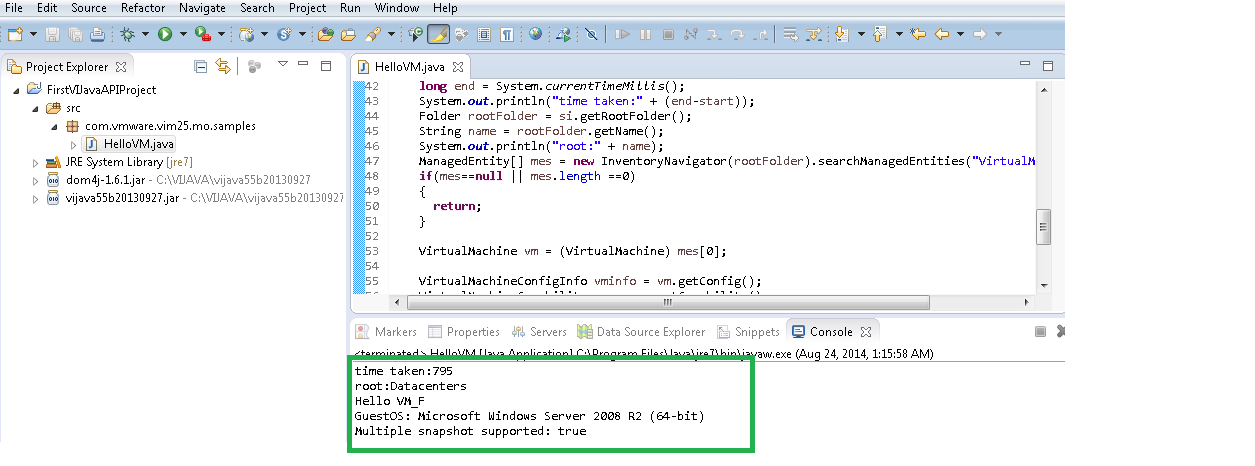
Create_project_13

Create_project_14

Great! Finally you got started with VI SDK and executed first VI SDK program. Stay tuned for more meaningful programs to manage your VMware environment.

Want to delete VMDK file containing sensitive data?

Couple of times, query was asked on VMTN “how to delete the content of VMDK file or what is the best practice to delete VMDK file securely so that it will be more difficult to recover the same content again. In the purview of the same, I thought it is worth to write blog post which explains E2E steps for the same.

This can be easily achieved using “vmkfstools” : It is vSphere CLI for managing VMware volumes . (Learn more about vmkfstools here). Here we go.

1. Power off or shutdown the VM.

2. Record the name of the “datastore” in which VMDK file to be deleted is available.

3.  SSH (through putty) to ESXi host where VM is available.

VMDK content deletion

4. Go to the directory where VMDK file available. i.e. “/vmfs/volumes/<data_store recorded=”” in=”” 1st=”” step=””>/#” . We need to zero out entire content of VMDK to be deleted.

5. run this command : /vmfs/volumes/<data_store recorded=”” in=”” 1st=”” step=””>/#vmkfstools -w <vmdk_file_name.vmdk>

6. Zeroing will start, once the zeroing is done, you can delete the VMDK straightway from VI client >>datastore OR by using vmkfstools itself with “-U” option. (Refer: Above screen for all the steps, I have deleted VMDK using vmkfstools itself)

Now, it will be very difficult to reconstruct the content of the VMDK from physical disk. is not it simple? Note that, this is a best practice to delete the VMDK file when VMDK content has sensitive/confidential data. If the VMDK content is not sensitive, deleting the VMDK directly would be sufficient.


is vSphere HA aware of DRS affinity rules?

Recently I was exploring vSphere HA interop with DRS affinity rules. It is quite interesting to know that as of vCenter server 5.5, how vSphere HA deals with various DRS affinity rules.

Here are the current DRS rules we can configure on the DRS cluster:
1. VM-VM affinity rule: This rule is intended to keep group of VMs together on single host.

2. VM-VM anti-affinity rule: This rule is intended to keep group of VMs away from each other all the time.

3. VM-Host affinity rule: This rule restricts to run a group of VMs on a group of Host. It is mean that, VMs in VM group should/must always be running on hosts in Host Group. This rule can be hard/must or soft/should rule.

4. VM-Host anti affinity rule: This rule is exactly opposite to above VM-Host Affinity rule. This rule does not allow  to  run a group of VMs on a group of Host. This rule can be hard/must or soft/should rule.

Now question is : whether vSphere HA aware of DRS affinity rules? Answer is “Yes”, as of vSphere 5.5, vSphere HA is aware of 2 DRS rules. Here are the rules those are honored by vSphere HA.

1 . VM-Host must affinity/anti-affinity rule

2.  VM-VM anti-affinity rule.

vSphere HA honors these rules, it is mean that, in case of host failure, if re-starting VMs on available host  leads to rule violation, vSphere HA will not re-start VMs those were on the failed host. vSphere HA will raise the error instead.

Example: Say , you have a HA-DRS enabled cluster of 2 hosts (H1, H2) & with 2 VMs (VM1-H1, VM2-H2) one on each host in powered on state. Now you configured VM-Host must affinity rule :HostGroup:H1 & VMGroup:VM1. It is mean that VM1 must always run on H1. Once you configure this rule, say, H1 host got failed. Now vSphere HA will try to restart the VM on H2 but as HA knows that VM-Host rule is configured, it will not restart the VM1 on H2.

It is important to note that, by default, VM-Host must affinity/anti-affinity is honored by vSphere HA. You just need to configure VM-host must affinity/anti-affinity rule but in order to make VM-VM anti-affinity rule vSphere HA aware, you will have to configure one HA advanced option “das.respectVmVmAntiAffinityRules” to true. (default value of this advanced option is false). I repeat this is a HA advanced option, not the DRS advanced option. You can configure this option from web client through this workflow (Cluster>>Manage>>vSphere HA>>Advanced option). However, you can configure this option from Desktop client as well.

It is also important to note that, even when DRS is disabled on cluster, HA continues to honor them. As per the current design, we can not disable these rules when DRS is disabled. Hence care must be taken while disabling DRS, you can disable these rule when you disable DRS or when you want to disable these rules, enable DRS for a while in conservative migration threshold mode & disable these rules.

As I specified earlier, in case of host failure, HA will not restart VMs if that is going to violate the configured rule. Hence, admin need be to very cautious while configuring these rules as these rule can have availability impact. These rules should be configured when it is absolutely required.